

Guests and users
You give access to your devices in two ways: to a user with a HAM account, or to a guest with no account.
| User | Guest | |
|---|---|---|
| HAM account | Yes, with their own e-mail | No |
| How they get in | With their e-mail and password | With a link or a QR code |
| Duration | Until you remove the access | Until the link expires |
| Sees | The devices that you share, at the level that you give | Only the devices that you share. No rules, data or account. |
| Limit | No limit | The guest allowance of the account |
A guest is good for a hotel room, a rented house or staff who need access for a few days.
Share with a user
Section titled “Share with a user”The other user needs a HAM account. On the device page, open the Access and Sharing section, type their e-mail and select an access level. The user gets an invitation and accepts it.
For all the steps and the access levels, see Share devices.
Guests
Section titled “Guests”Open the side menu. In the Account group, tap Guests.
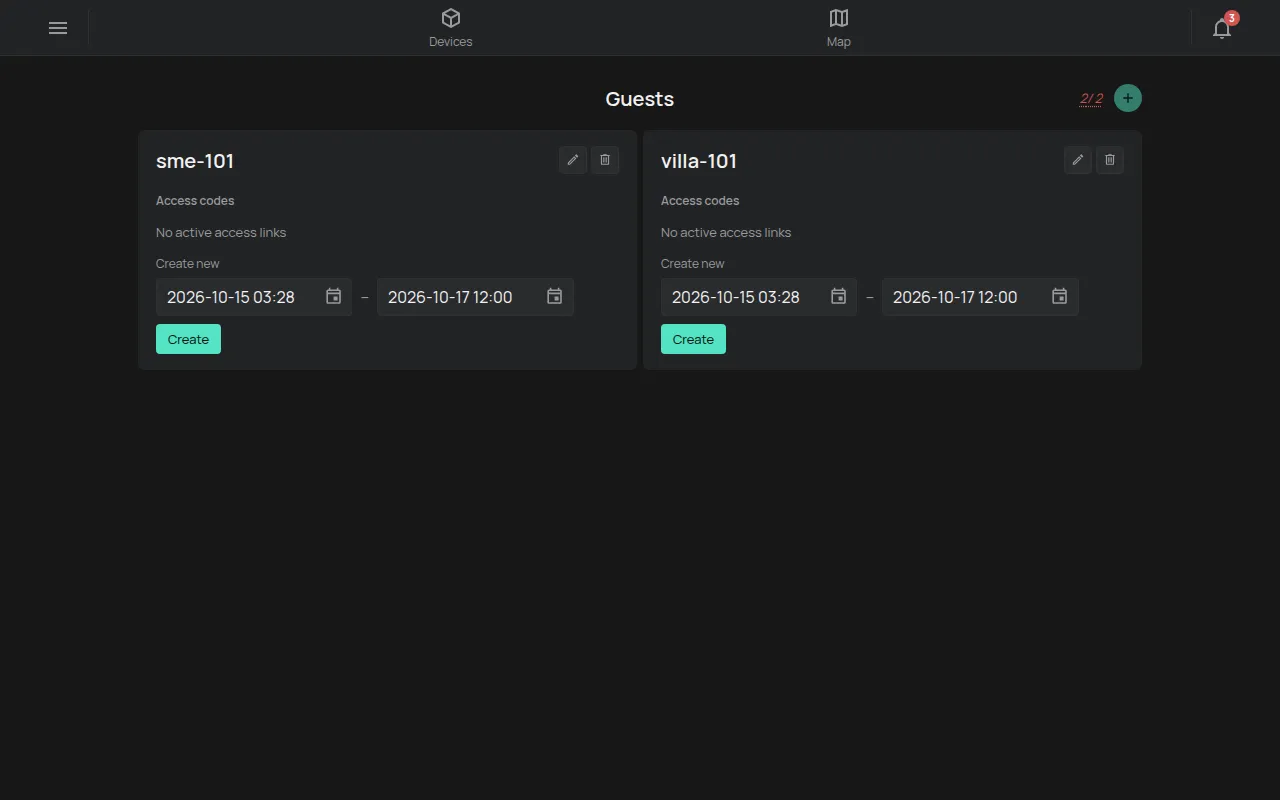
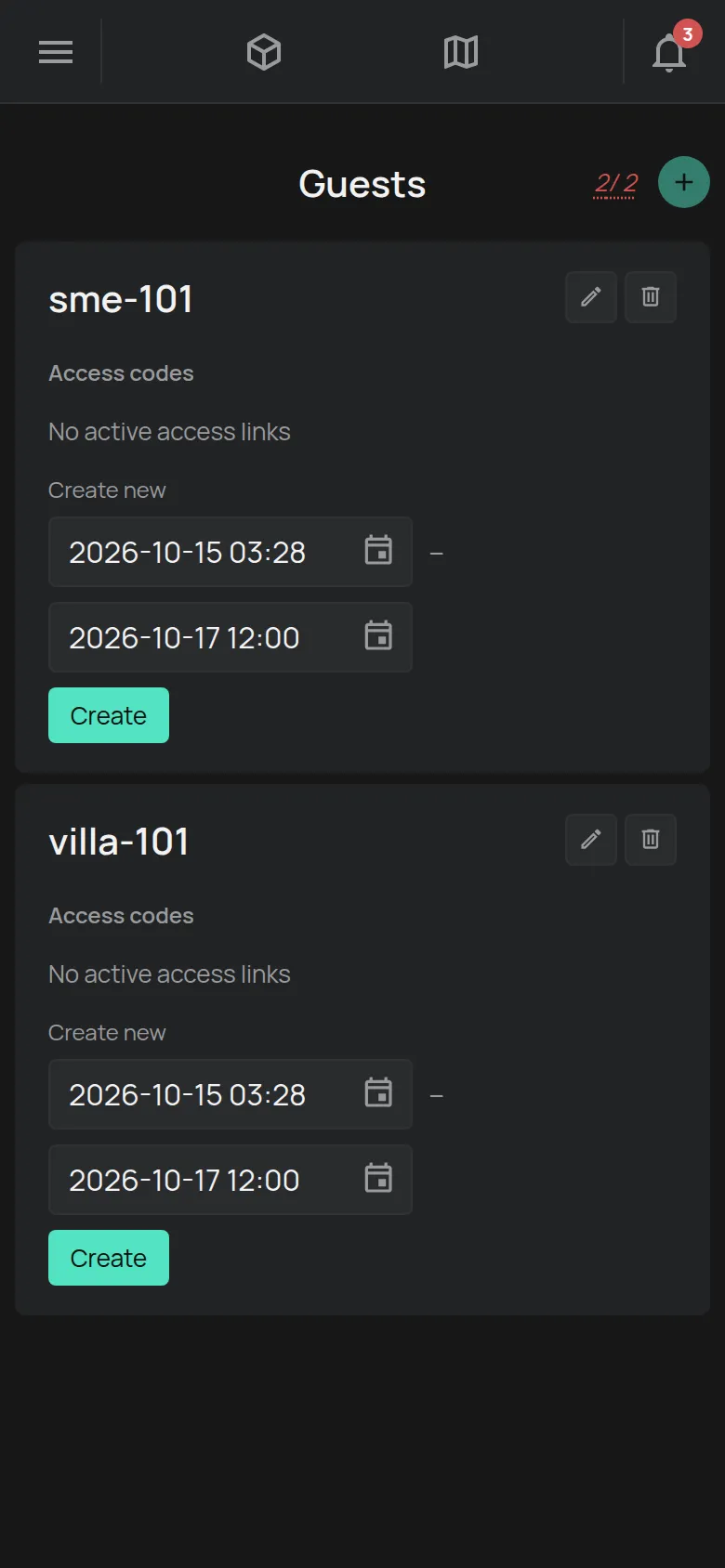
The counter next to the + shows how many guests you have out of how many you can have. See What is included for free.
1. Make the guest
Section titled “1. Make the guest”- On the Guests page, tap +. The Create new guest window opens.
- Type a name, for example the room number. The name has a maximum of 32 characters.
- Tap Create new guest. The guest shows in the list.
If the app shows Limit reached, delete a guest that you do not need. You can also buy a package.
2. Give devices to the guest
Section titled “2. Give devices to the guest”- Open the device that you want to give.
- Open the Access and Sharing section.
- In the Email / Guest name field, type the name of the guest.
- Select the access level. View allows only viewing. Control also allows control, for example to turn on a light.
- Tap Share.
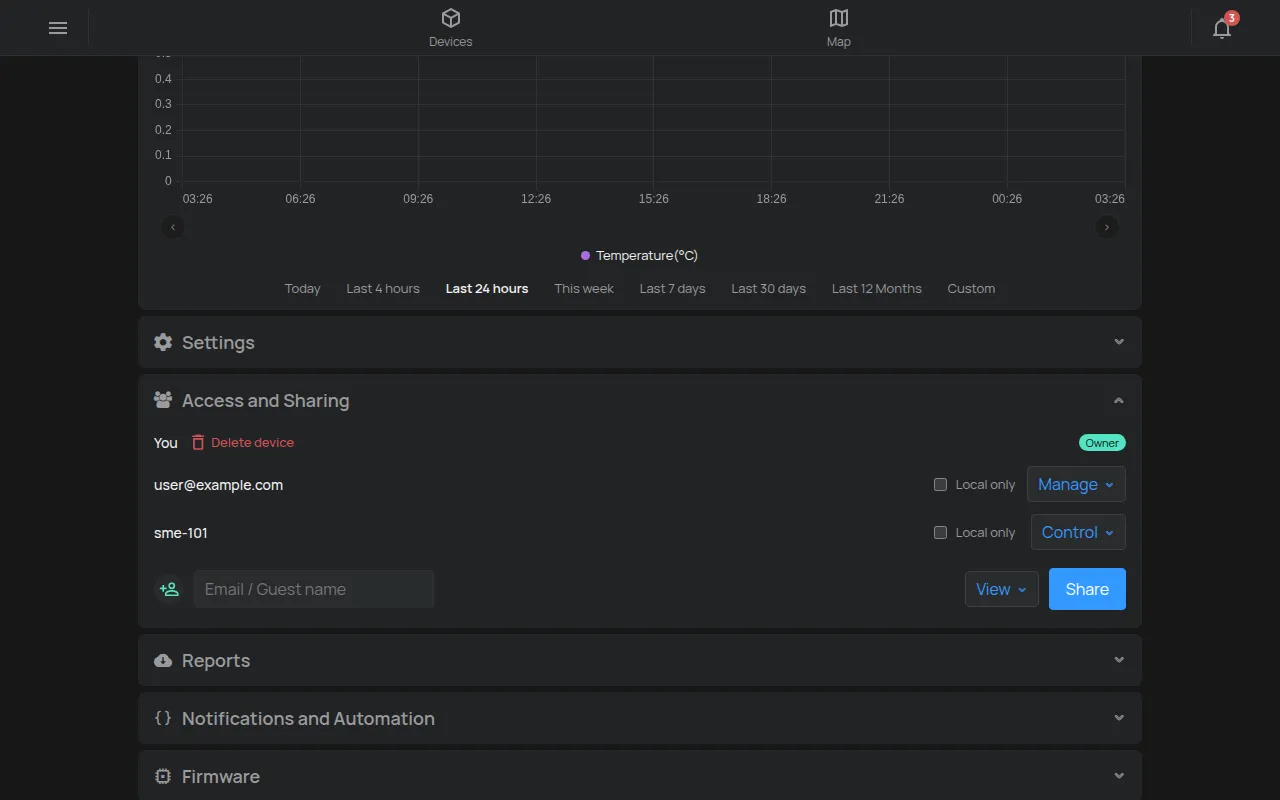
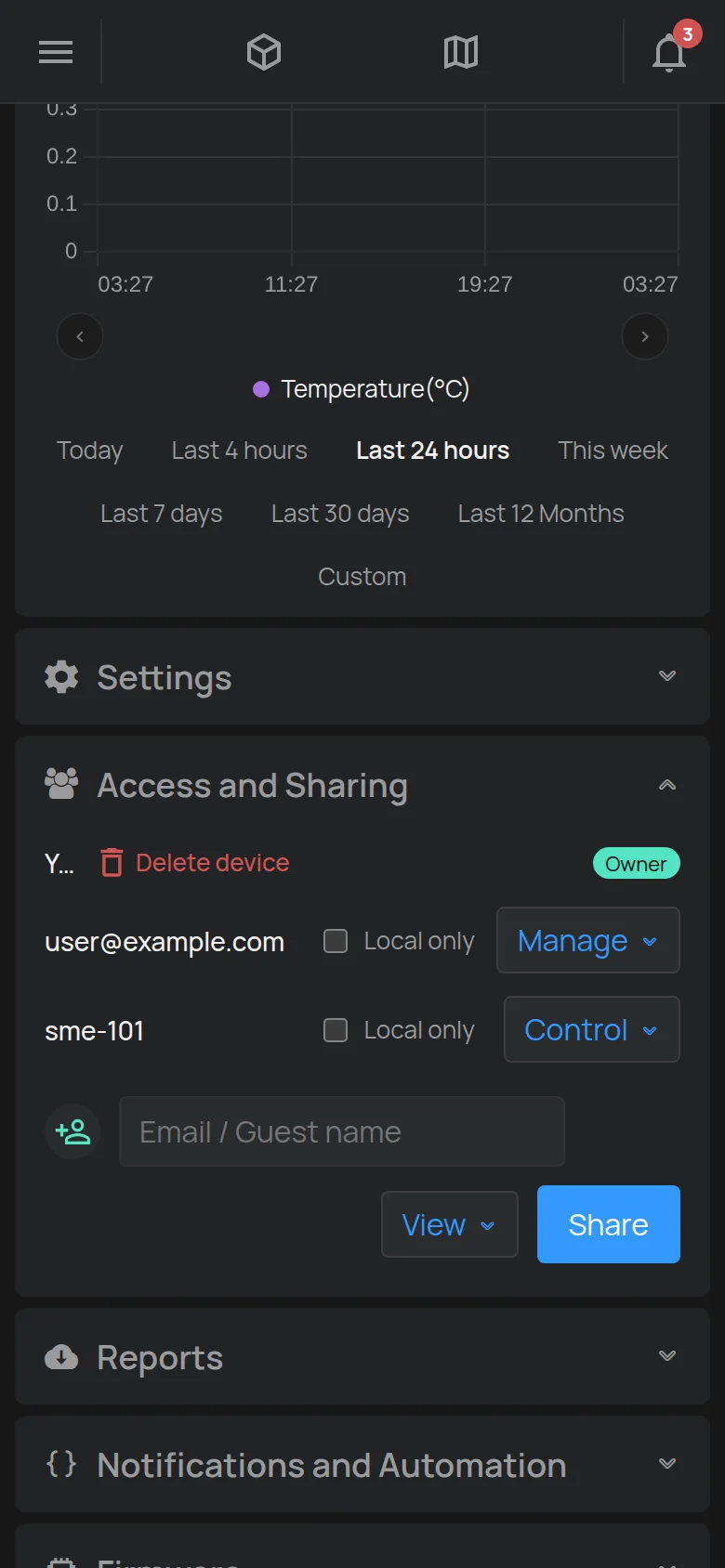
Do this again for each device.
3. Make the access link
Section titled “3. Make the access link”- On the Guests page, find the card of the guest.
- In Create new, set the start and the end of the link period. The default is from now until 12:00, two days later.
- Tap Create. The link shows under Access codes, with the time when it expires on.
4. Send the link
Section titled “4. Send the link”- Tap Copy link and send the link in a message.
- Or tap QR/Link to see a QR code. Tap Download to save it or print it.
The guest opens the link on their phone and sees the devices at once. They need no app, e-mail or password.
End the access
Section titled “End the access”The link stops working when it expires. To end the access earlier:
- On the card of the guest, tap Delete token next to the link. Confirm.
- Tap Logout guests. Confirm. All persons who already opened the link are logged out.
For the next guest in the same room, make a new link. The guest and its devices stay the same.
Change or delete a guest
Section titled “Change or delete a guest”Each guest card has two buttons at the top right:
- The pencil, Edit name, changes the name.
- The bin, Delete guest, deletes the guest. The app asks you to confirm.