

Schedules and timers
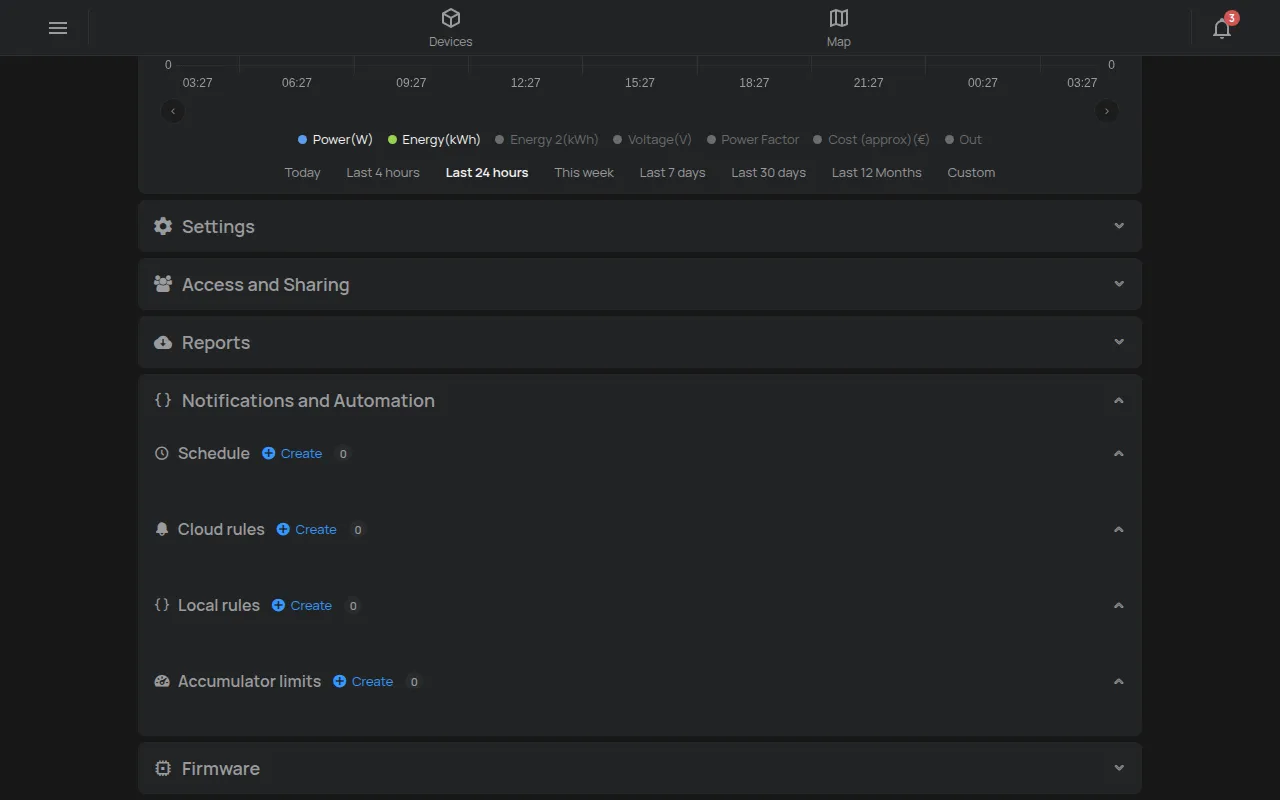
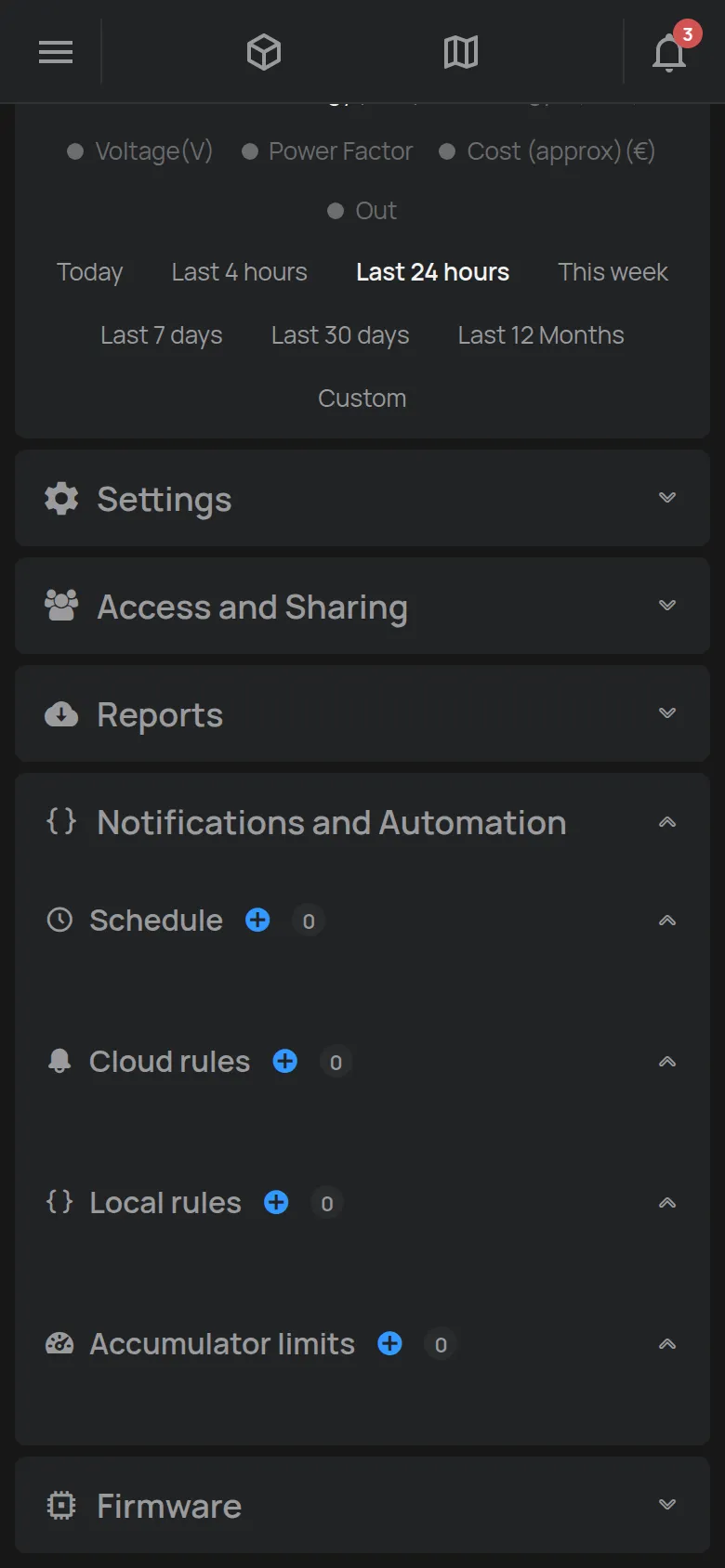
A schedule changes an output at a time that you set, once or repeatedly. The schedules are in the Notifications and Automation section of the device page, under Schedule.
You need:
- a device with outputs that supports schedules, for example HAM DinSwitchM,
- Manage or owner access to the device.
Create a schedule
Section titled “Create a schedule”- Open the device page.
- Open the Notifications and Automation section.
- In Schedule, click Create.
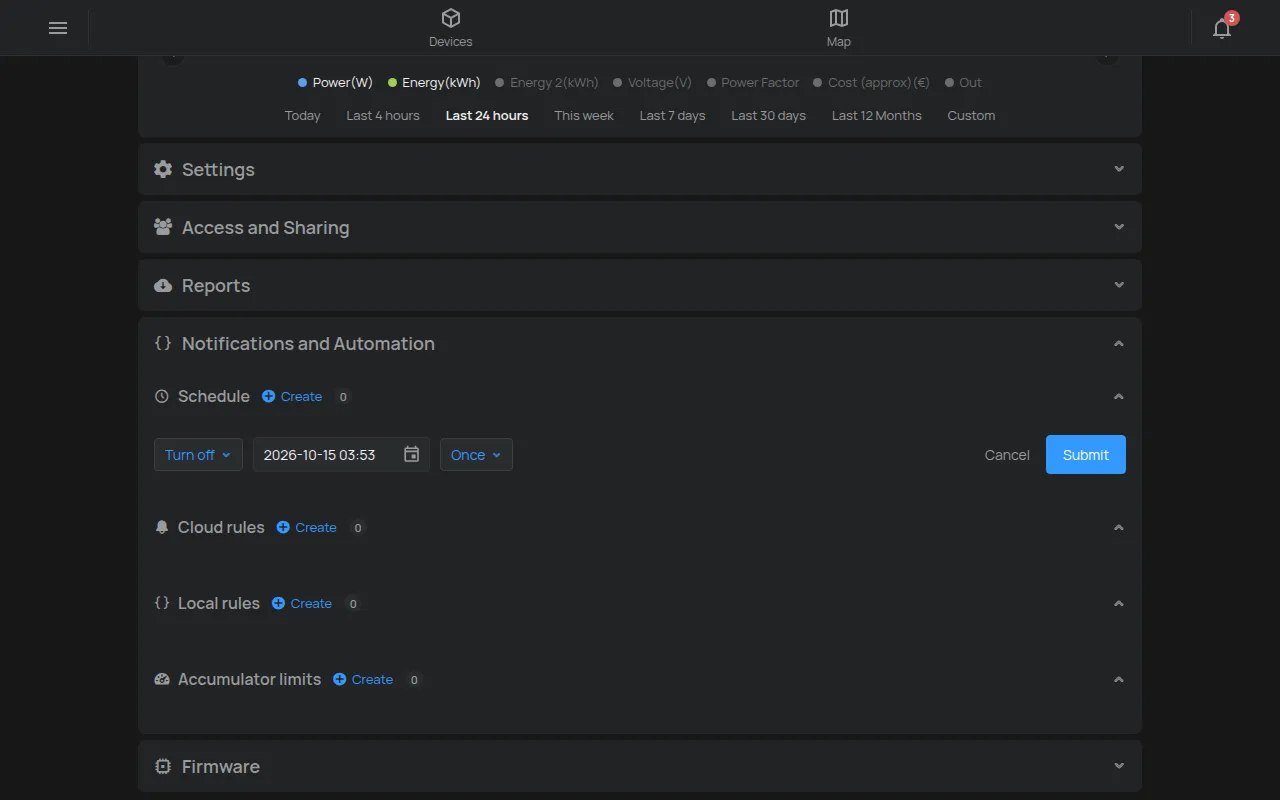
- If the device has many outputs, select the Output.
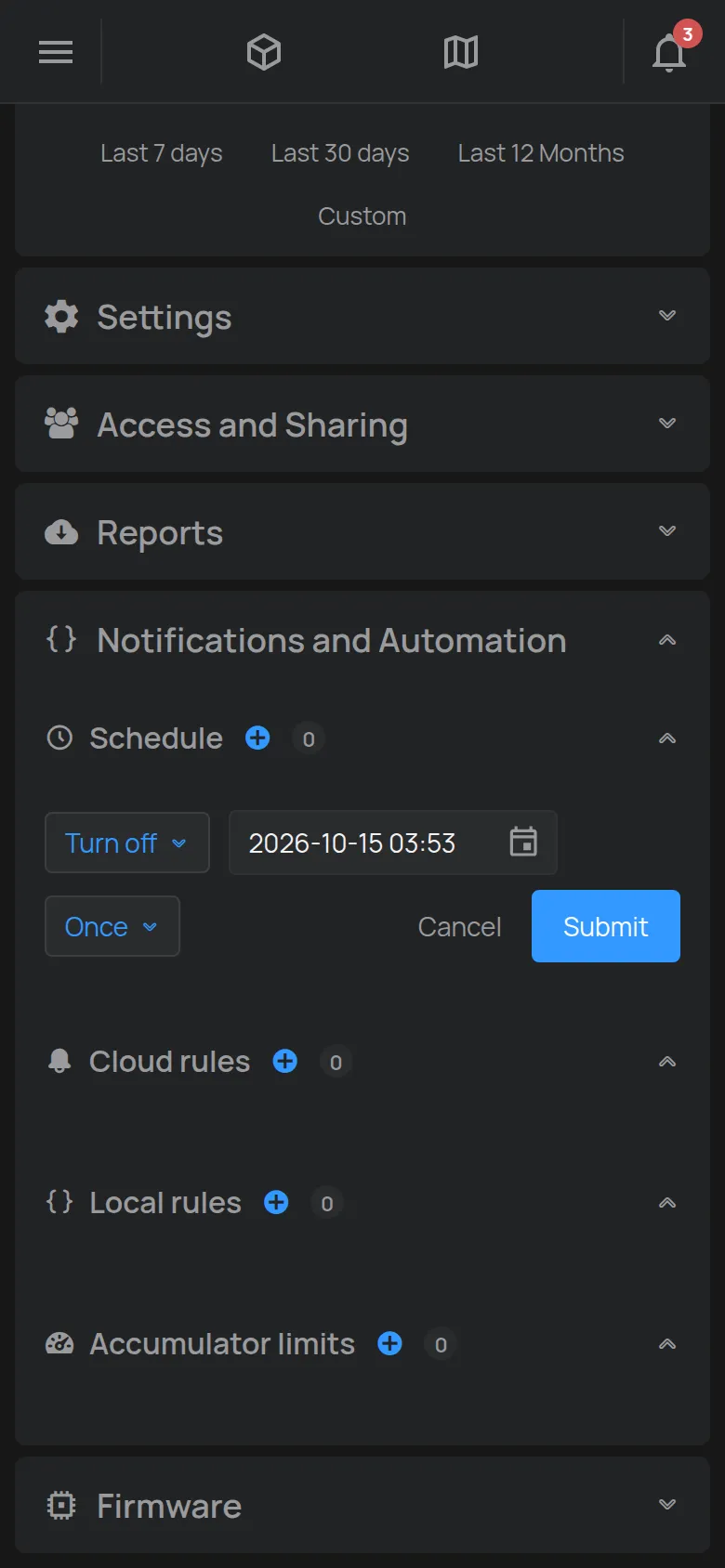
- Select the value of the output, for example on.
- In Start, select the date and the time.
- If you want the output to go back, select the time in until.
- Select the repeat.
- Click Submit.
The schedule shows in the list with the action, the output, the time and the repeat.
Repeat
Section titled “Repeat”- Once: the schedule runs only on the Start date.
- Weekly: select the days of the week.
- Every: the schedule repeats every set number of minutes, hours, days or weeks.
When the output turns off, the until field does not show.
Where the schedule runs
Section titled “Where the schedule runs”The device stores the schedules and runs them by itself, without the cloud. The device uses the time zone of the phone or computer that you used to save the schedule.
Each device has a limited number of schedule slots. When the slots are full, the Create button does not work.
Change or delete
Section titled “Change or delete”Each schedule has three buttons:
- Copy: copies the schedule to paste on another device.
- Edit: opens the form. Click Save to keep the changes.
- Delete: the app asks “Delete this schedule?”.
Copy schedules to other devices
Section titled “Copy schedules to other devices”- On the device with the schedules, click Copy all.
- Open the page of the other device.
- In Schedule, click Paste schedules.
- Confirm the question.
With Copy all, the paste replaces all the schedules of the other device. With Copy on one schedule, the paste adds it to the schedules that are already there.
To paste to many devices at the same time, use Select devices in the device list. Then click Paste schedules in the selection bar.
The paste does not work if the other device does not have the same outputs.
Schedules or rules
Section titled “Schedules or rules”A schedule changes an output at a time. A rule changes an output or sends an alert from a reading, for example when the temperature goes up. Rules can also have a time condition. See how rules work.
The same section also has the Recommended setups button. It shows ready ideas for the device, for example an auto turn-off or a schedule.