

Security
The HAM platform protects your devices and your data. You control some of the security settings. You find them below.
Device connection
Section titled “Device connection”- The device opens the connection to the server. It needs no inbound port and no port forwarding.
- The connection uses TLS with mutual authentication on port 9002. The device checks the server and the server checks the device.
- Each device has its own unique key from production.
- By default the device does not accept commands from the local network.
A firewall with SSL inspection breaks the mutual authentication. Then the device does not connect. See router settings.
The device key
Section titled “The device key”The label of the device has the device key. You use this key to add the device to your account. It is also the password of the WiFi network that the device opens during setup.
Keep the label safe. Do not publish a photo of it.
Device permissions
Section titled “Device permissions”The owner of a device shares it with other users. Each user gets a level:
| Level | What the user can do |
|---|---|
| View | See the readings and the history. |
| Control | Also control the outputs. |
| Manage | Also change the device settings. |
Use Revoke to remove the access of a user. See sharing devices.
The API, the WebSocket and MCP check the same permissions on each call.
API key and token
Section titled “API key and token”- The API key gives full access to your account. It does not expire.
- Each account has one API key. When you create a new key, the old key stops working immediately.
- An access token expires after 60 days.
Rules for the key:
- Do not put the key in code that runs in a browser.
- Do not put the key in a public code repository.
- If you think that someone else has the key, create a new key.
See REST API.
Support access
Section titled “Support access”The Allow support access setting is on the Account page. By default it is off. When you turn it on, HAM Systems can access your account to give support. Turn it off when the support work is complete.
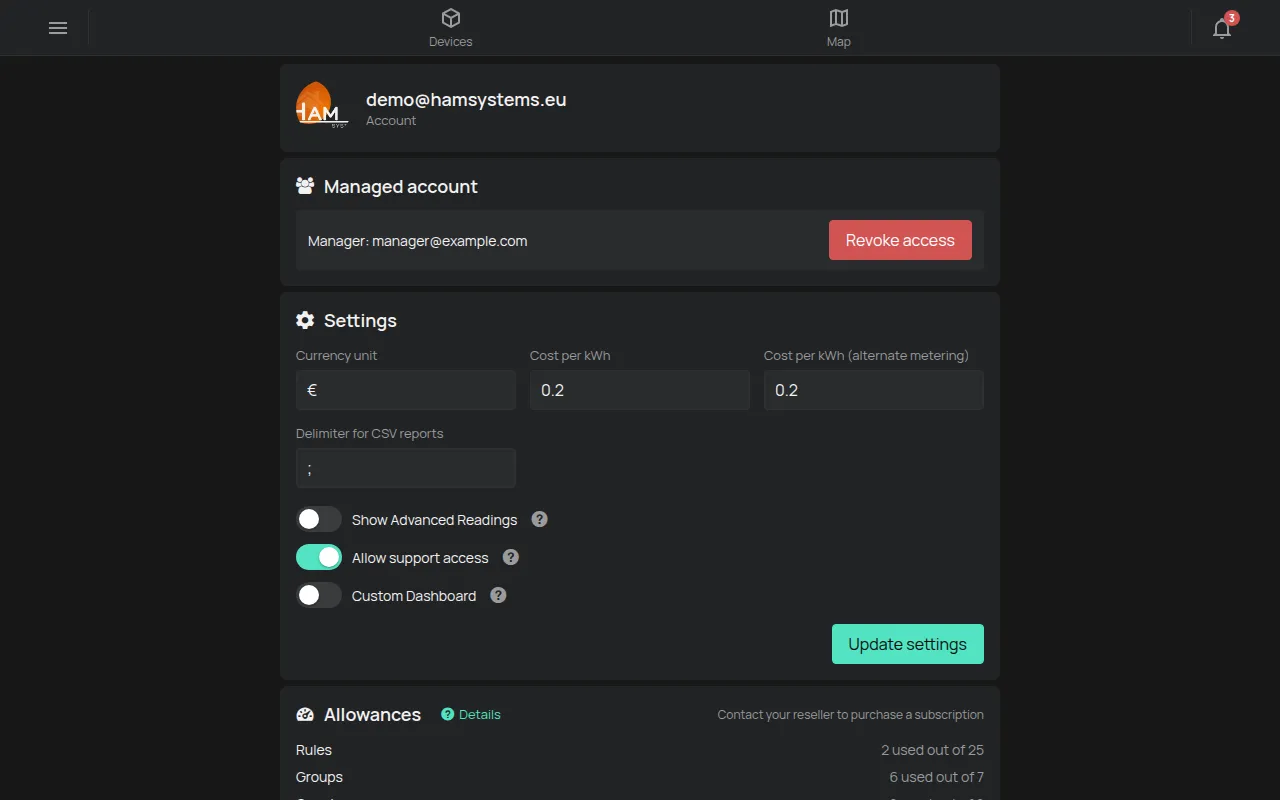
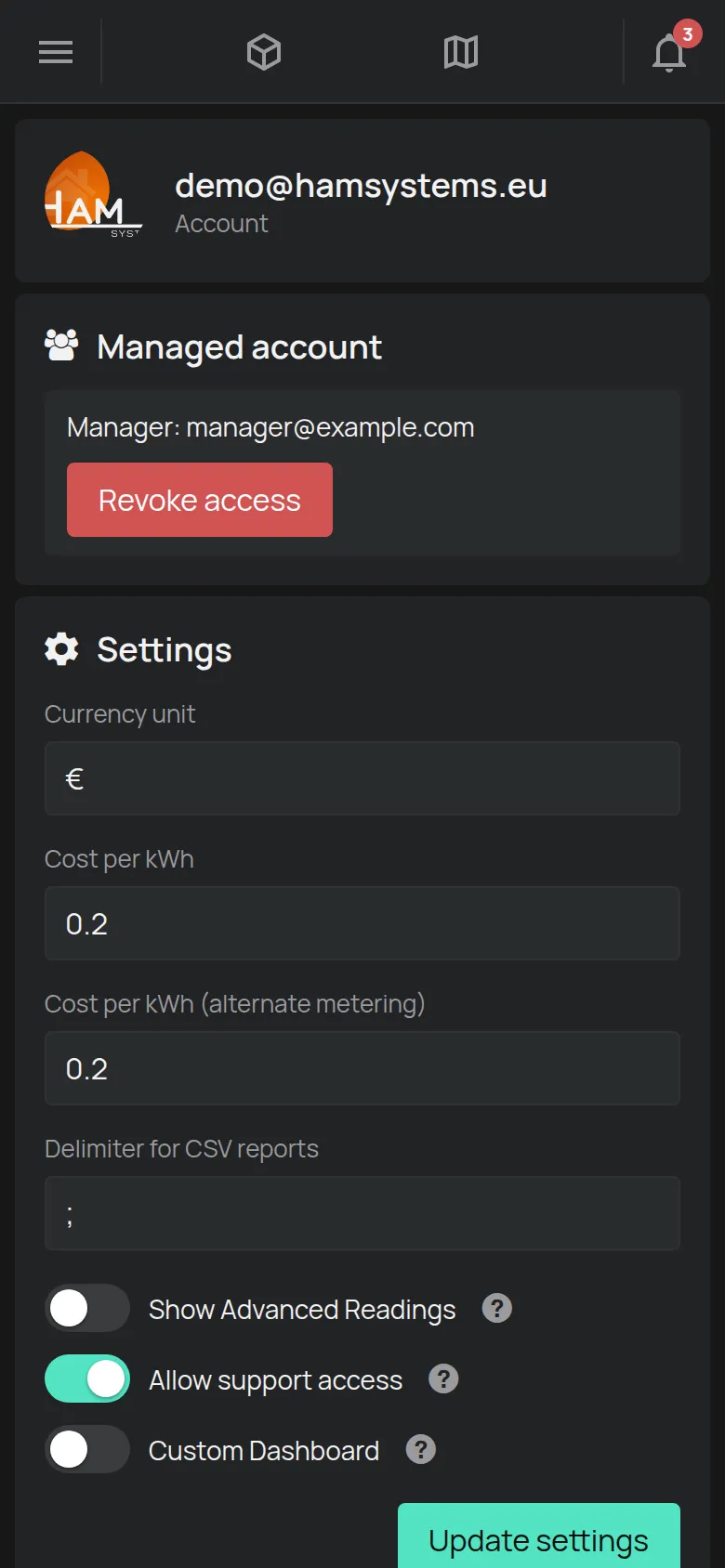
For permanent management by an installer or a partner, see managed accounts.
Control from the local network
Section titled “Control from the local network”The Allow LAN commands setting is in the device settings. By default it is off.
When you turn it on:
- The app asks for two confirmations.
- The app shows the Authorization token for LAN access window only one time. Tap Copy and keep the token safe.
- To get a new token, turn the setting off and on again.
- Each device on the same local network that has the token can control the device.
Turn on this setting only on a network that you trust.
Webhooks
Section titled “Webhooks”- The server calls only
httpsaddresses. - The server does not call private or local IP addresses.
- The server removes the WiFi credentials from the device data before it sends them.
- The call has no HMAC signature. Put a secret token in the URL and check it on your own server.
See webhooks.
The AI assistant uses your API key. It has the same permissions as you. It can control outputs on the devices where you have control permission. See MCP for AI assistants.
Data and certifications
Section titled “Data and certifications”- Your data stays on infrastructure in the EU. See your data.
- HAM Systems is certified to ISO 27001 for information security. For all certifications, see certifications and compliance.