

Create a rule
You make a rule from the Rules page or from the page of a device. The rule works only after you press Save.
The easiest way to start is the Recommended setups on the device page. See Your first alert.
You need:
- At least one device in your account.
- A free rule slot. The counter at the top right of the Rules page shows how many rules you have, out of how many you can have.
Make a rule
Section titled “Make a rule”- Open the side menu.
- In the Tools group, tap Cloud rules. The Rules page opens.
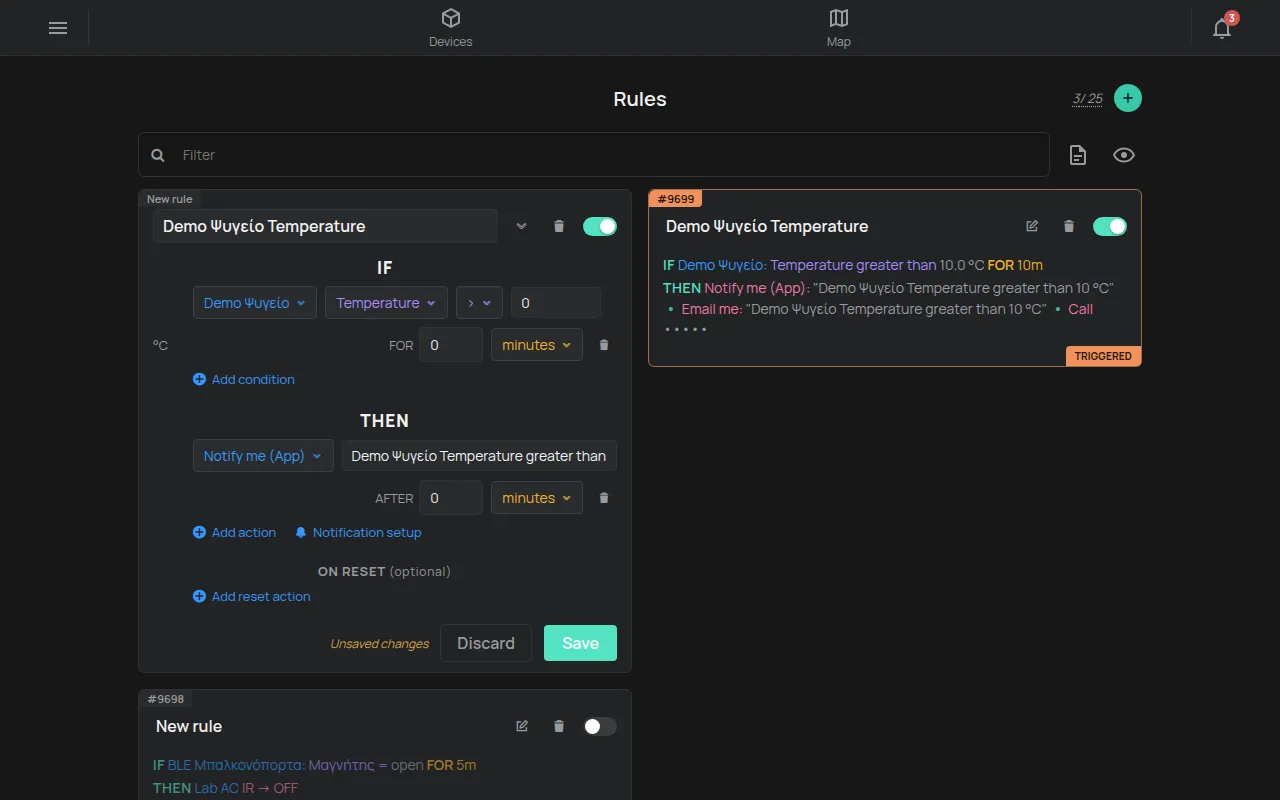
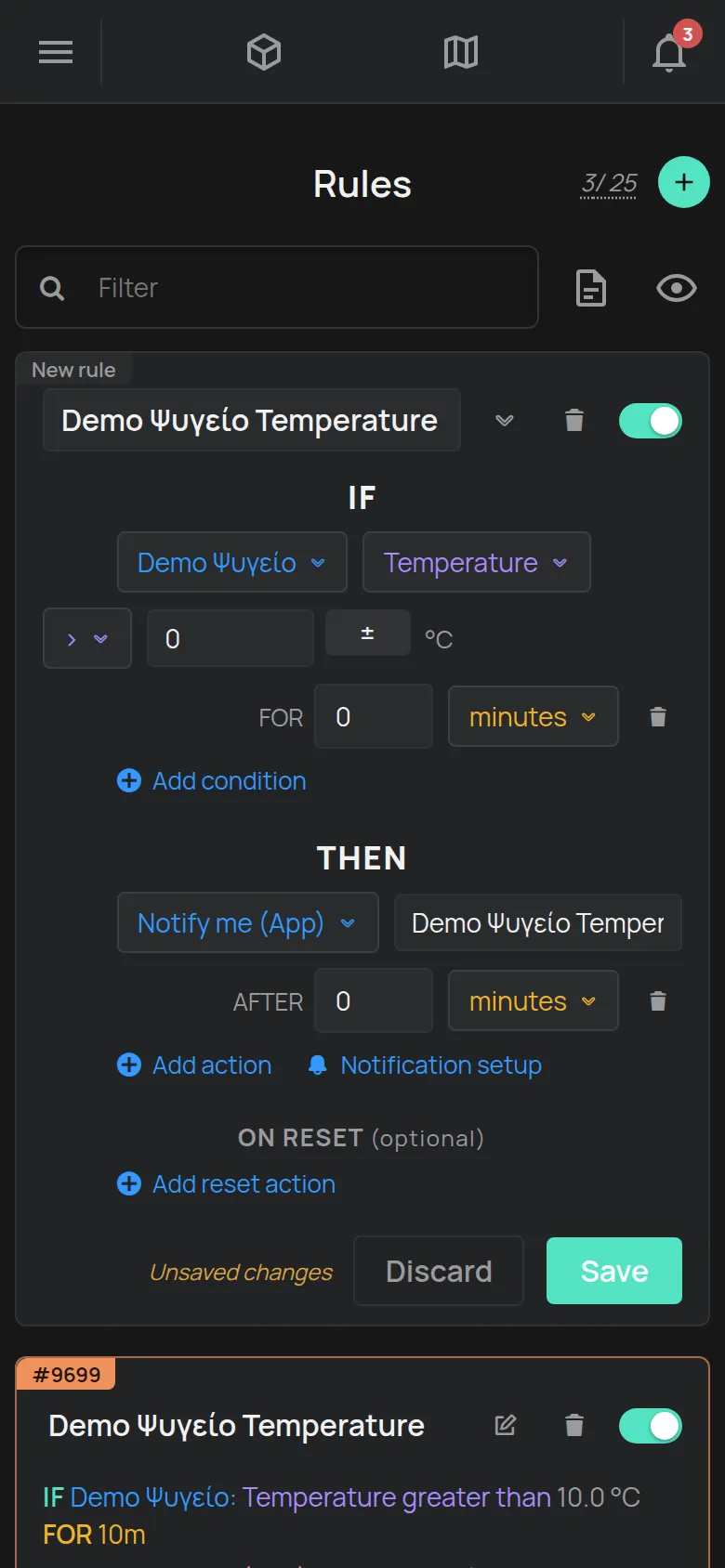
- Tap the + button at the top right. A new card with the label New rule appears.
- Under IF, select the device, the reading and the comparison, for example >.
- Type the limit value. Use the unit that the app shows, for example °C.
- Under FOR, type how long the condition must stay true. Select the unit, for example minutes.
- For more conditions, tap Add condition.
- Under THEN, select the action, for example Notify me (App). The app writes a message. You can change it.
- For more actions, tap Add action.
- If you want a message when the problem ends, tap Add reset action.
- Type a name in the Rule name field. If you leave it empty, the rule gets the name of the device.
- Tap Save.
The card closes and shows the rule as one sentence, for example: IF Fridge: Temperature is above 8.0 °C FOR 15m THEN Notify me (App).
If you see the message You cannot create any more rules, your account is at its limit. See What is included for free.
From the device page
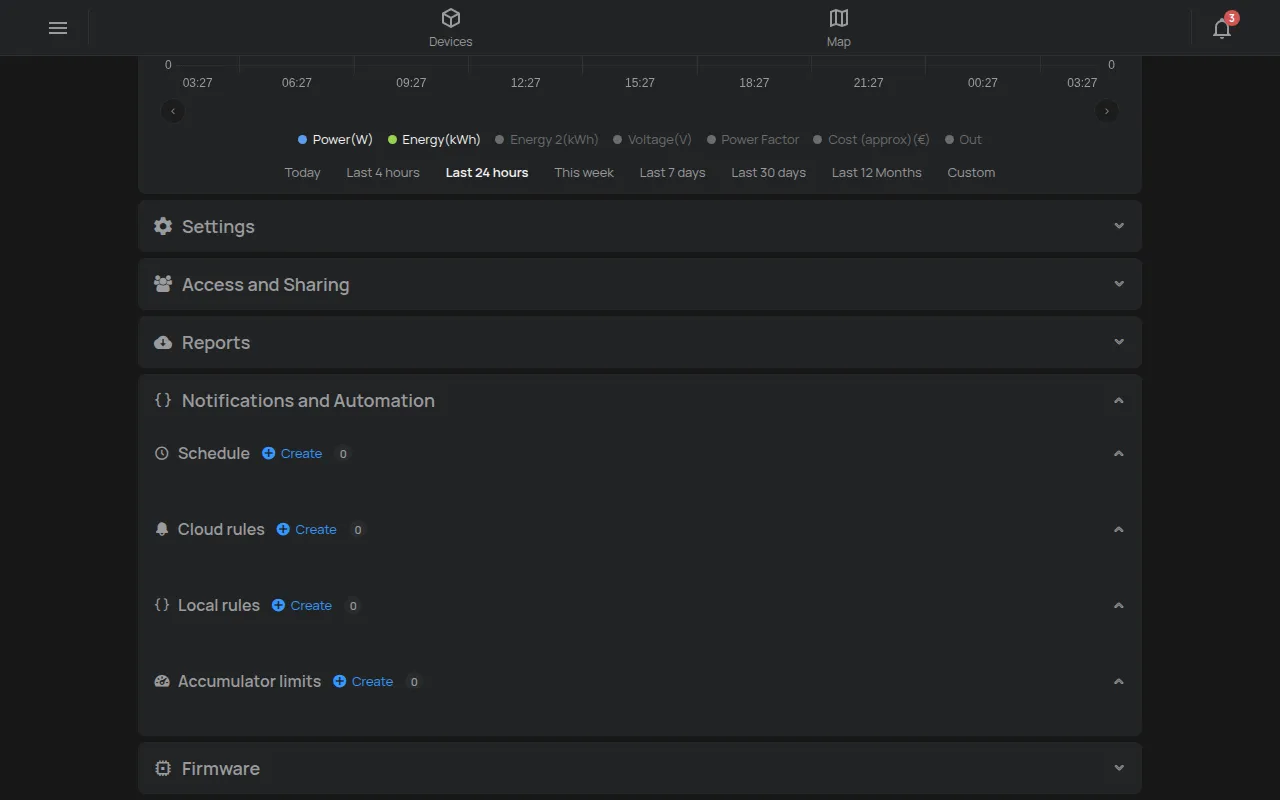
Section titled “From the device page”- Open the device.
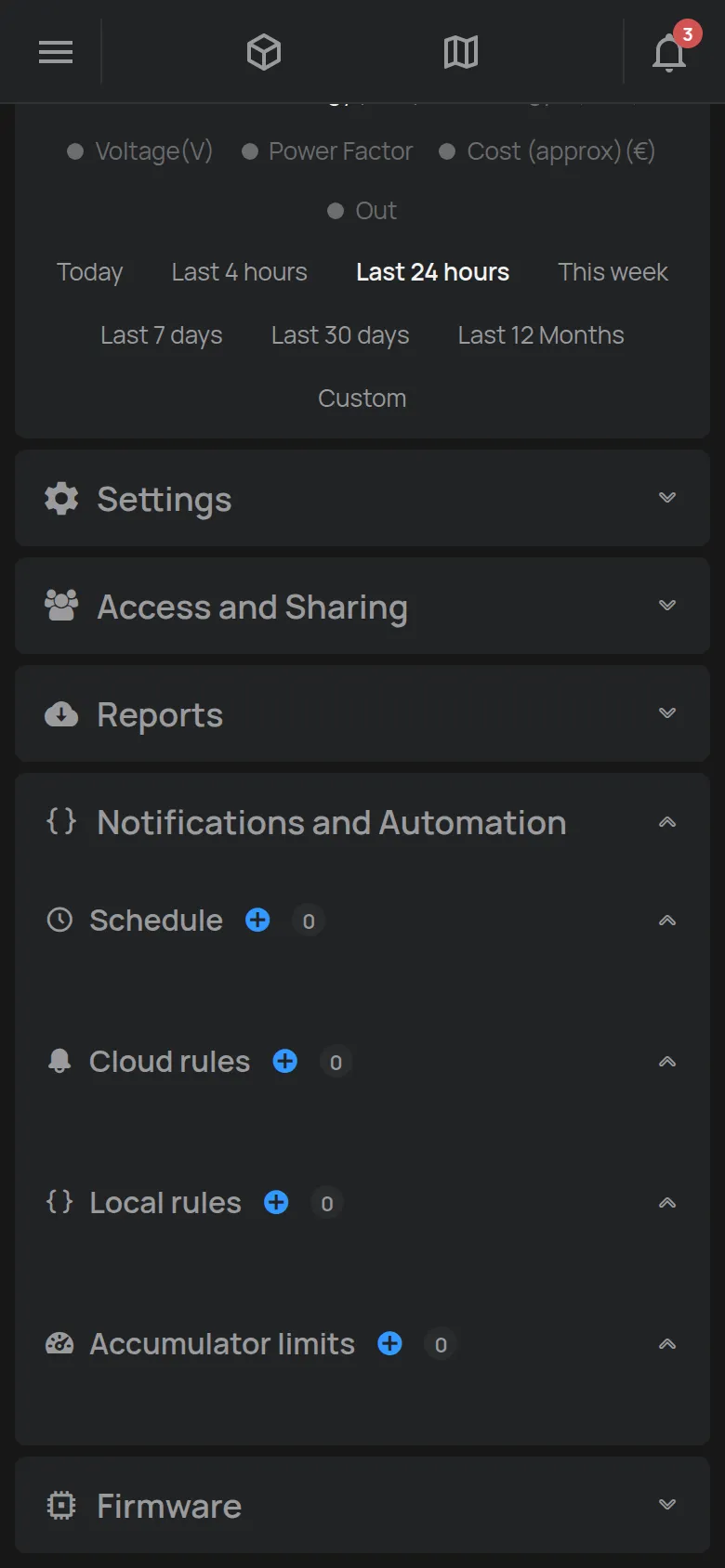
- Open the Notifications and Automation section.
- In Cloud rules, tap Create. The first condition already has this device.
- Continue from step 4 above.
Recommended setups
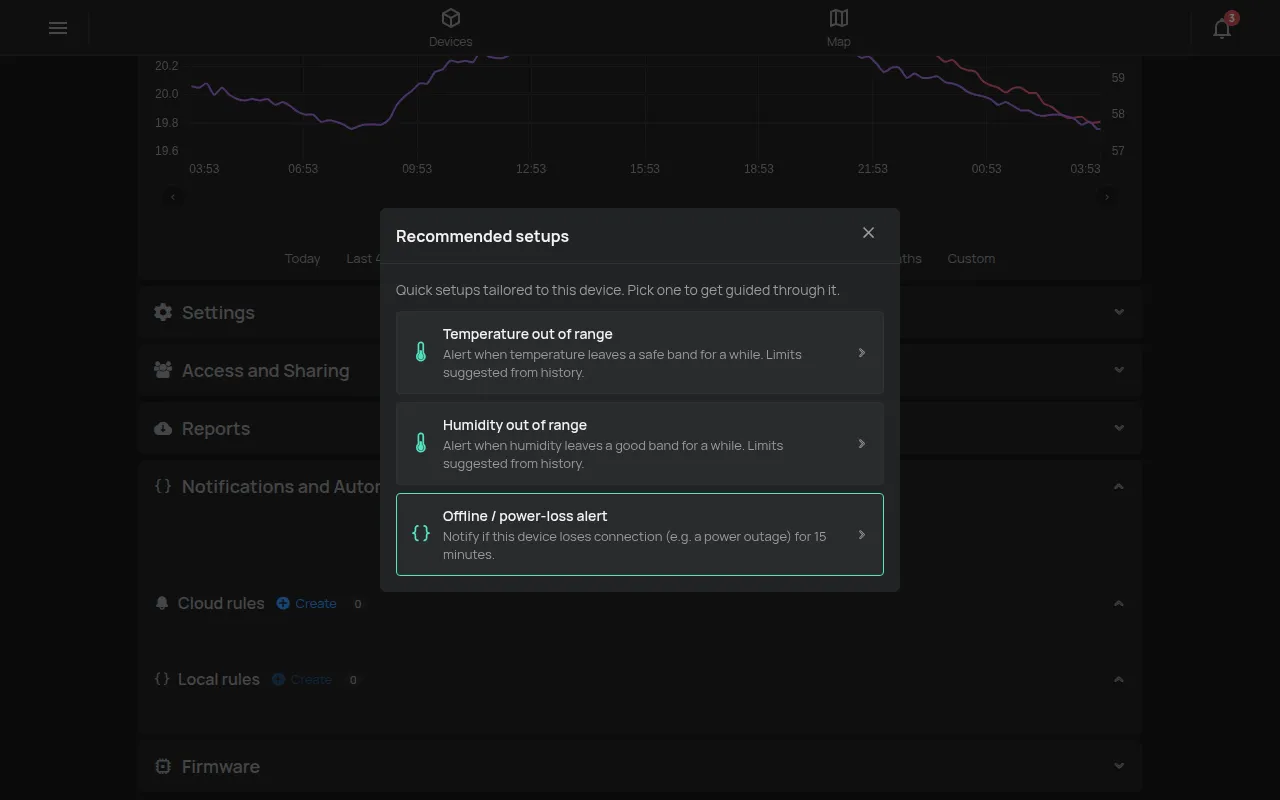
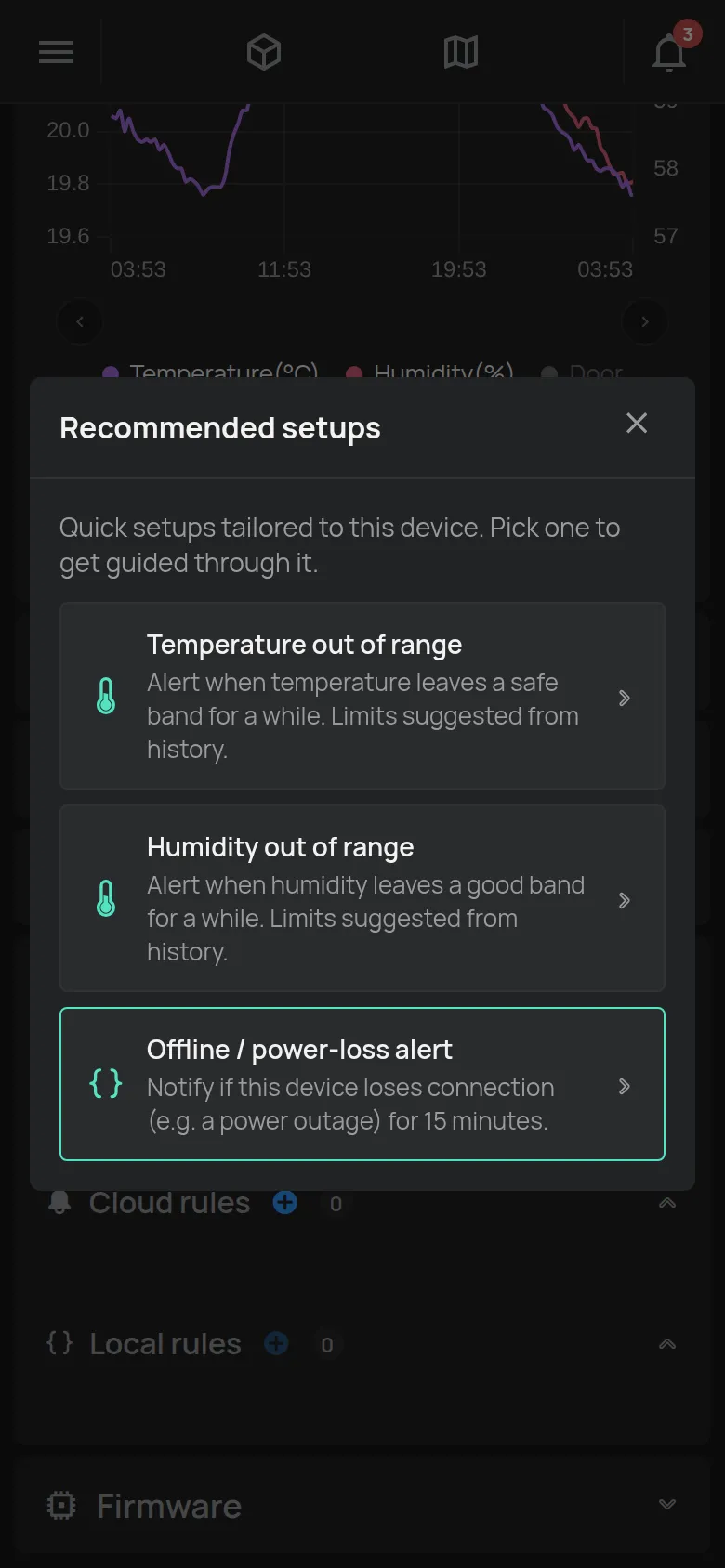
Section titled “Recommended setups”For many devices, the app suggests ready-made rules. On the device page, open the Notifications and Automation section. Tap the button with the lightbulb, Recommended setups. The button shows only when there are suggestions for the device. Examples:
- An alert when the device stops sending data for 15 minutes.
- An alert when the temperature or humidity goes out of range. The app suggests limits from the last 7 days of history.
Tap a suggestion, for example Temperature out of range. Fill in Alert when below, or above and for at least. In Notify via, select how you want to get the alert. Tap Create rule. The app opens a new rule with these values. Check it and tap Save.
A suggestion hides when you already have a similar rule for the device.
Change a rule
Section titled “Change a rule”- On the rule card, tap the Edit icon (pencil).
- Make the changes.
- Tap Save. To keep the old rule, tap Cancel.
While there are changes that you did not save, the card shows Unsaved changes.
Disable a rule
Section titled “Disable a rule”A disabled rule stays saved, but the cloud does not check it and it sends nothing.
- On the rule card, tap the switch. The label changes to Disabled and the card opens.
- Tap Save.
To hide disabled rules from the list, tap the eye icon (Hide disabled).
Delete a rule
Section titled “Delete a rule”- On the rule card, tap the bin icon.
- At the question Delete this rule?, tap OK.
Test a rule
Section titled “Test a rule”The app has no test button. To check that alerts reach you:
- Make a temporary rule with a condition that is true now. For example, temperature above 0 °C, with FOR 0 minutes.
- Under THEN, add the same actions as your real rule.
- Tap Save.
- Wait for the next reading of the device. Check the bell, your e-mail or your phone.
- Delete the temporary rule.
If no alert came, see An alert did not arrive.
Notification report
Section titled “Notification report”The Rules page makes a report of the alerts that were sent. Tap the document icon (Notification report). Select a period and the PDF or CSV format. Tap Generate.