

Change the router or WiFi password
A HAM device remembers the name and password of the WiFi. If you change the router, the network name or the password, the device cannot connect and shows as offline. To connect it again, send it the new details.
Before you start
Section titled “Before you start”- The new router has a 2.4 GHz network. See Before you install.
- If the new router has a firewall, see Network requirements (for IT).
- Your phone is connected to the new network.
The device stays on your account. The readings, rules and shares do not change.
-
In the HAM app, open the Devices list and tap the ⋮ menu (Tools).
-
Tap Add new device.
This option sends the new WiFi details to the device. It does not add a second device to your account.
-
Select the model of your device.
-
Select the new network and type the new password.
-
Put the device in setup mode, as the screen tells you, and tap Next.
-
Answer the LED question.
-
When the green LED is fully on, the screen says that the device is connected. You do not need to tap the Claim device button, because the device is already on your account.
-
Below the button, next to the question Already claimed?, tap Close. The app opens the device page or the home page.
The steps in detail are on Connect a device to WiFi. If the automatic send fails, see Connect through the device hotspot.
Do the steps again for each WiFi device. GPS trackers and Bluetooth (BLE) devices need no change. BLE devices send their readings through a HAM WiFi device. When that device connects to the new network, the BLE devices send readings again. See Bluetooth (BLE) devices.
-
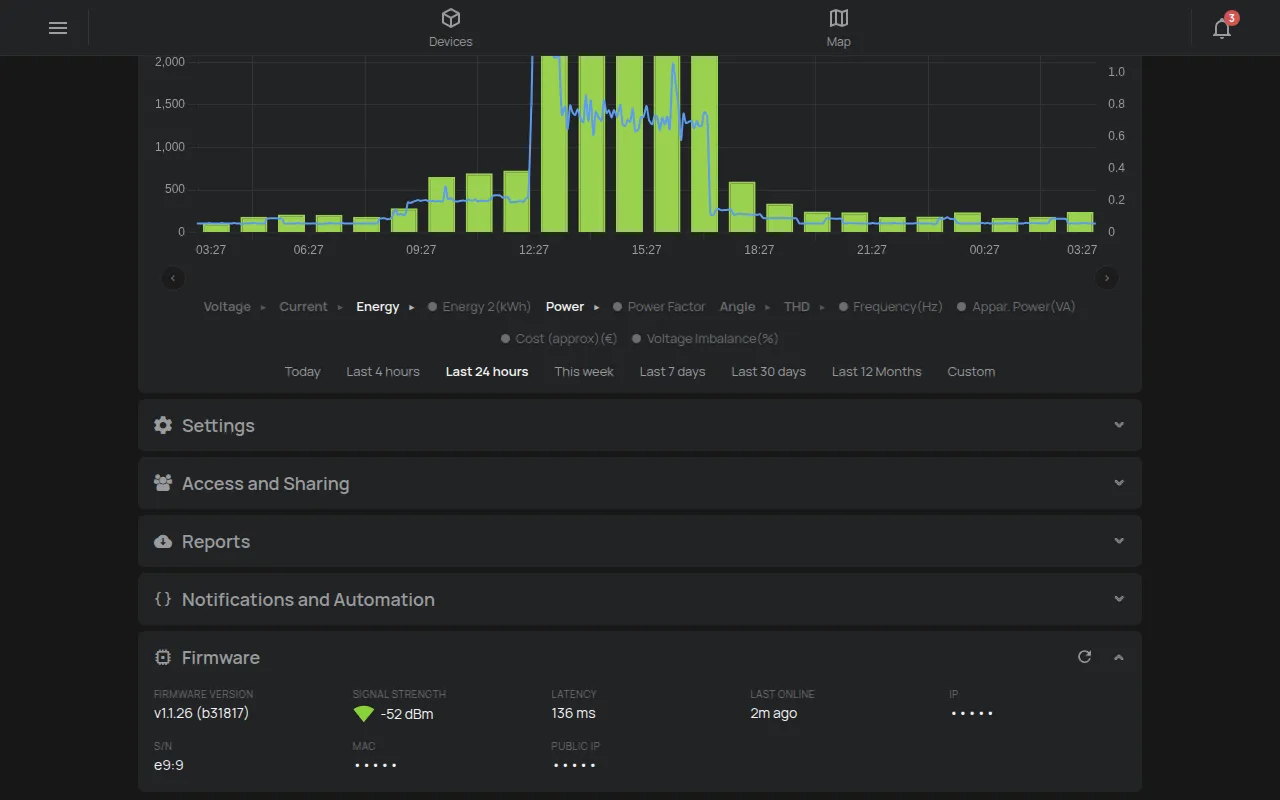
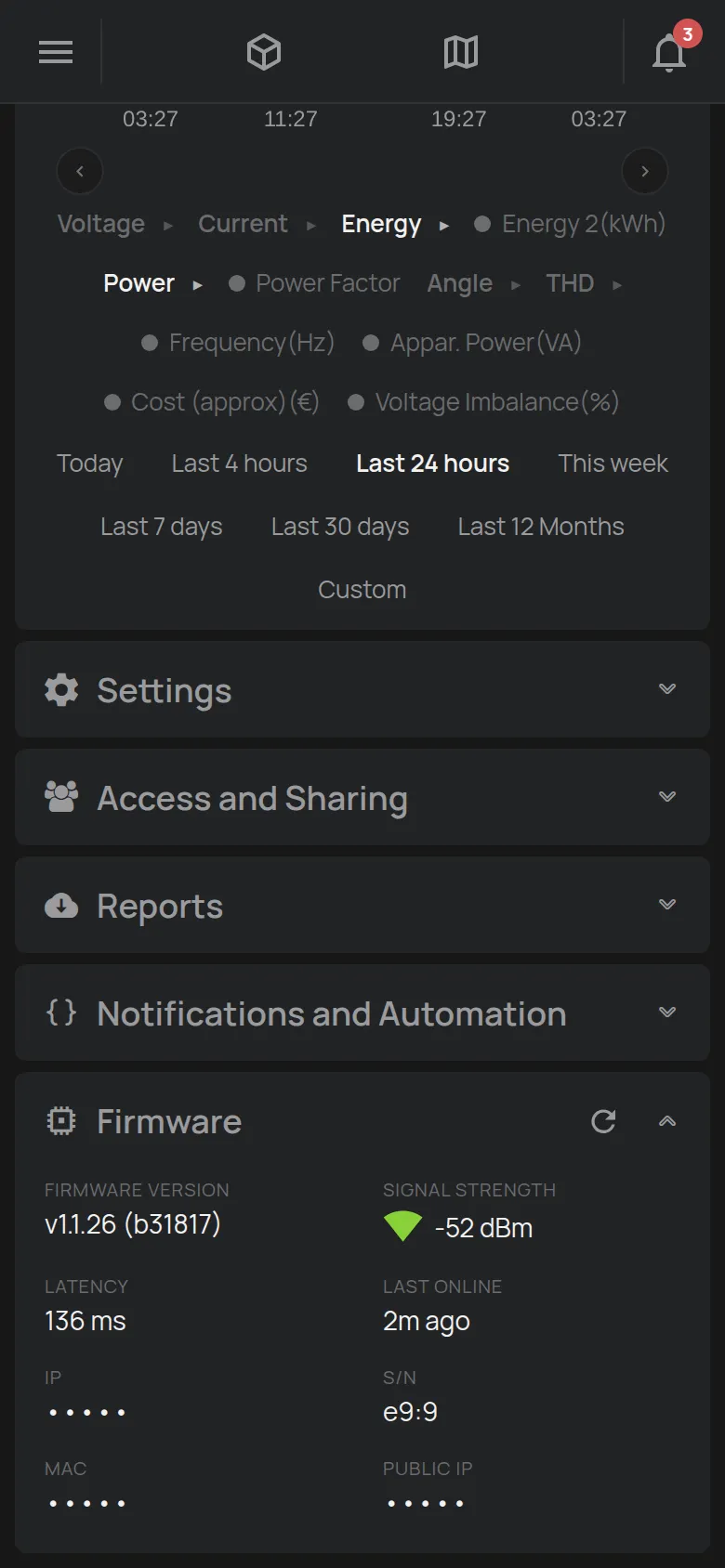
Open the device page.
-
In the Firmware section, check the Network and the Signal Strength.
If the device stays offline, see The device shows as offline.