

HAM LightSwitch
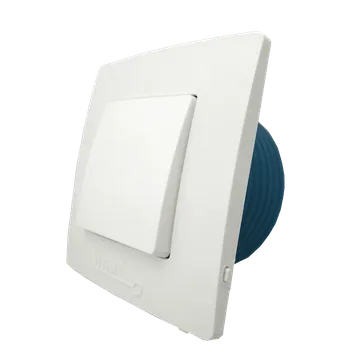
The HAM LightSwitch is a switch that you install in the wall. It turns the lights on and off from the app and measures consumption.
The serial number starts with 8:. It is a device of the older generation.
What it measures
Section titled “What it measures”| Reading | Unit | Note |
|---|---|---|
| Power | W | |
| Energy | kWh | Total consumption. |
| Energy 2 | kWh | Second counter, for an alternate tariff, for example a night tariff. |
| Voltage | V | |
| Power Factor | Calculated by the platform. | |
| Cost (approx) | From the Cost per kWh setting. | |
| CO₂ Emissions | ton | Calculated from energy. |
| Energy (Daily), (Weekly), (Monthly) | kWh | Energy per period. |
Typical uses
Section titled “Typical uses”- Lighting in homes, offices and shops.
- Small loads up to 2 A.
Installation
Section titled “Installation”You connect the device to WiFi from the mobile app. See Connect to WiFi.
The device has no short-circuit protection.
See the consumption
Section titled “See the consumption”The consumption shows in the chart on the device page.
- Open the device page.
- Below the chart, tap Last 7 days or Last 30 days.
- In the legend, tap Energy if it does not show.
Energy shows as bars. For up to 7 days, each bar is one hour. For up to 5 months, each bar is one day. See charts.
For the consumption per day or per month in a table, make a report for Energy. In every, select 1 day or 1 month.
Settings
Section titled “Settings”- Cost per kWh: the energy price for this device. It overrides the account setting.
- Cost per kWh (alternate metering): the price for the second energy counter.
- Disable manual control: control from the device, for example from its buttons, is disabled.
- Do not keep track of data: the platform keeps no reading history for the device.
- Allow LAN commands: other devices on your local network can control this device. Keep the setting off if you do not need it.
General settings for all devices are in Device settings.
Controls
Section titled “Controls”The device has one output, Out. You turn it on and off from the device page. See Controls.
On the device page, tap Edit and then Settings on the output. There you set:
- Auto turn-off: the output turns off after the time that you set. The value 0 disables it.
- Power on value: the output state when the power comes back, off or on.
- Confirm output changes: the app asks for confirmation before it changes the output.
- PIN Code: the app asks for a PIN before it changes the output.
In the Notifications and Automation section of the page you find:
- Schedule: up to 6 schedules for the output. See Schedules.
- Local rules: 2 rules that run on the device without a cloud connection.
- Accumulator limits: the output turns off when energy reaches a limit.
Troubleshooting
Section titled “Troubleshooting”- The device does not connect to WiFi: make sure that the router transmits on 2.4 GHz with a 20 MHz channel. See WiFi setup fails.
See also Device offline.
Specifications
Section titled “Specifications”| Mounting | In the wall |
| Power supply | 230 VAC / 50 Hz |
| Maximum load | 2 A, about 460 W at 230 VAC |
| Outputs | 1 |
| Connectivity | WiFi 2.4 GHz, 20 MHz channel |
| Operating temperature | -10 to 55 °C |
To buy, see the shop.