

Connect through the device hotspot
When the app cannot send the WiFi details automatically, use the Manual connection. The device creates its own WiFi network (hotspot). You connect the phone to this network and the app sends the details directly to the device.
Use this method when:
- the LED continues to blink after Send,
- you have an iPhone and the automatic send does not work (on iPhone this method is often the only one that works),
- the Bluetooth of the phone does not work.
Before you start
Section titled “Before you start”- You have the Device key (D/K) from the label. It is the password of the device network.
- You already typed the name and password of your WiFi in the setup wizard. See Connect a device to WiFi.
-
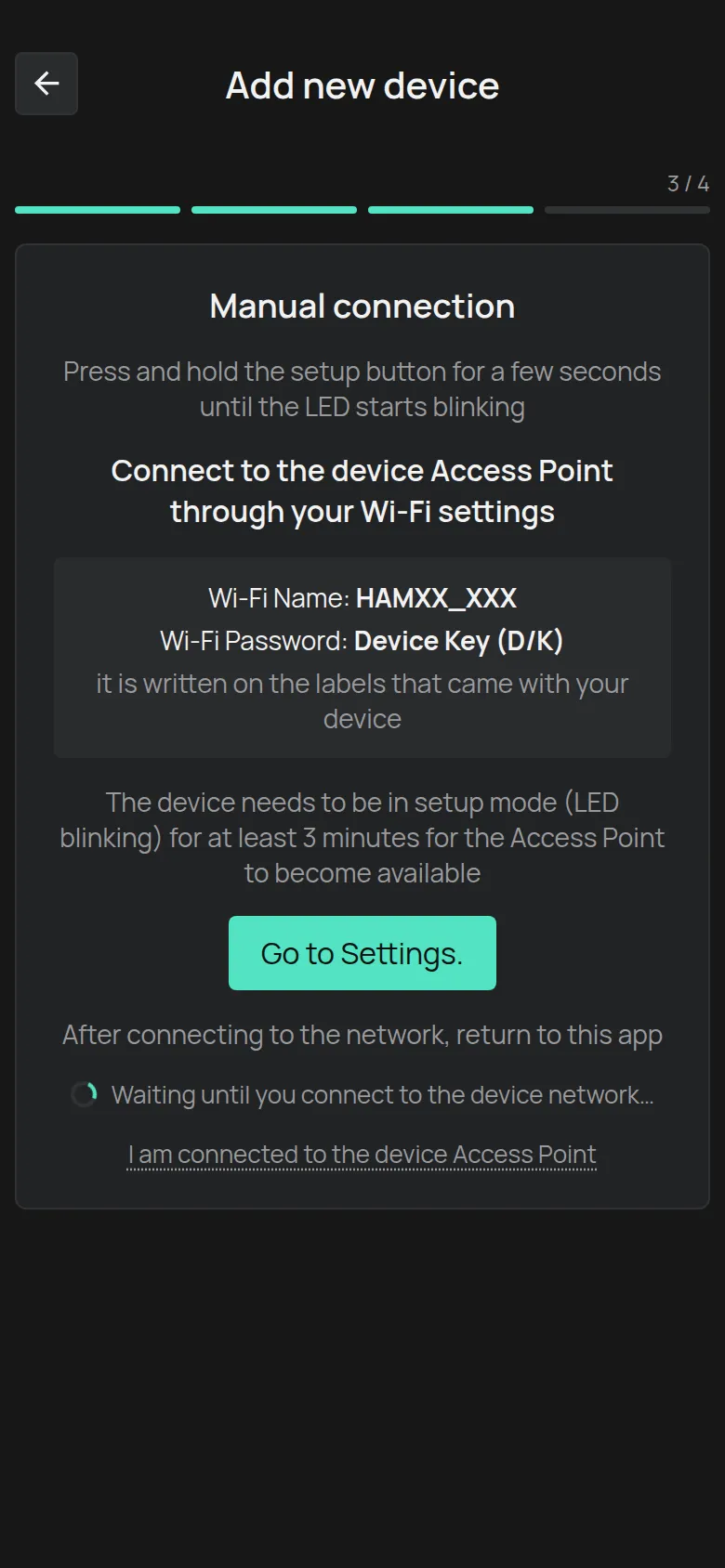
In the setup wizard, tap Manual connection.
The link is on the instruction screen, on the sending screen and in the blinking answer.
-
Put the device in setup mode, as the screen tells you.
-
Wait at least 3 minutes with the LED blinking.
The device turns on its network only after this time.
-
Tap Go to Settings..
The WiFi settings of the phone open.
-
Connect to the device network. Its name starts with
HAM, for exampleHAMe12_57. -
For the password, type the Device key from the label.
-
Go back to the HAM app.
The app sees the connection and shows Connected to the device network. If it still waits, tap I am connected to the device Access Point.
-
Tap Send.
The app sends to the device the WiFi you typed in the wizard.
-
Connect the phone to your normal WiFi again.
-
Answer the LED question and claim the device, as in Connect a device to WiFi.
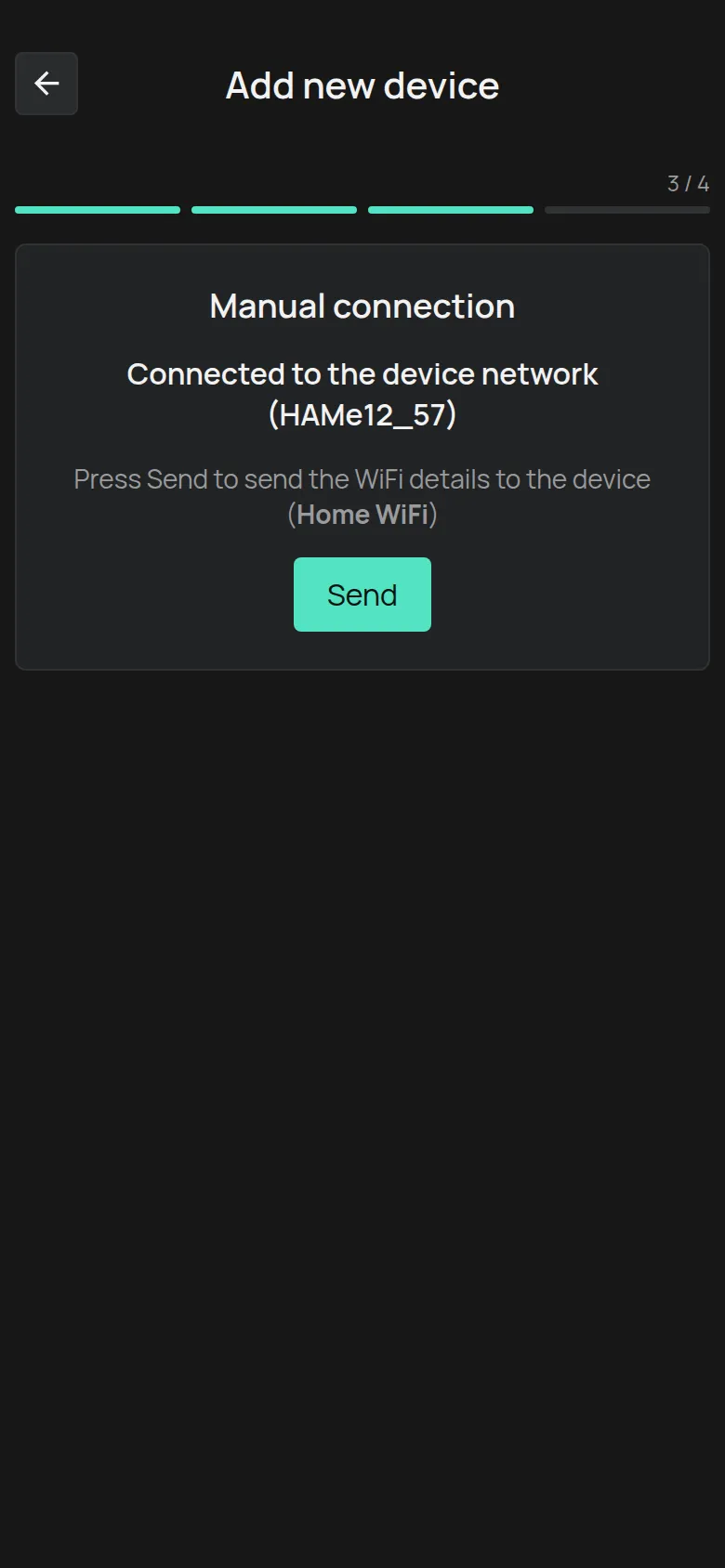
The serial number of the device shows in the name of its network. The network HAMe12_57 belongs to the device e12:57.
If the send fails
Section titled “If the send fails”If you see Failed to contact the device. Please check you are connected to its Access Point:
-
In the WiFi settings, check that the phone is still connected to the
HAM...network. -
Tap the link below Open this link in your browser.
The link sends the details to the device from the browser of the phone.
-
Tap Next and continue with the LED check.
You do not see the device network
Section titled “You do not see the device network”- Wait the 3 minutes. The network does not show immediately.
- Check that the LED still blinks. If it stopped, put the device in setup mode again.
- Move the phone closer to the device.
If the network never shows, the device can have a fault. Contact support and give the serial number from the label.