

Your first alert
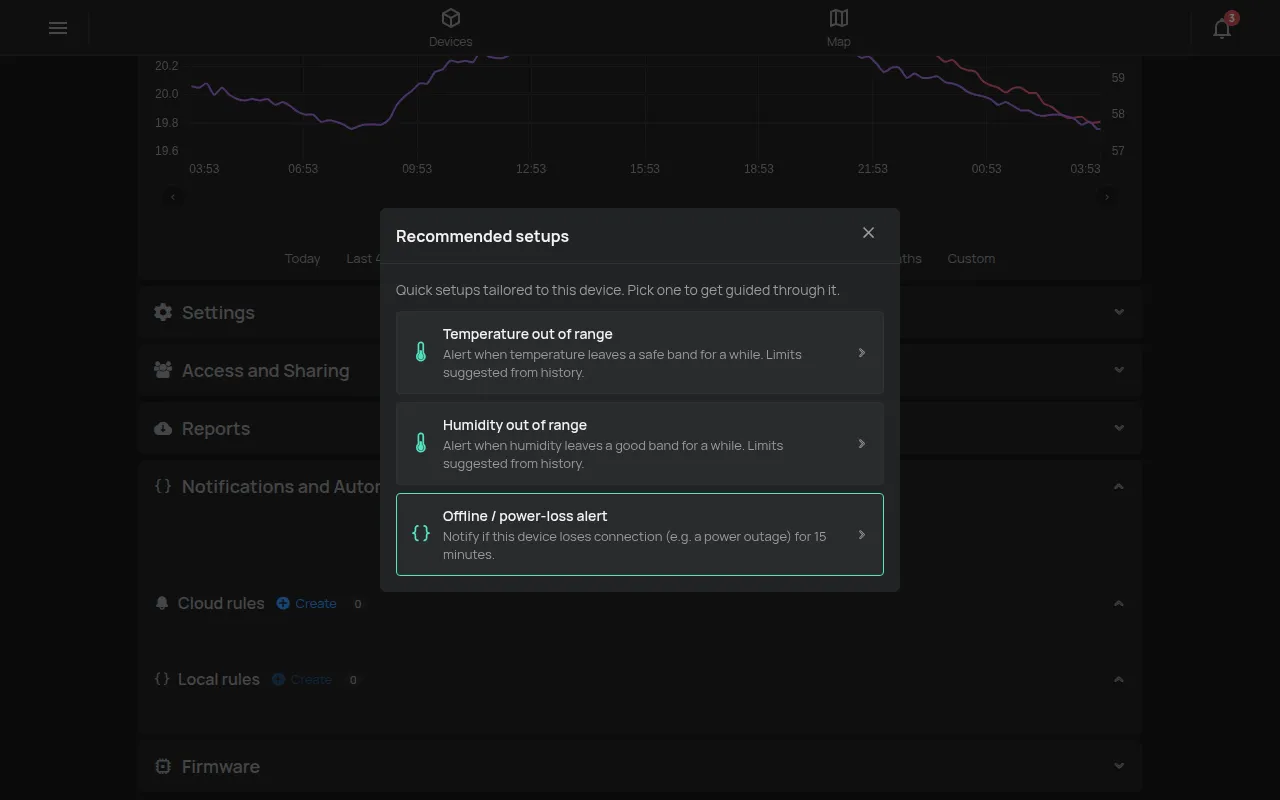
An alert in HAM is a rule: “if this happens, alert me”. The easiest way to make your first rule is the Recommended setups button on the device page. The app suggests rules for the type of your device. It suggests the limits from the readings of the device.
Rules run in the HAM cloud. They alert you even when the app is closed.
Before you start
Section titled “Before you start”- The device is claimed on your account and sends readings. See Your first device, step by step.
- For alerts on your phone, the HAM app has the notification permission. See The mobile app.
What we suggest for each device type
Section titled “What we suggest for each device type”| Device | What the app suggests |
|---|---|
| Thermometer, e.g. HAM ThermoSense, ThermoSenseX1, ThermoSenseX2, PoolSense | An alert when the temperature goes out of range. An alert when the device loses its connection or power. |
| Thermometer with humidity, e.g. HAM HumiSense, IAQSense, Thermostat | An alert when the temperature or the humidity goes out of range. An alert when the device loses its connection or power. |
| HAM DinSwitch panel relay | Automatic turn-off of the output after a short time. On and off times. An alert when the device loses its connection or power. |
| HAM RemoteAC air conditioner control | On and off times. On some models, the air conditioner turns off when a door or a window opens. |
| Bluetooth temperature sensor, or GPS tracker with temperature | An alert when the temperature or the humidity goes out of range. |
| Plug, switch, relay, energy meter, door sensor, water leak sensor, GPS tracker without temperature | The app has no suggestions. Make your own rule. |
The Recommended setups button does not show when you already applied all the suggestions.
Alert for a temperature out of range
Section titled “Alert for a temperature out of range”The example is a fridge. The same steps apply to humidity, with the Humidity out of range suggestion.
-
Open the device page from the Devices list.
-
Open the Notifications and Automation section.
-
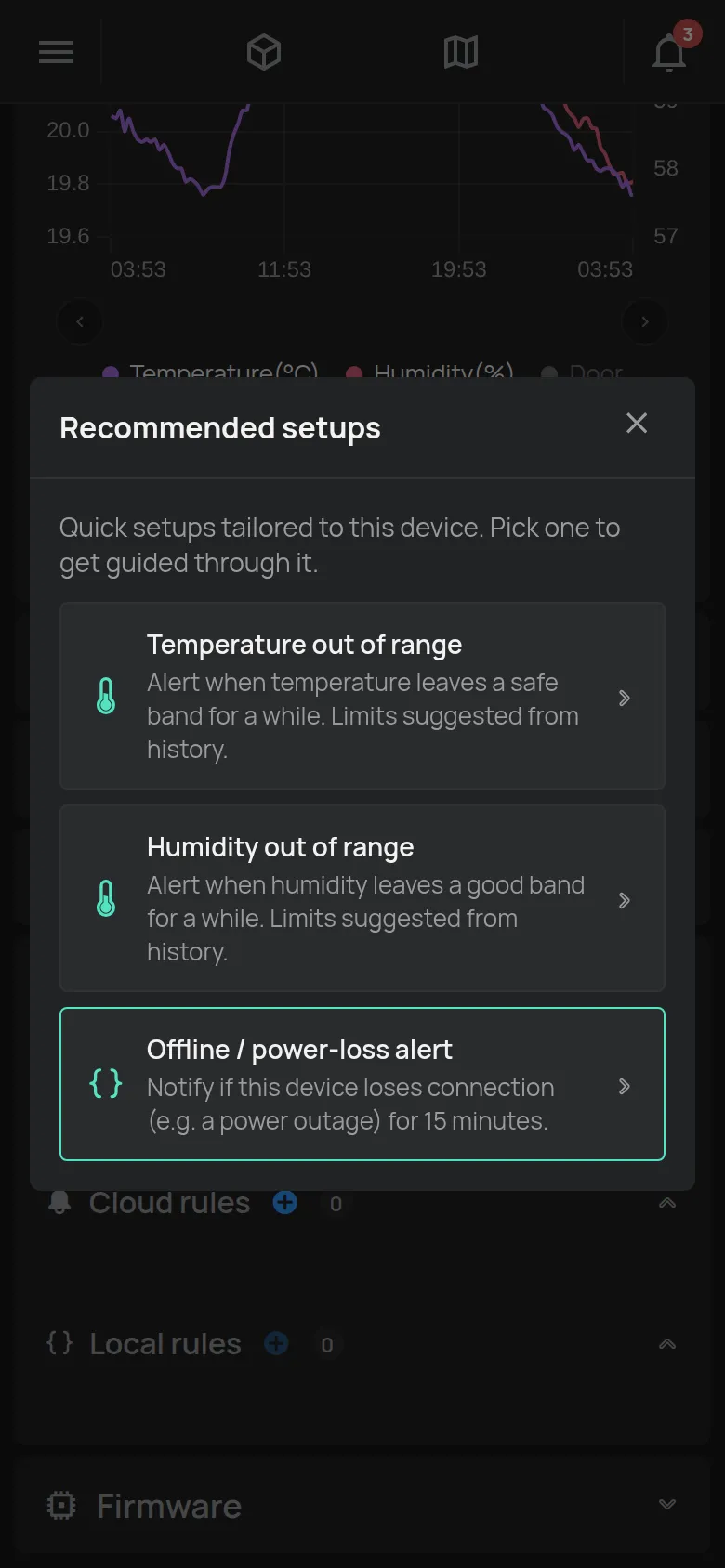
Tap the button with the lightbulb, Recommended setups.
The number on the button shows how many suggestions the device has.
-
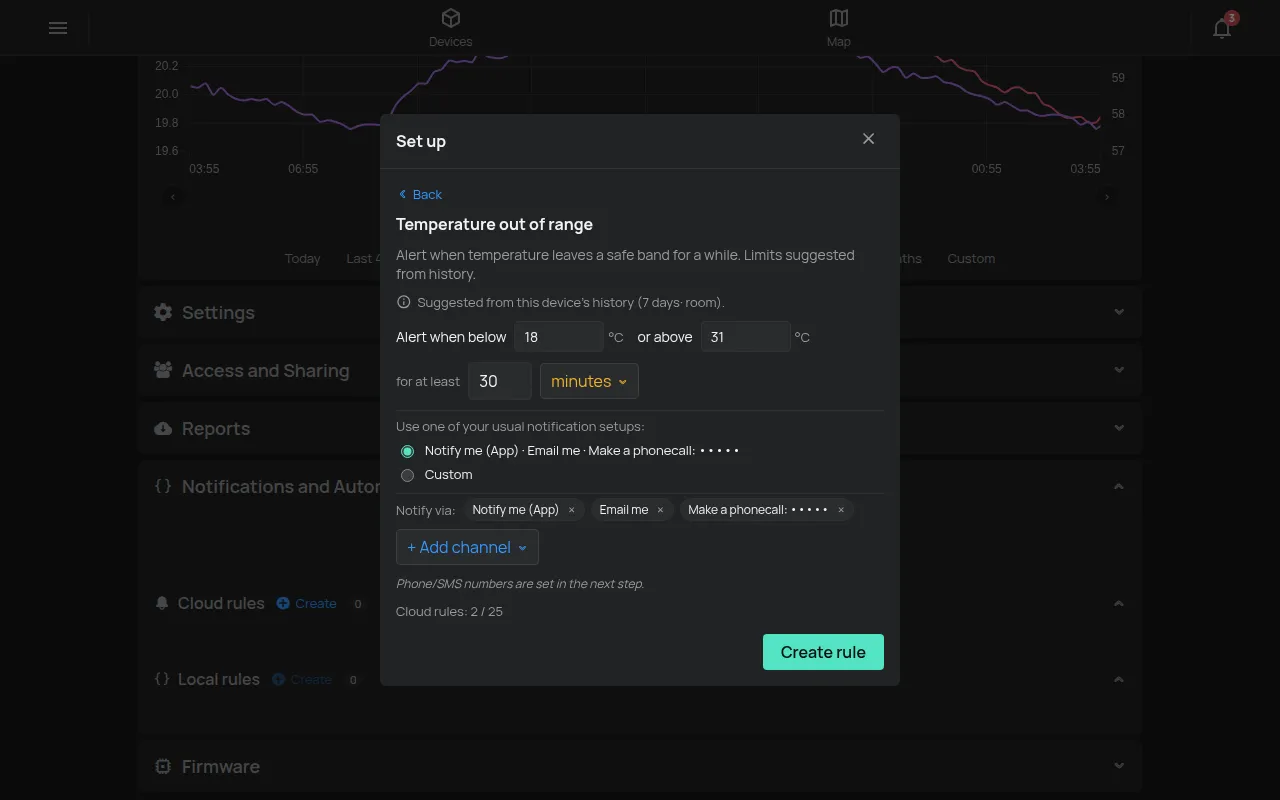
Tap Temperature out of range.
-
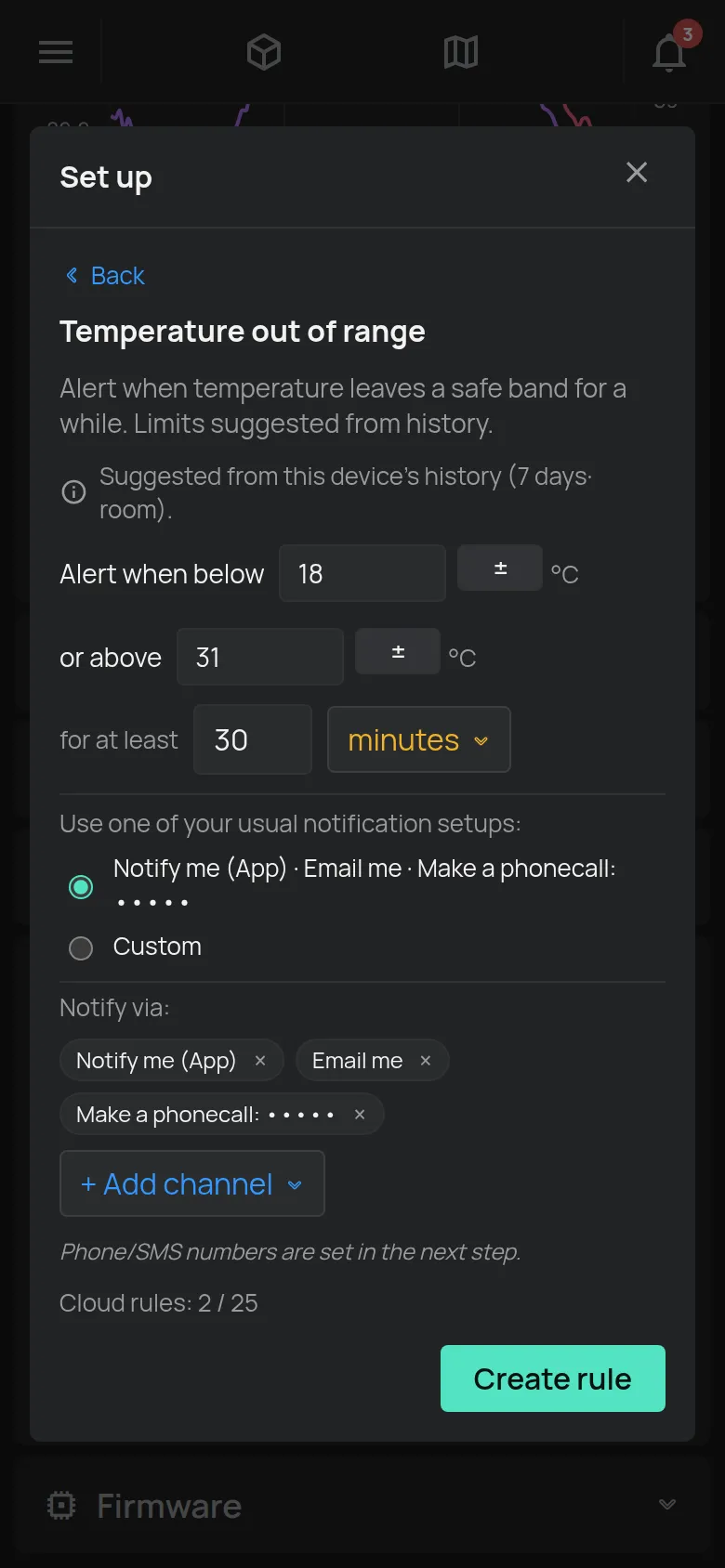
Check the limits in Alert when below and or above. Change them if necessary.
-
In for at least, set how long the value must stay out of range. The app suggests a duration.
-
In Notify via, select how you get the alert. For one more channel, tap + Add channel.
-
Tap Create rule.
The new rule opens in the Cloud rules of the device.
-
If you selected SMS or phone call, type the number in the Telephone No field of the rule. The country code default is +30.
-
Tap Save in the rule.
Alert when the device goes offline
Section titled “Alert when the device goes offline”This alert tells you that the device stopped sending readings. The most frequent cause is a power cut. We recommend it on every device.
-
Open the device page and the Notifications and Automation section.
-
Tap Recommended setups.
-
Tap Offline / power-loss alert.
The rule starts when the device stays offline for 15 minutes.
-
In Notify via, select how you get the alert.
-
Tap Create rule.
-
Tap Save in the rule.
More on Get an alert when a device goes offline.
How the alert arrives
Section titled “How the alert arrives”| Channel | What you get |
|---|---|
| App | A notification on your phone and in the bell of the app. |
| An e-mail with the subject “hamOS™ Alert” and the name of the rule. | |
| SMS | A message to the number you set. |
| Phone call | A call with a voice that reads the message. |
SMS and calls need a package. The number of rules has a limit for each account. See What is included for free and Push, e-mail, SMS, call.
Your own rule
Section titled “Your own rule”For any other alert, make your own rule from the device page.
-
Open the device page and the Notifications and Automation section.
-
In Cloud rules, tap Create.
A new rule opens. The first condition already checks this device.
-
Set the condition and the action. See Create a rule.
-
Tap Save.
You see all your rules in Menu > Cloud rules.
The alert did not arrive
Section titled “The alert did not arrive”Next step
Section titled “Next step”See How rules work and Rule examples.