

HAM DepthSenseS
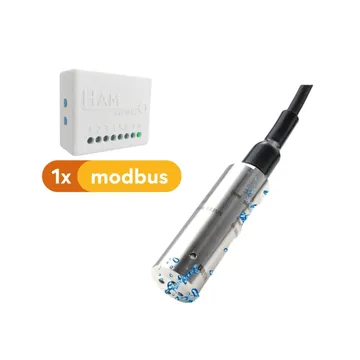
The HAM DepthSenseS measures the water level with a pressure sensor that sits near the bottom. Use it for tanks, wells and boreholes where an ultrasonic sensor above the water is not practical. The shop shows it as HAM DepthSense.
The serial number starts with e53:.
What it measures
Section titled “What it measures”| Reading | Unit | Note |
|---|---|---|
| Level | m | Height of the water above the sensor |
| Level | % full | How full the container is. Needs the container setup |
| Volume | m³ | Needs the container shape and dimensions |
| Volume rate | m³/h | How fast the container fills or empties |
| Full est. | Estimated time until the container is full | |
| Empty est. | Estimated time until the container is empty | |
| Level Velocity | m/min | How fast the level changes |
| Pressure | hPa | The pressure that the sensor measures |
| Gen. In., Gen. In. 2 | Two general inputs. They show when you configure them |
The device converts pressure to level with the Liquid density setting.
Typical uses
Section titled “Typical uses”- Water tanks and reservoirs.
- Deep wells and boreholes.
- Irrigation tanks and rainwater storage.
- Industrial water tanks.
Installation
Section titled “Installation”The device connects to WiFi 2.4 GHz. You set it up from the HAM app, as described in Connect a device to WiFi.
- Lower the sensor into the water, near the bottom.
- Fix the cable so that the sensor stays at the same height.
- Measure the height of the sensor above the bottom. You need it for the container setup.
- Put the device enclosure out of the water, in a dry place.
For general installation guidance see Sensor placement and wiring.
Settings
Section titled “Settings”The settings are on the device page, in the Settings section. For the general procedure see Device settings.
Set up the container
Section titled “Set up the container”- Open the device page.
- Open the Settings section.
- On the Container row, tap Set up. The Container setup window opens.
- In Shape, select the shape of the tank.
- In Dimensions, type each dimension in metres.
- In Sensor mounting offset, type the height of the sensor diaphragm above the bottom of the container, in metres.
- Check the drawing. It shows the fill percentage and the Tank capacity.
- Tap Save.
| Shape | Dimensions |
|---|---|
| Horizontal Cylinder | diameter, length |
| Vertical Cylinder | diameter, height |
| Sphere | diameter |
| Box | length, width, height |
| Custom | area (m²), height |
Liquid density
Section titled “Liquid density”Liquid density (in Advanced) is the density of the liquid in g/cm³. The default is 1, for water. The permitted values are 0.2-3. The value is stored in the sensor, and the device uses it to convert pressure to level.
Other settings
Section titled “Other settings”- Device Description: text that shows as a subheading in reports.
- Baudrate and Modbus Address (in Advanced): the connection to the sensor. Keep the defaults (9600 and 1).
- Allow LAN commands (in Advanced): other devices on your local network can control this device. Keep the setting off if you do not need it.
- Force IPv4 (in Advanced): the device uses only IPv4 connections.
- Do not keep track of data (in Advanced): the app keeps no reading history.
Recommended rules
Section titled “Recommended rules”The app has no ready-made rules for this device. Create at least these:
- An alert when Level (%) drops below a limit, for example 20%.
- An alert when Level (%) goes above a limit, for example 95%, for overflow.
- An alert when the device goes offline. See Offline alerts.
For the steps see Create a rule.
Troubleshooting
Section titled “Troubleshooting”| What you see | Possible cause | What to do |
|---|---|---|
| The level has a constant percentage error | Wrong Liquid density | Set the correct density |
| Percentage or volume has a constant offset | Wrong Sensor mounting offset or dimensions | Measure the sensor height again |
| No volume or percentage | The container is not set up | See Set up the container |
| The level changes for no reason | The sensor moves | Fix the cable |
For general problems see Wrong or strange values and Device shows offline.
Specifications
Section titled “Specifications”| Measuring method | Hydrostatic pressure (gauge) |
| Measuring range | 0-10 m |
| Total error | ±0.5% FS |
| Sensor operating temperature | -25 to 75 °C |
| Sensor material | Stainless steel SS316L |
| Sensor protection | IP68 |
| Enclosure protection | IP20 |
| Inputs | 2 general inputs |
| Power | Micro-USB adapter (included) or 5-12 VDC via terminals |
| Connectivity | WiFi 802.11 b/g/n, 2.4 GHz |
Available in the shop. To compare with measurement from above, see HAM SonicSense.