

Claim a device with its Device Key
A device shows in your account only after you claim it with its Device key (D/K). The key proves that you have the device in your hands. The app calls this step Claim device.
A device that is online but not claimed shows nowhere. It sends readings, but no account sees them.
When you need this page
Section titled “When you need this page”- After the WiFi setup. The setup wizard sends you here at the end. See Your first device, step by step.
- For GPS trackers and Bluetooth (BLE) devices. These do not need WiFi. You claim them with the key only.
- For a device that is already online, for example if your installer set it up.
Do you install for customers?
Section titled “Do you install for customers?”Claim the device on the customer’s account from the start. Then you do not need to move it later. To set up and maintain the customer’s devices, ask to manage the customer’s account. See Management by an installer or partner.
If you already claimed the device on your own account, see Move a device to another place or account.
Where to find the Device key
Section titled “Where to find the Device key”The key is printed on the labels that came with the device. One label is usually on the back of the device. Another one is on the first page of the instructions. The serial number (S/N) is next to the key.
Claim from the phone
Section titled “Claim from the phone”-
Open the HAM app.
-
In the Devices list, tap the ⋮ menu (Tools) and then Add new device.
-
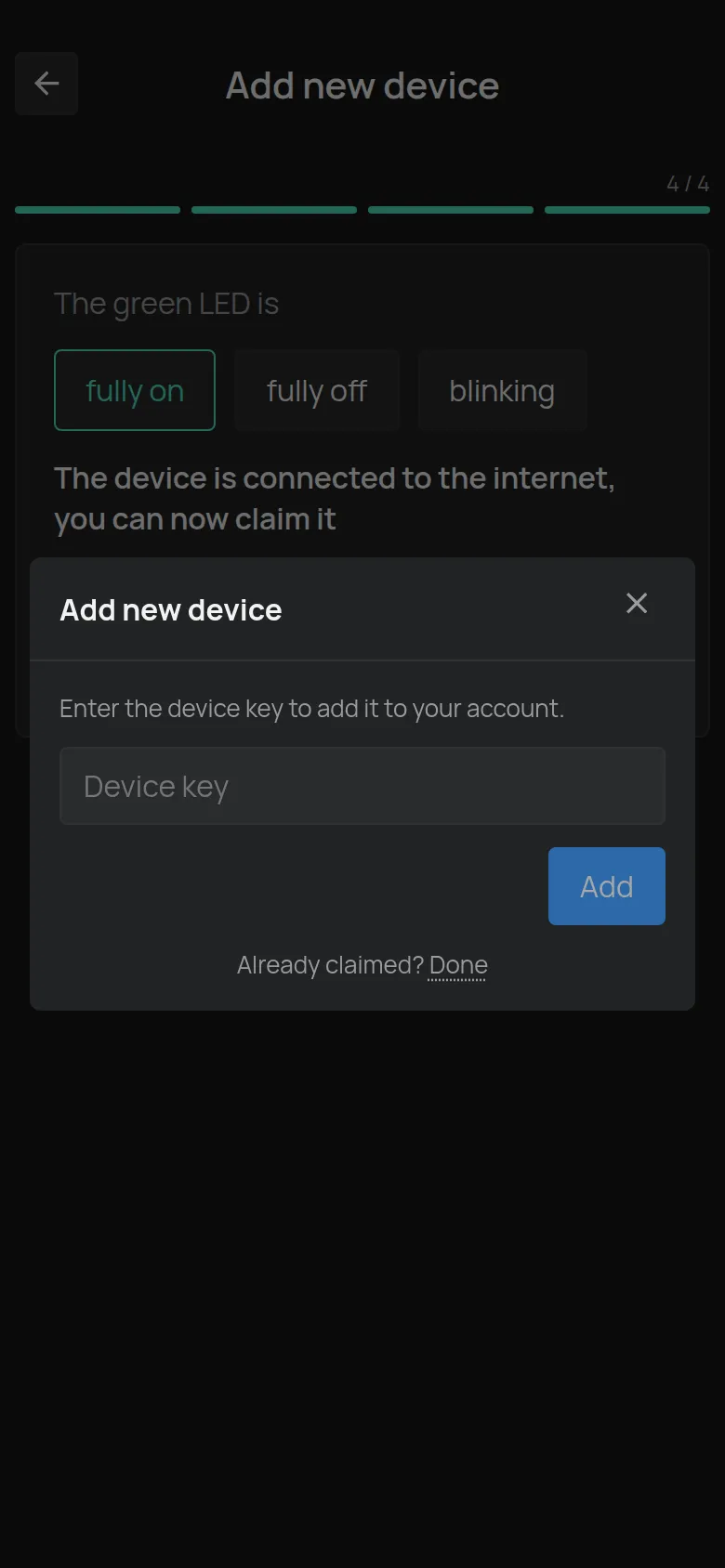
Open the claim dialog in one of these ways:
- For a GPS tracker or a BLE device, tap your model in the list. The dialog opens immediately.
- For a WiFi device that is already online, select your model. On the WiFi screen, tap Claim device next to Device already online?.
-
Type the key in the Device key field.
-
Tap Add.
The app opens the device page.
Claim from a computer
Section titled “Claim from a computer”-
Open app.hamsystems.eu.
-
In the Devices list, tap the ⋮ menu (Tools) and then Add new device.
-
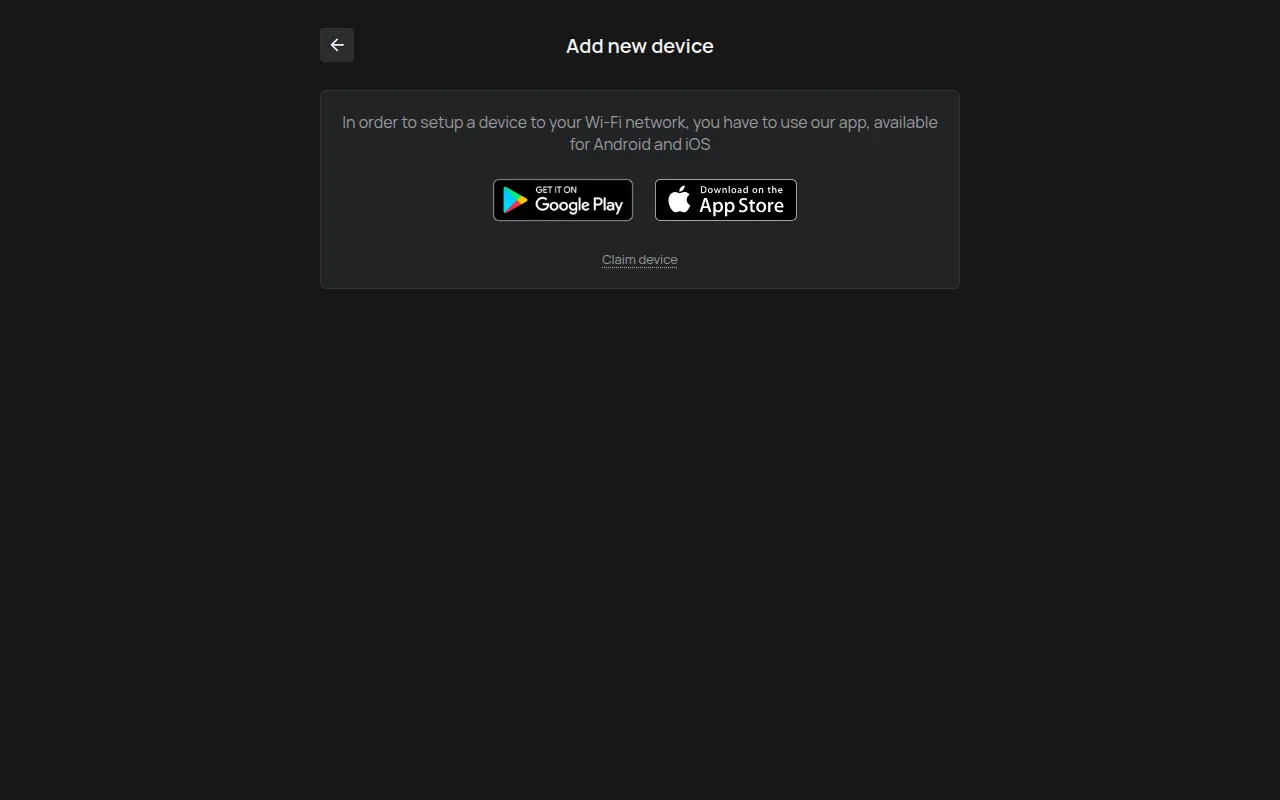
Tap the Claim device link below the Google Play and App Store buttons.
-
Type the key in the Device key field.
-
Tap Add.
Error messages
Section titled “Error messages”| Message | What it means | What to do |
|---|---|---|
| Invalid key | The key does not match any device. | Type the key again. Look out for letters and numbers that look alike, such as O and 0. |
| Device already belongs to someone else. | Another account already claimed the device. | See The device belongs to another account. |
| You already own this device. | The device is already on your account. | You do not need to do anything. Find it in the Devices list. |
| Too many attempts. Please try again later. | You tried many keys in a short time. | Wait a little and try again with the correct key. |
| Could not add device | The claim did not complete. | Check your internet connection and try again. If the message stays, contact support. |
You lost the Device key
Section titled “You lost the Device key”Support can help you if you have the serial number (S/N). You find it:
- on the label on the back of the device,
- on the first page of the instructions,
- in the name of the WiFi network that the device creates in setup mode (for example, the network
HAMe12_57belongs to serial numbere12:57), - in the Firmware section of the device page, if the device was already on your account.
Send the serial number to support.
The device is claimed, but it shows no readings
Section titled “The device is claimed, but it shows no readings”The claim does not connect the device to WiFi. If the device is not online yet, follow Connect a device to WiFi. If it was online and stopped, see The device shows as offline.