

Problems with the app
You cannot log in
Section titled “You cannot log in”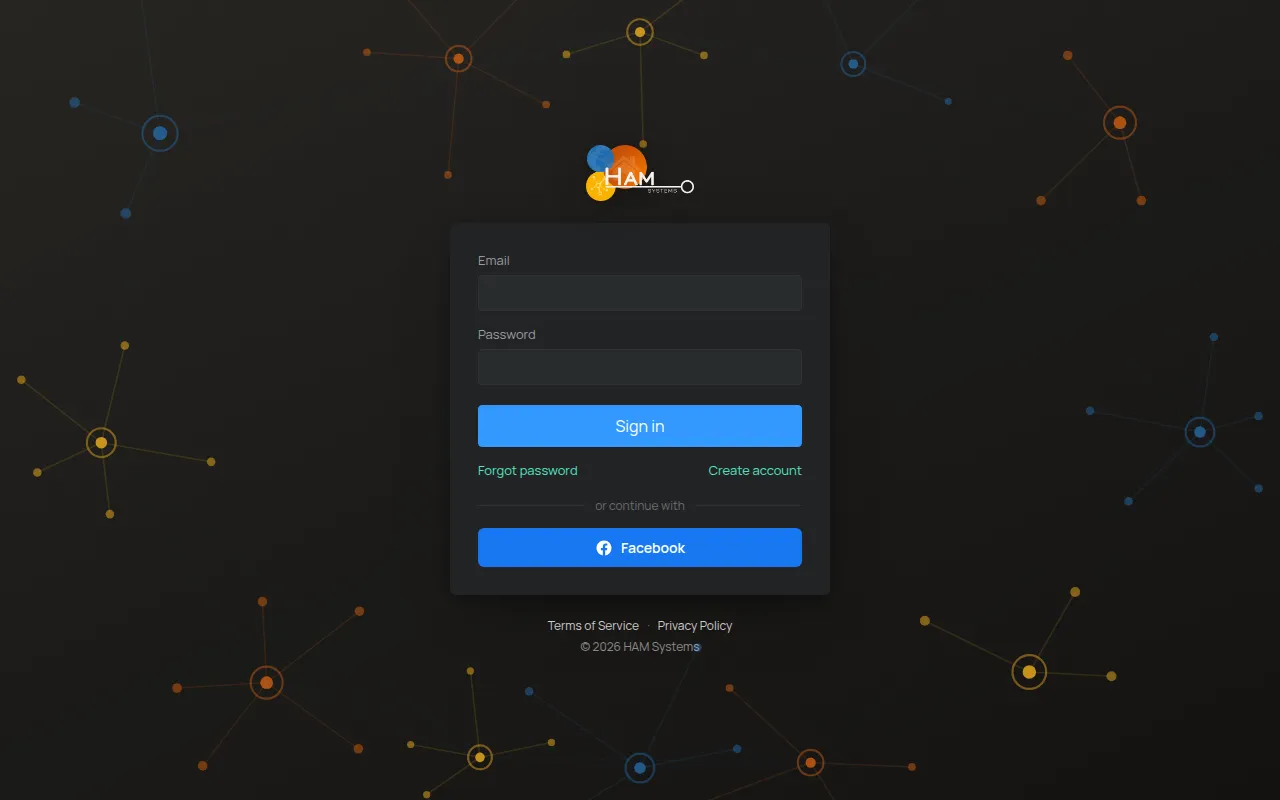
| Message | Cause | What to do |
|---|---|---|
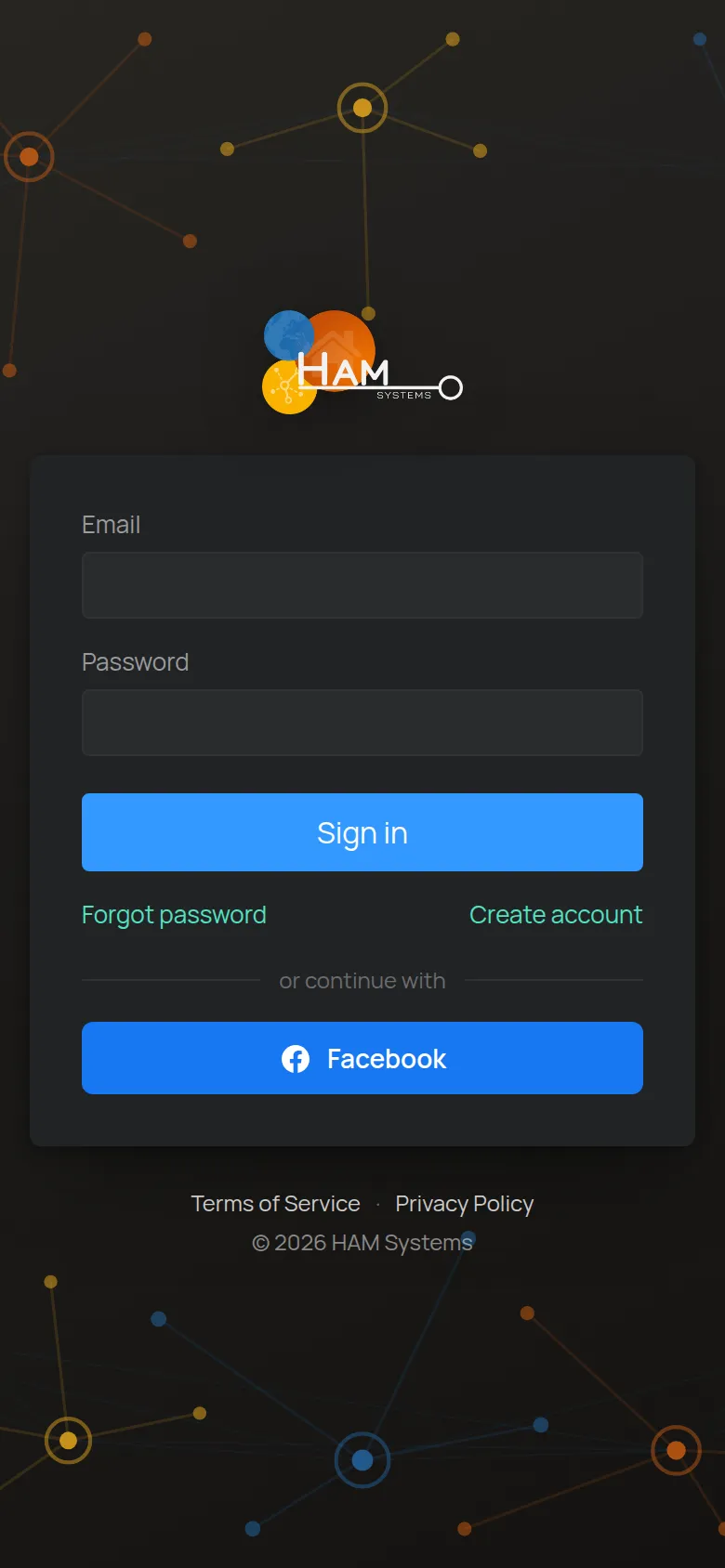
| Login failed | The e-mail or the password is not correct. | Check the e-mail. Type the password again. If you do not remember it, tap Forgot password. |
| Too many attempts, try again later | You made too many attempts that failed. | Wait a short time and try again. |
| Your account is not activated | The account is not active yet. | Look in your e-mail for a message from HAM Systems. See Create an account. |
| Could not reach the server | The phone or the computer has no internet. | Check your internet connection and try again. |
You forgot the password
Section titled “You forgot the password”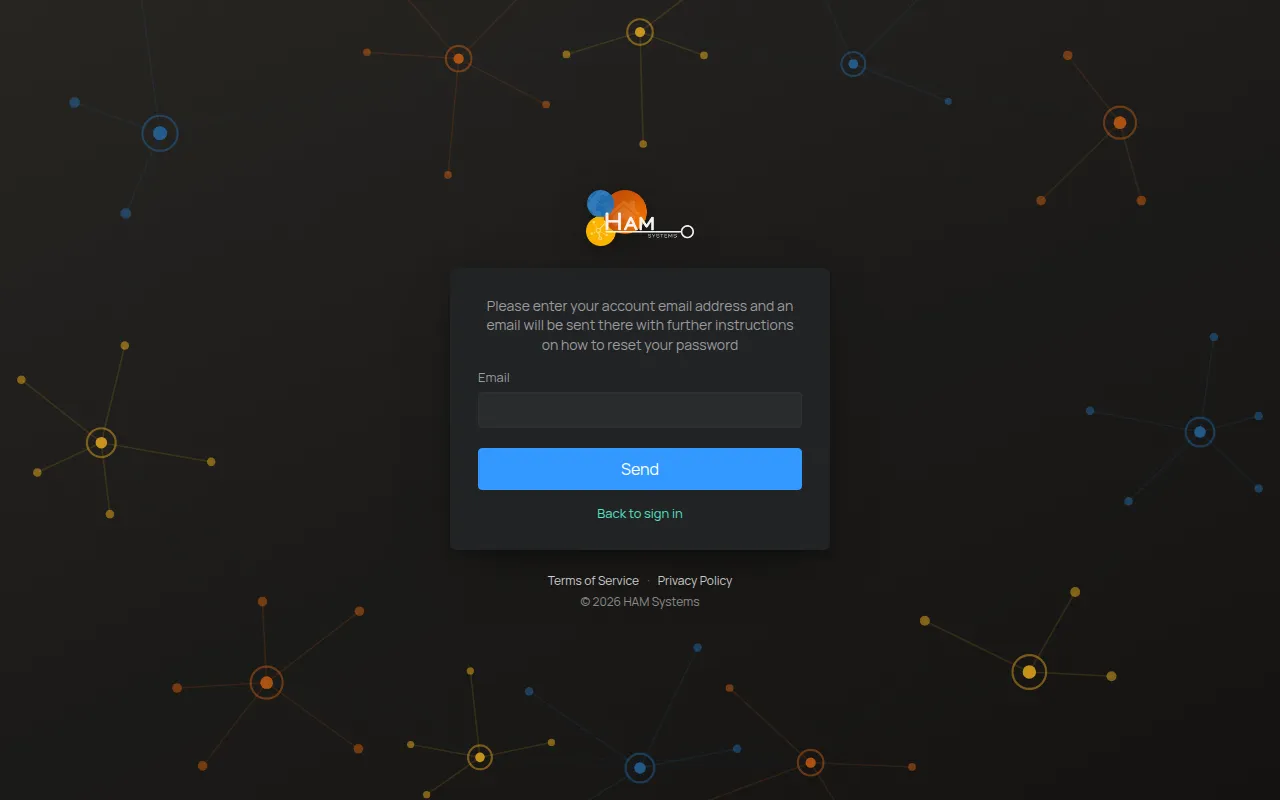
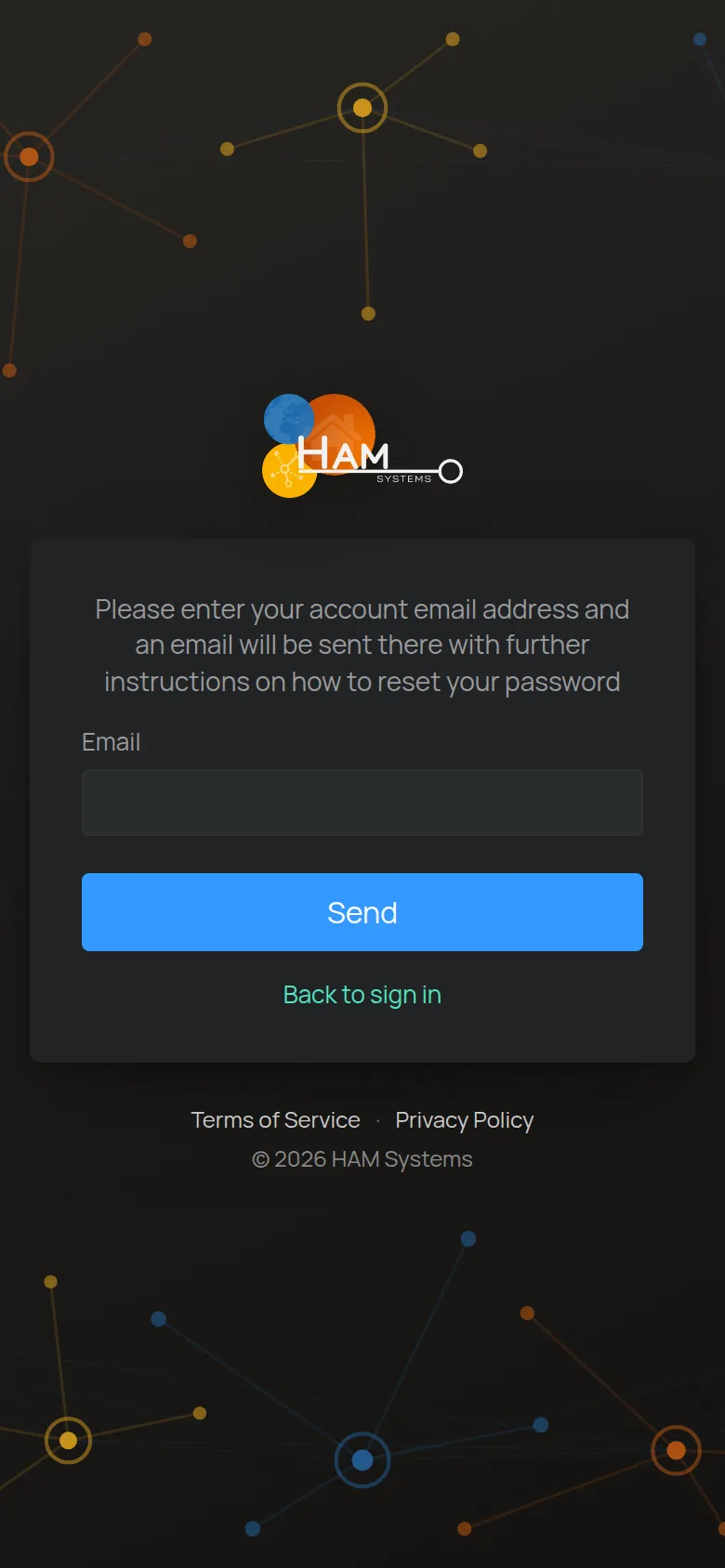
- On the login screen, tap Forgot password.
- Type the e-mail of your account and tap Send.
- Open the e-mail from HAM Systems and tap the link. The link is valid for 10 hours.
- On the Reset Password screen, type the new password two times. The password has 8 to 64 characters.
- Tap Submit.
If you cannot find the e-mail:
- Look in the spam folder.
- Make sure that you typed the e-mail of your account.
- If you see An email was already sent to …, use the e-mail that you already received.
To change the password when you are logged in, see Account details and password.
The app shows old values
Section titled “The app shows old values”When you open the app after some time, the values can be old for a few seconds. The app connects again and updates them.
If the values stay old:
- Open the side menu.
- Tap Refresh at the bottom of the menu. The app deletes its temporary data and loads again.
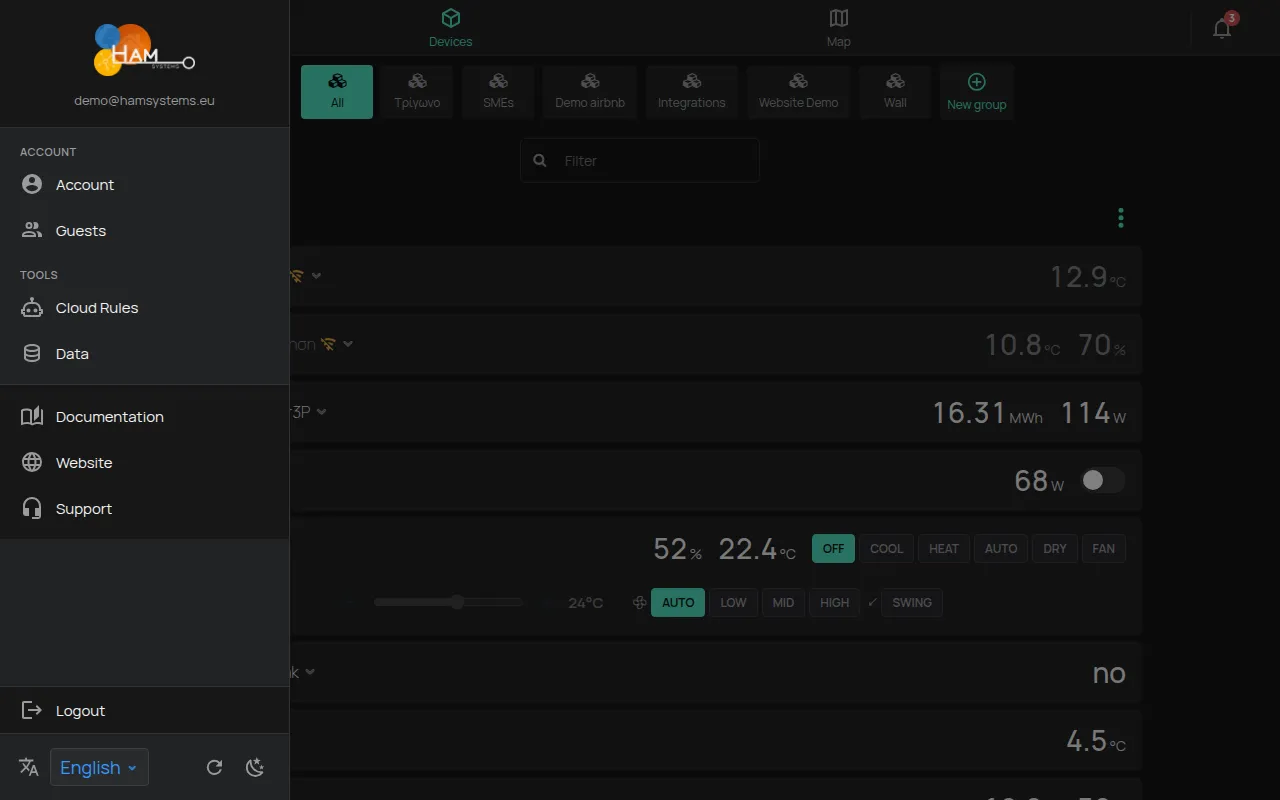
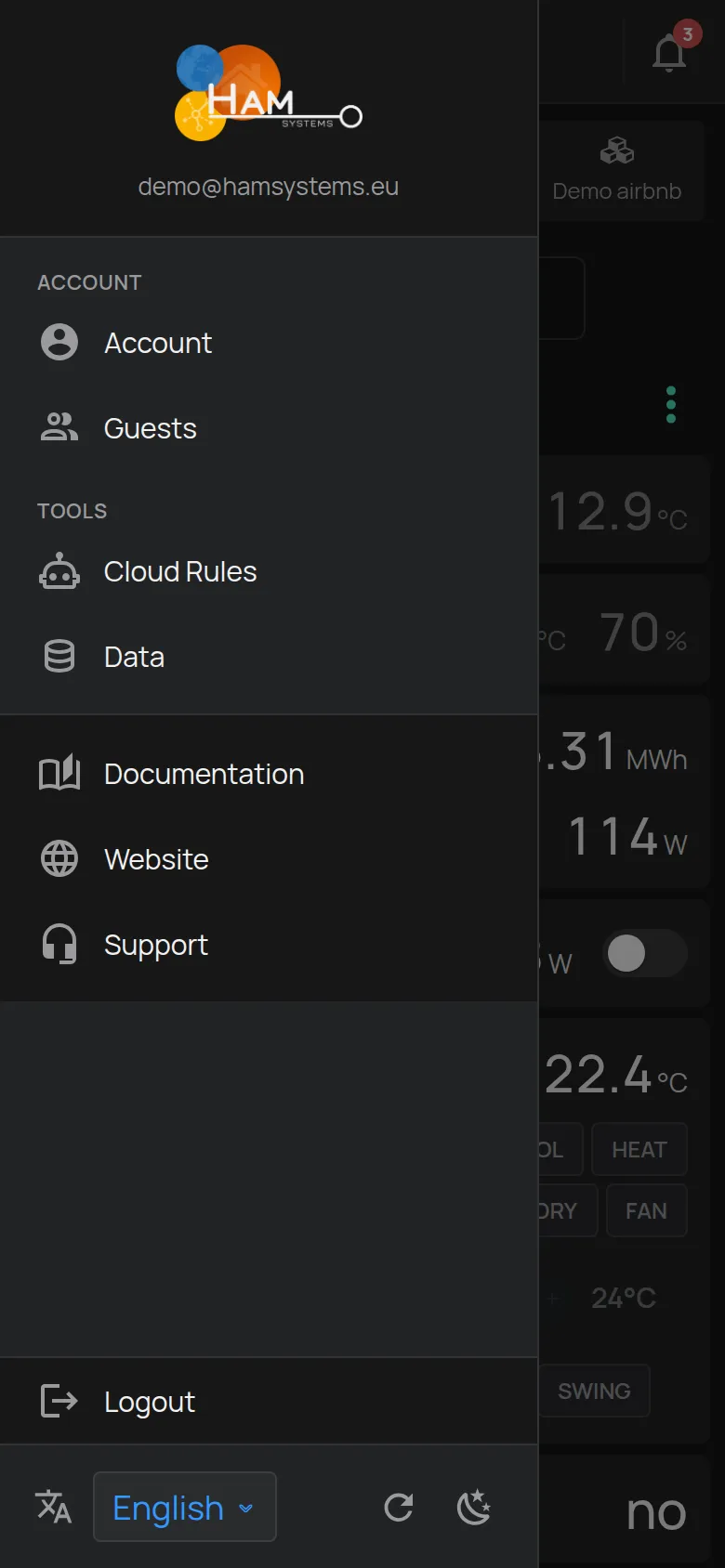
If only one device shows old values, the device is probably offline. See The device shows as offline.
The language or the theme changed
Section titled “The language or the theme changed”The Language and the Theme (light or dark) are kept on each phone or browser separately. On a different phone or browser, set them again from the side menu. See Language, theme, units.
The mobile app does not operate correctly
Section titled “The mobile app does not operate correctly”- Update the app from Google Play or the App Store.
- Close the app fully and open it again.
- Tap Refresh in the side menu.
- If the problem continues, tap Logout and log in again.
The app operates on Android 6 and later, and on iOS 14 and later. See The mobile app.
You do not receive notifications
Section titled “You do not receive notifications”A guest link does not open
Section titled “A guest link does not open”If a guest link shows This link doesn’t work, the link expired or is not correct. Guest links are valid for a limited time. Ask the owner for a new link. See Guests and users.
When to contact support
Section titled “When to contact support”- You see Login failed with the correct password, and a password reset does not help.
- You do not receive the reset e-mail, also not in spam.
- The app closes itself or shows an empty screen after an update.
Contact support. Write the e-mail of the account, the phone or the browser, and what you did before the problem.