

The device shows as offline
Try this first
Section titled “Try this first”- Turn off the power of the device for a few seconds and turn it on again.
- Make sure that your router has internet. Open a web page from another device on the same WiFi.
- Wait a few minutes. The device connects again by itself.
If the device is still offline, see the causes below.
What you see
Section titled “What you see”- The device card in the list is dimmed.
- Next to the device name there is a WiFi icon with a line through it.
- The values do not change. The app shows the last value that it received.
Tap the icon. The app shows the message Device is not connected to cloud, the Last online time and the WiFi Network that the device has stored.
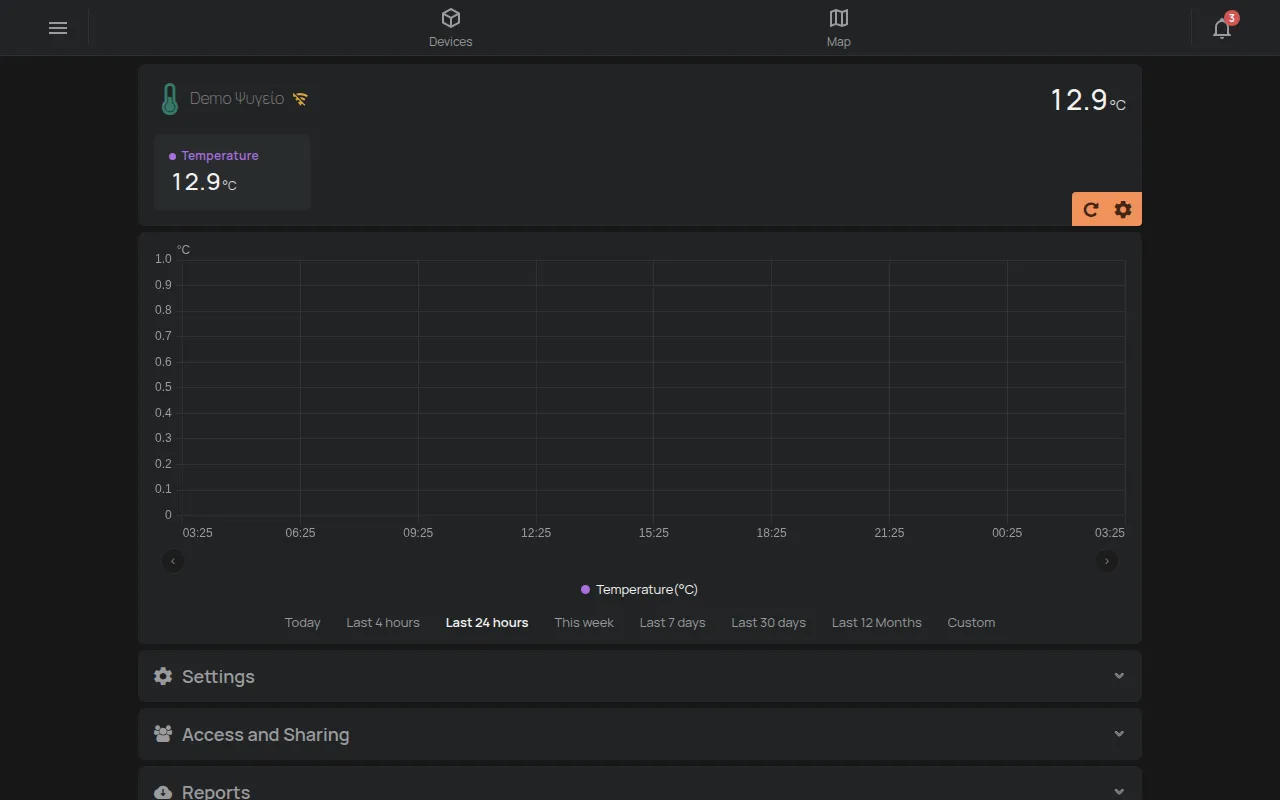
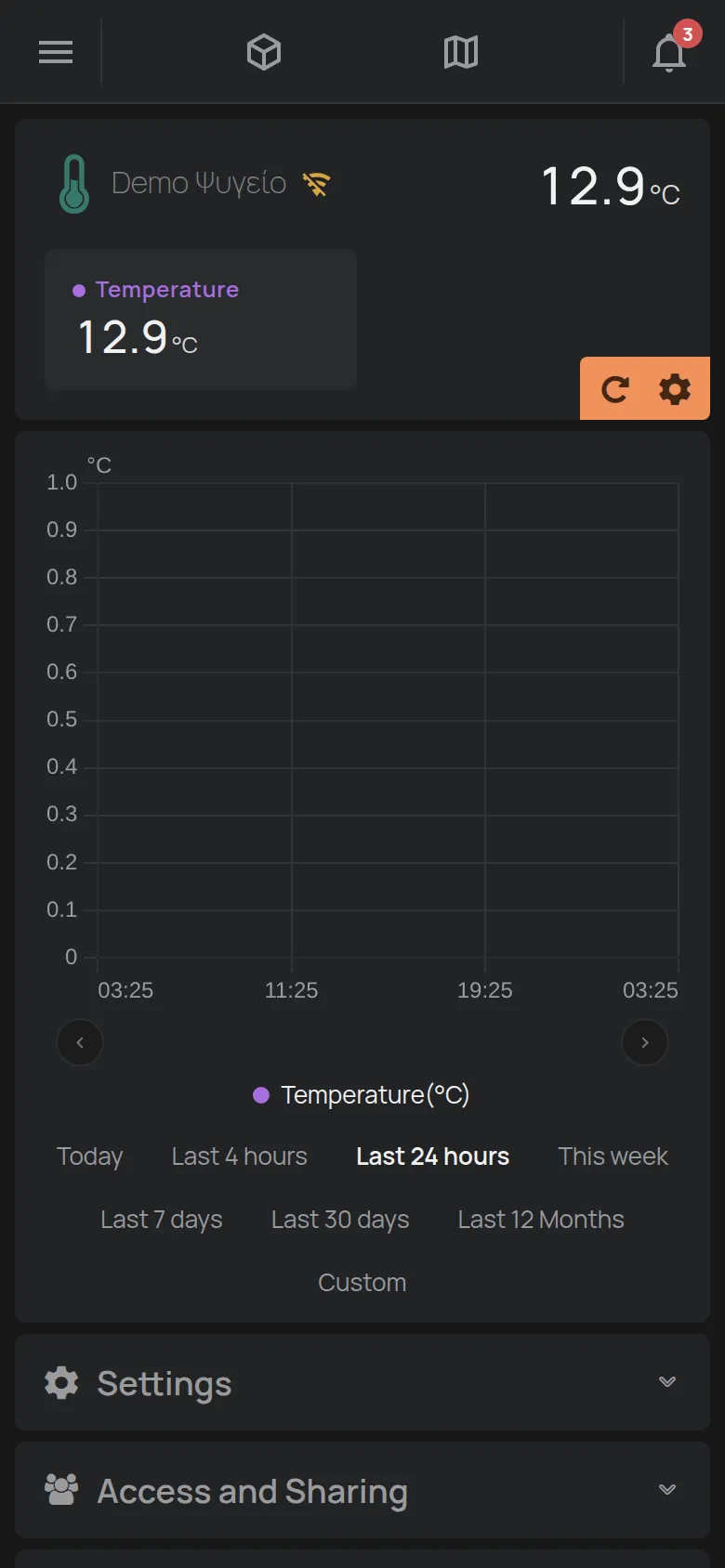
If the device is offline for some days, the app also shows a Warnings icon with instructions.
The app shows a device as offline when the server receives no messages from it for some time. This time is different for each device.
Causes, most frequent first
Section titled “Causes, most frequent first”1. You changed the router, the provider or the WiFi password
Section titled “1. You changed the router, the provider or the WiFi password”This is the most frequent cause. The device knows only the old network name and the old password. It cannot find the new network by itself.
Fix: Do the WiFi setup again from the mobile app. The device is not deleted. It stays in your account and keeps its settings and history. The setup changes only the WiFi network and its password. In the device list, open the tools menu (⋮) and tap Add new device. See Change the router or WiFi password.
2. All the devices at the site are offline
Section titled “2. All the devices at the site are offline”If all the devices in the same building went offline together, the problem is in the network, not in the devices.
Fix:
- Make sure that the router has power and internet. Open a web page from another device on the same WiFi.
- Restart the router.
- Wait a few minutes. The devices connect again by themselves.
- If your internet provider had an outage, the devices connect when the outage ends.
3. The device has no power
Section titled “3. The device has no power”Check the power supply, the socket and the breaker in the panel. A device without power does not measure and does not keep readings.
4. The WiFi signal is weak
Section titled “4. The WiFi signal is weak”The device disconnects and connects again many times each day. Frequent causes are a metal enclosure, a fridge or a thick wall between the device and the router.
Fix:
- Check the signal at the point where the device is, not at the point where you are.
- Move the device or the router closer.
- Add a WiFi extender or an access point.
5. A firewall blocks the connection
Section titled “5. A firewall blocks the connection”On company networks, the firewall can block the connection of the devices to the HAM server. Ask your IT department to check the Network requirements (for IT).
6. The device is faulty
Section titled “6. The device is faulty”If the device lights no LED or does not go into setup mode, it can be faulty. Contact support and give the serial number.
Recovery steps
Section titled “Recovery steps”Do the steps in this order. Stop when the device connects.
- Disconnect the power of the device for a few seconds, then connect it again.
- Do the Connect a device to WiFi again. This is safe. The device stays in your account.
- Do a factory reset, as the page of your device in Devices tells you. The reset erases the WiFi and the settings of the device. The device stays in your account. Then do the WiFi setup again.
Bluetooth (BLE) devices
Section titled “Bluetooth (BLE) devices”Bluetooth devices do not connect to the internet by themselves. A HAM device or a GPS tracker “hears” them and sends their readings. When a Bluetooth device is offline, check:
- That the HAM device that hears it is connected.
- That the Bluetooth device is near enough to it.
- The Battery of the Bluetooth device. Replace the battery if it is low.
GPS trackers
Section titled “GPS trackers”GPS trackers connect over the mobile network. A tracker is offline when:
- The vehicle is at a point without mobile signal, for example in an underground garage.
- The SIM card or the data plan expired. Renew it from the shop.
- The vehicle does not supply power to the tracker, for example when you disconnected the vehicle battery.
If the tracker is connected but the position does not change, the tracker can have no GPS signal. This occurs indoors. The position updates when the vehicle goes into an open area. See Install a GPS tracker in a vehicle.
When to contact support
Section titled “When to contact support”- The device lights no LED.
- The device does not go into setup mode.
- The device restarts again and again after a correct setup.
Contact support and give the serial number, the time when the device stopped and what you tried.
To know immediately when a device disconnects, make a rule. See Get an alert when a device goes offline.