

The mobile app
The HAM app for Android and iPhone shows your devices and sends you alerts. You need it to connect a new device to WiFi.
The phone app and app.hamsystems.eu show the same data. You sign in with the same account.
Install
Section titled “Install”| Phone | Where to get it | Minimum version |
|---|---|---|
| Android | Google Play | Android 6 |
| iPhone | App Store | iOS 14 |
-
Open the link for your phone, or search for “HAM Systems” in the app store.
-
Install the app. On the phone it shows with the name HAM.
-
Open the app.
If you have an account, sign in with your e-mail and password. If you do not have an account, tap Create account. See Create an account.
The app needs an internet connection. It does not work offline.
Permissions the app asks for
Section titled “Permissions the app asks for”The app asks for permissions when it needs them. Tap Allow so that everything works correctly.
| Permission | Why the app needs it |
|---|---|
| Notifications | To send you the alerts from your rules. |
| Location (Android) | Android asks for it to show the WiFi networks during device setup. The app does not track your position. |
| Bluetooth or Nearby devices | To send the WiFi details to a new device. |
| Nearby WiFi devices (Android 13 and later) | To find the device during setup. |
| Local Network (iPhone) | To talk to the device on your network during setup. |
Notifications on your phone
Section titled “Notifications on your phone”Your phone registers for notifications when you sign in to the app. When you tap Logout, the phone stops getting notifications.
On Android the app has two notification categories: Alerts for your rules and hamOS™ Insights. You can set the sound of each one in the phone settings.
If you tapped Don’t allow for notifications, the app does not ask again. Turn them on in the phone settings:
- Android: Settings > Apps > HAM > Notifications.
- iPhone: Settings > HAM > Notifications.
The menu names change a little from phone to phone.
A first look at the app
Section titled “A first look at the app”The first screen is the Devices list. Each device has a card with its readings. Tap the card to open it. More on The device list.
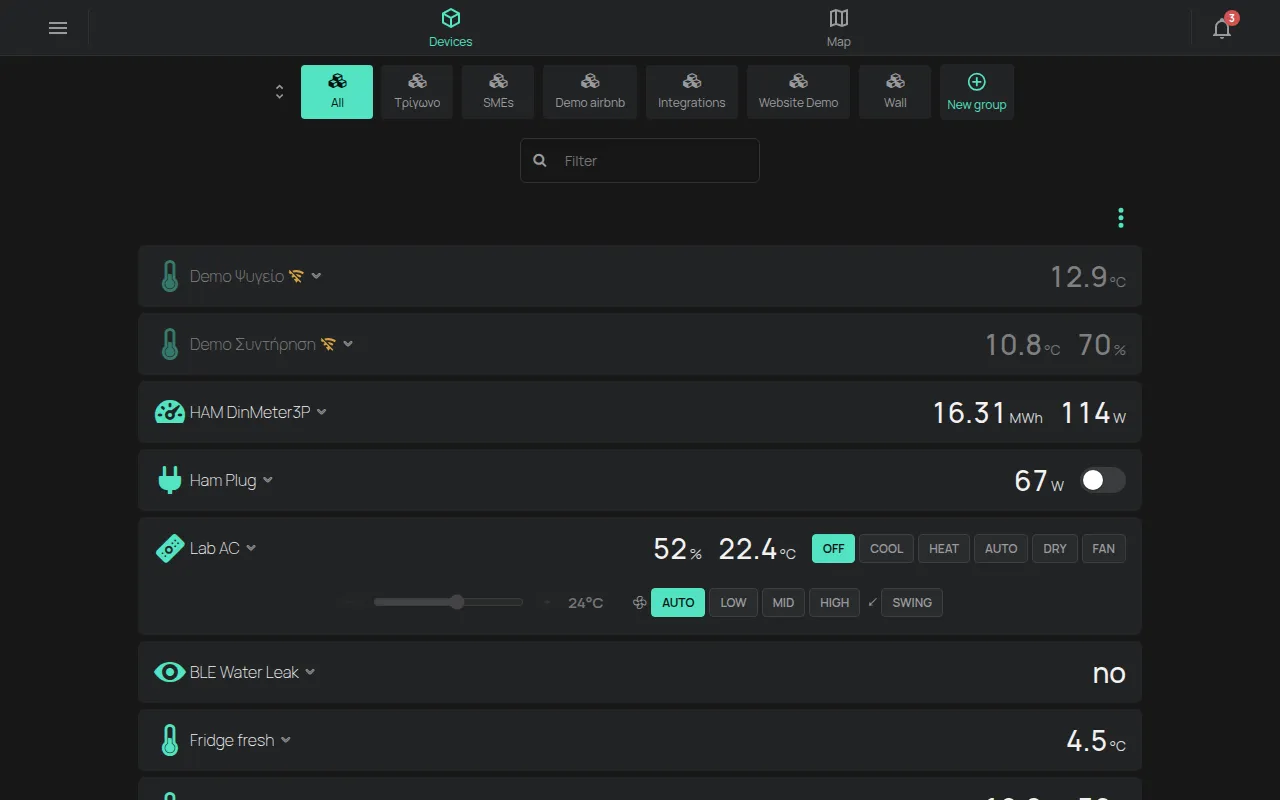
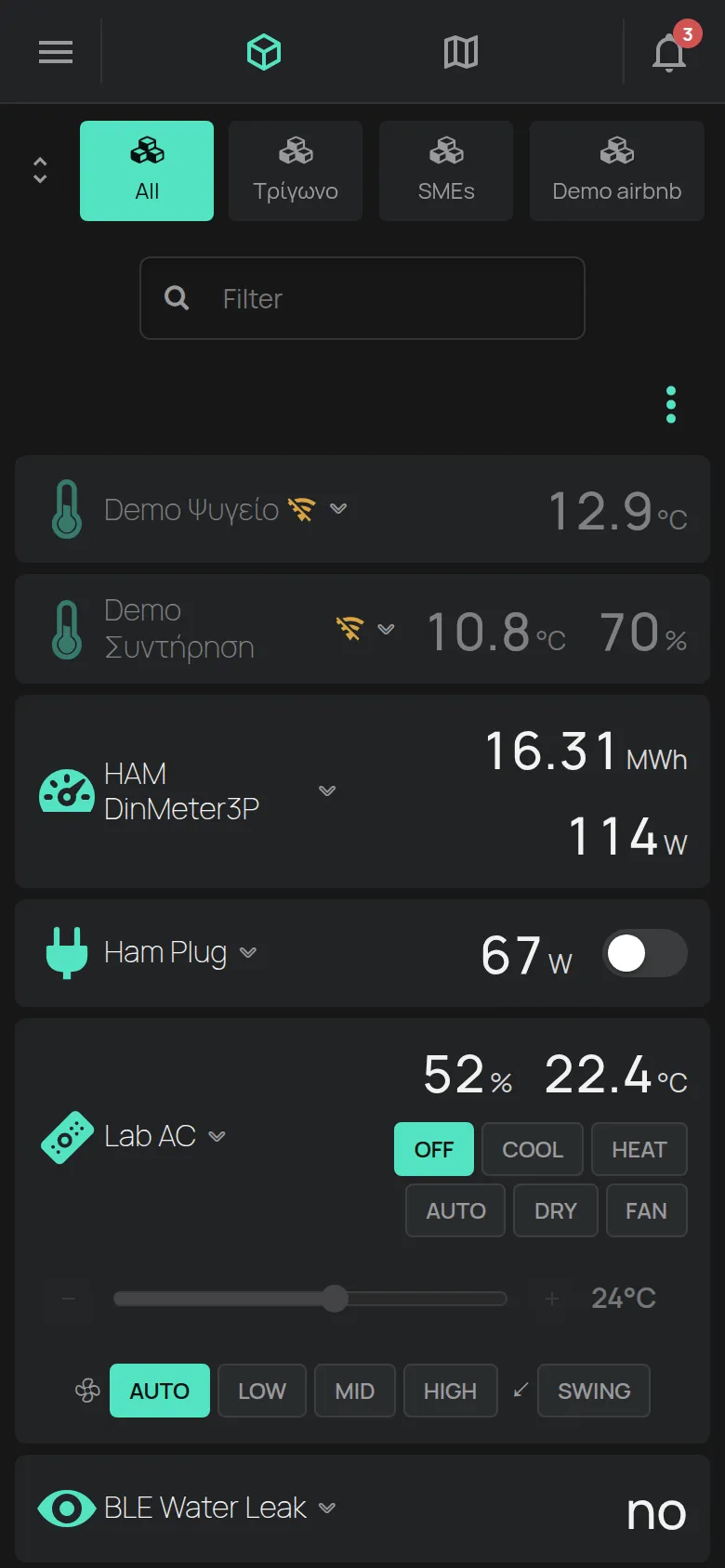
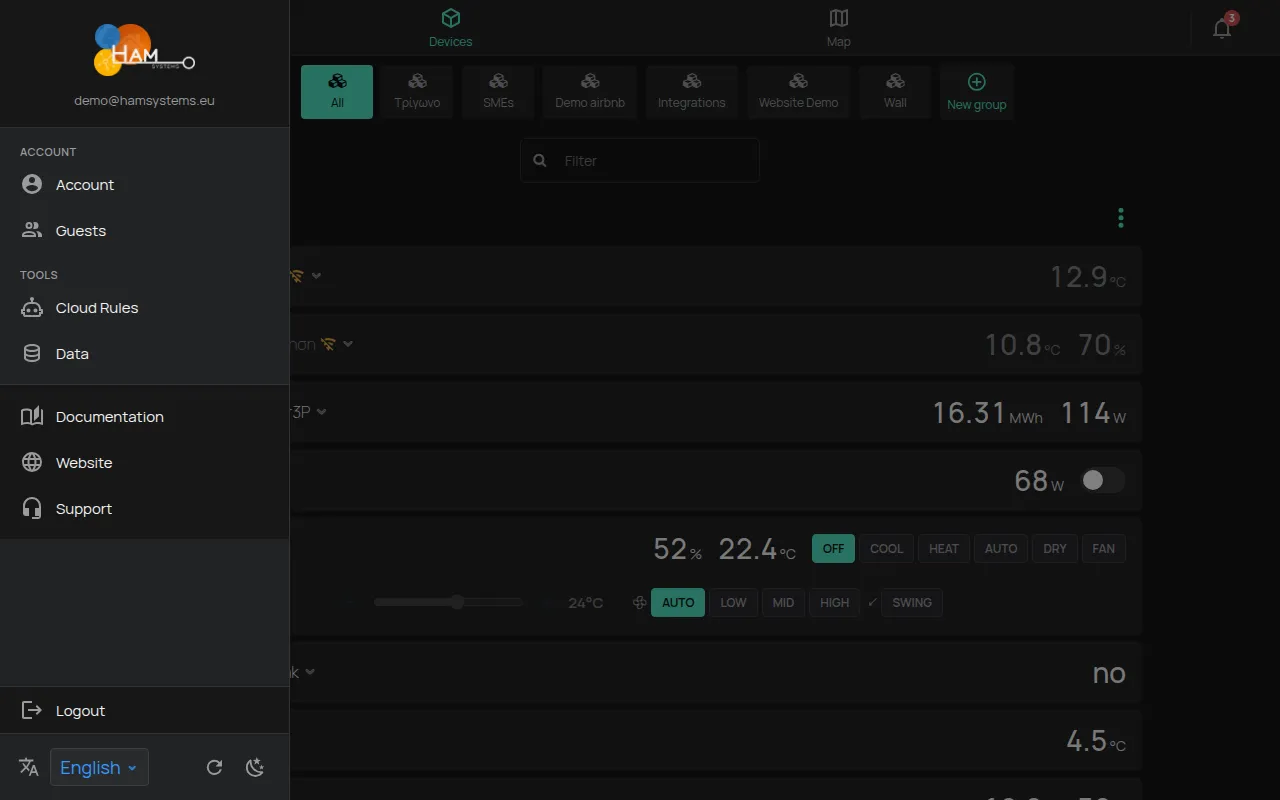
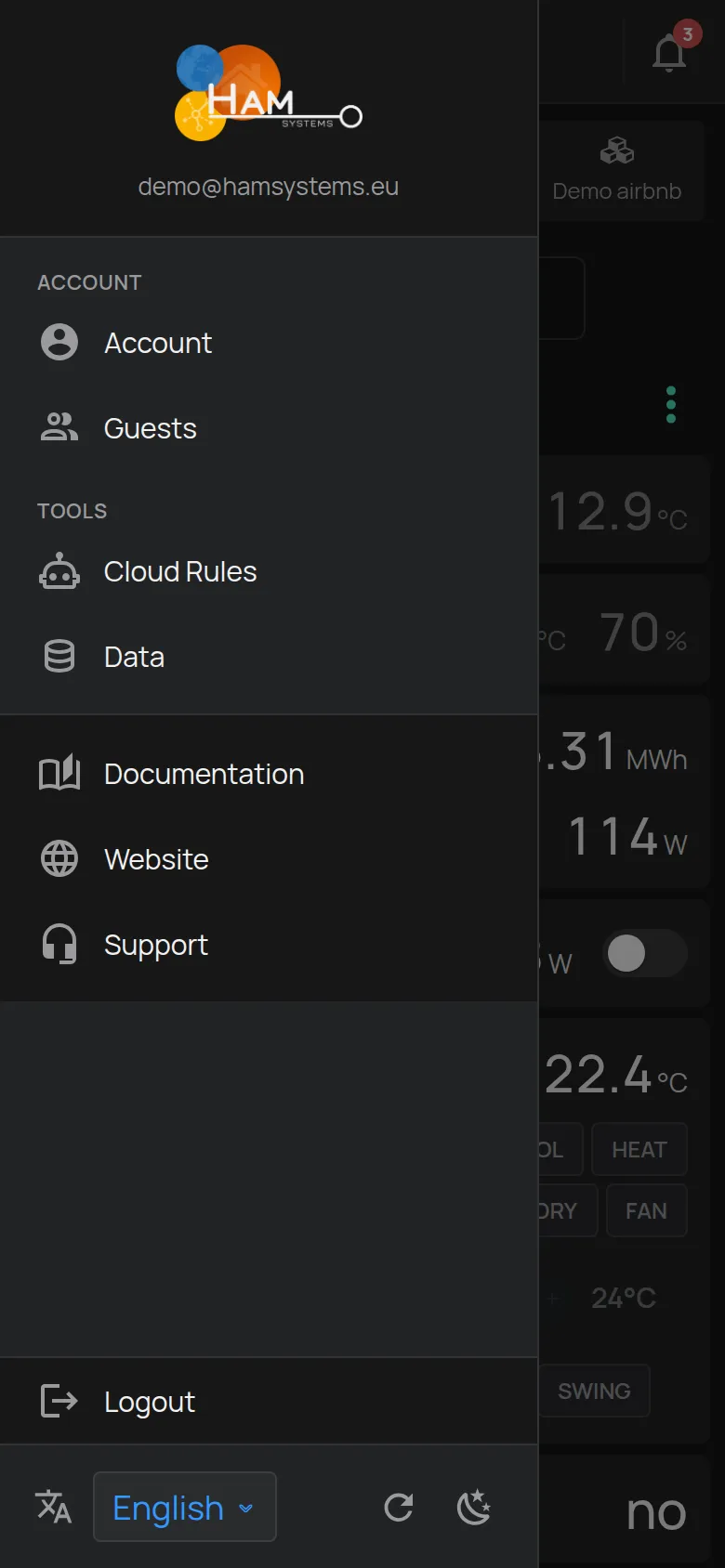
The Menu button at the top left opens the side menu. There you find Account, Guests, Cloud rules, Data and Logout. At the bottom you change the Language and the Theme.
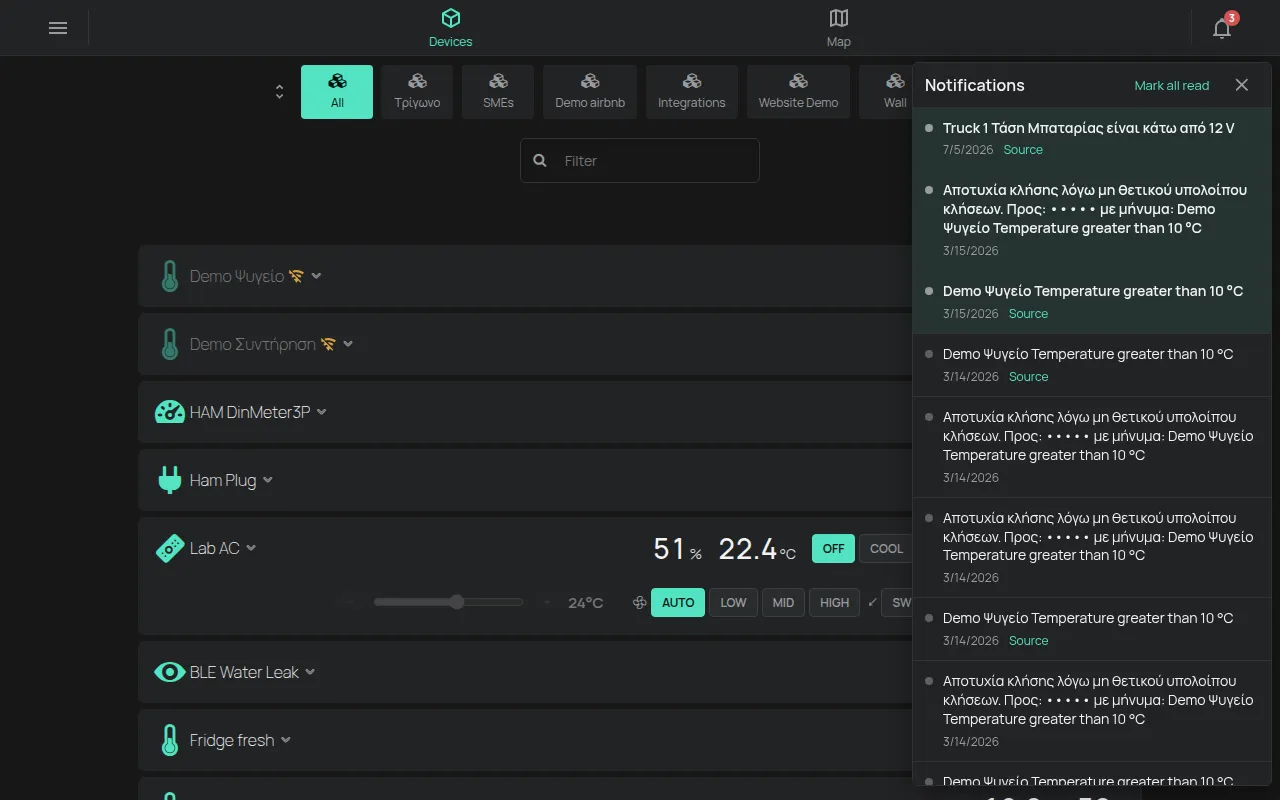
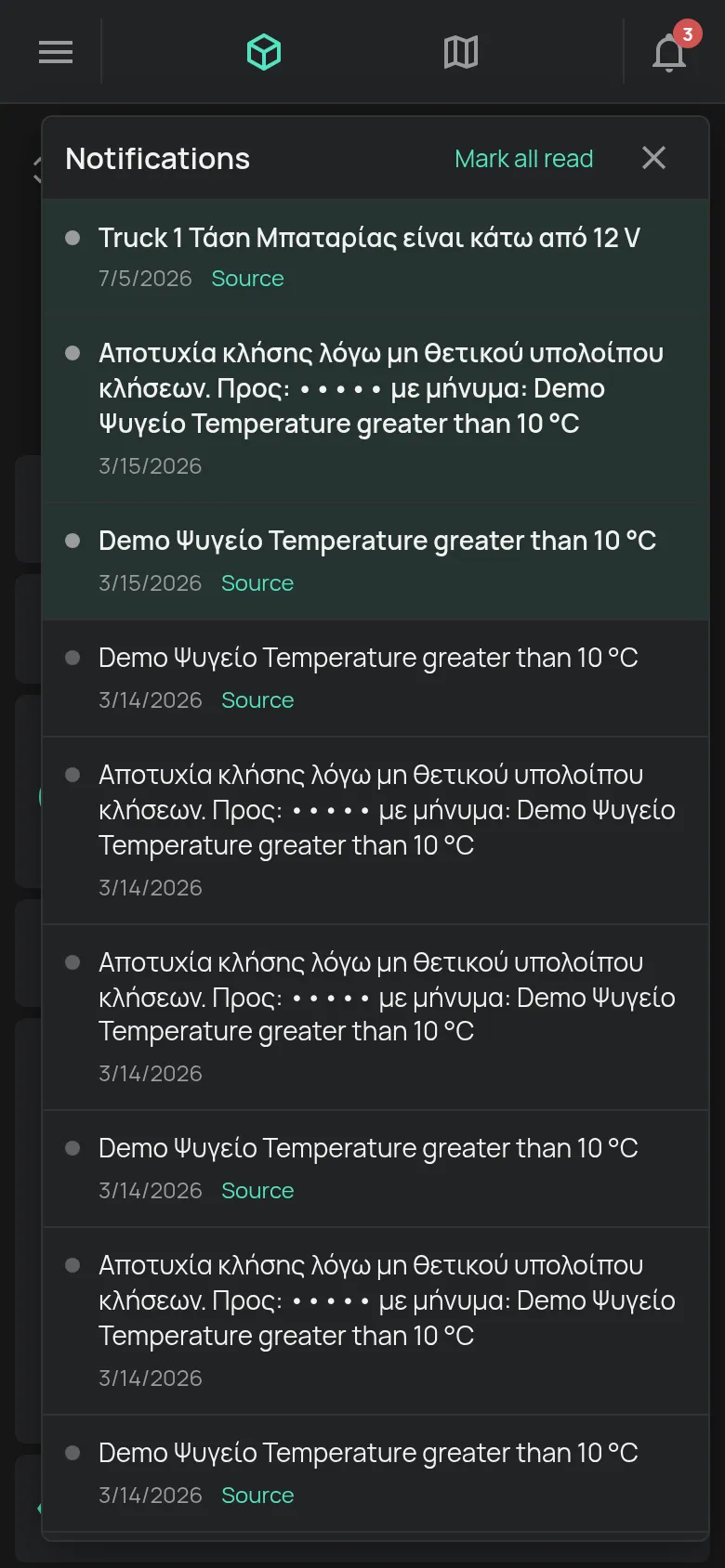
The bell at the top right opens Notifications. The number on the bell shows how many you have not read. See The notification bell.
Next step
Section titled “Next step”Create your account. If you already have an account, add your first device.