

An alert did not arrive
What you see
Section titled “What you see”The value of a device went past the limit that you set, but you did not receive an alert. Or you received an alert by e-mail, but not by SMS or push.
First, check if the rule triggered. From the menu, open Cloud rules and tap Notification report. The report shows when each rule Triggered and when it Resolved. The bell in the top bar also shows the last 15 notifications.
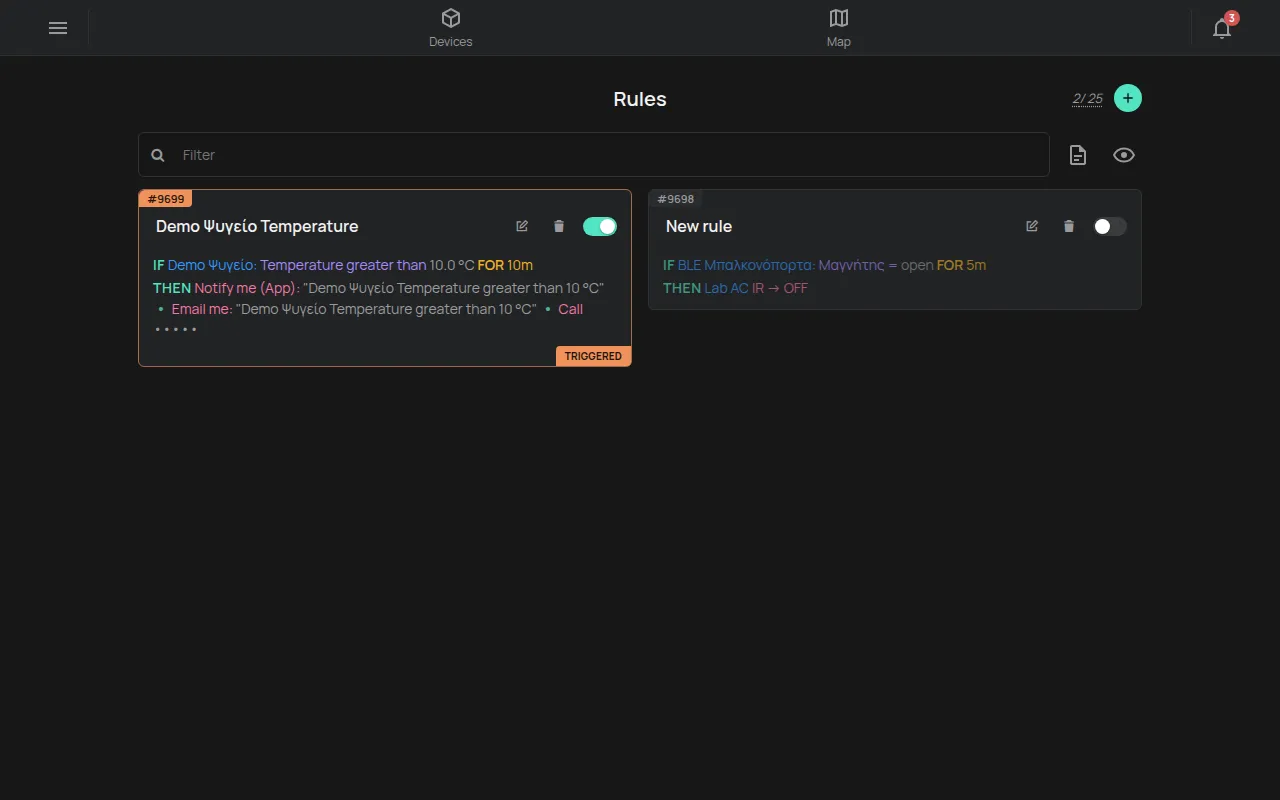
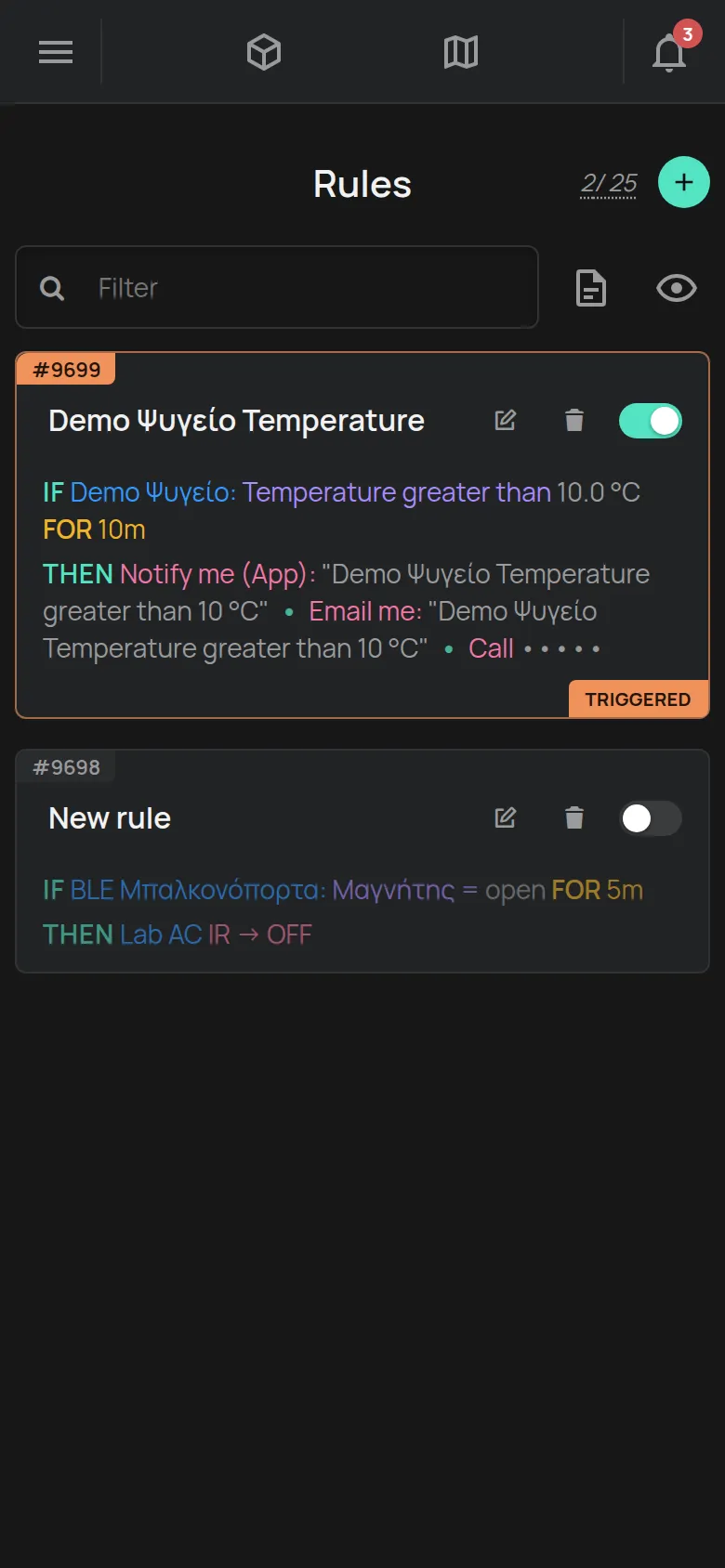
- If the rule did not trigger, the problem is in the rule. See causes 1 to 3.
- If the rule triggered but the alert did not arrive, the problem is in the channel. See causes 4 to 7.
Causes, most frequent first
Section titled “Causes, most frequent first”1. The rule is disabled or looks at a different device
Section titled “1. The rule is disabled or looks at a different device”Open the rule and check:
- The rule is Enabled, not Disabled.
- The condition looks at the correct device and the correct reading.
- The limit and the comparison are correct. For example, “greater than 8” and not “less than 8”.
2. The condition did not stay true for sufficient time
Section titled “2. The condition did not stay true for sufficient time”If the rule has a FOR time, the condition must be true for all of that time. If the value went past the limit for a short time and then came back, the rule does not trigger. This is correct. The FOR time prevents false alarms, for example when someone opens the door of a fridge.
3. The device was offline
Section titled “3. The device was offline”When a device does not send readings, the rule does not see the new value. To know when a device goes offline, make an offline rule. See Get an alert when a device goes offline and The device shows as offline.
4. You have no SMS or calls left
Section titled “4. You have no SMS or calls left”SMS messages and phone calls need credit. Open Account and find the Allowances section. The rows SMS Messages and Phonecall Alerts show how many are left. If none are left, tap Get a package.
5. The notification rate limit
Section titled “5. The notification rate limit”The platform limits how many notifications one rule sends in a short time. This prevents tens of messages about the same problem. When the limit starts, the last message ends with (Rate Limit Reached). After some time, the notifications continue as usual.
6. Push notifications are off on the phone
Section titled “6. Push notifications are off on the phone”Push notifications arrive only when:
- The HAM app has the notification permission in the phone settings.
- You are signed in to the app. When you tap Logout, the phone stops receiving push notifications.
On Android 13 and newer, if you refused the permission once, the app does not ask again. Open the phone settings > Apps > HAM > Notifications and turn them on. Make sure that the Alerts channel is on.
Also check “Do not disturb” and the battery saver of the phone.
7. The e-mail went to spam
Section titled “7. The e-mail went to spam”Look in your spam folder. The subject of the e-mail is hamOS™ Alert - <rule name>. Mark the message as “not spam”.
You cannot add a rule
Section titled “You cannot add a rule”Your account has a rule limit. The limit depends on how many devices you have and on the packages that you bought. See What is included for free.
When to contact support
Section titled “When to contact support”- The Notification report shows that the rule triggered, all the items above are correct, and the alert did not arrive.
Contact support and give the rule name, the serial number of the device, the time and the channel (push, e-mail, SMS or call).
Also see Push, e-mail, SMS, call.