

HAM SonicSense
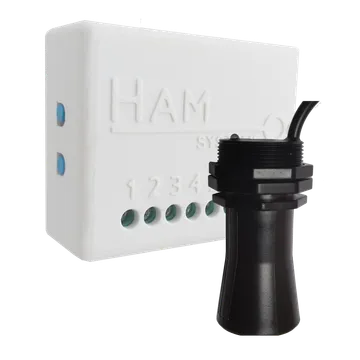
The HAM SonicSense measures the distance from the sensor to the liquid surface and shows the level and volume of a tank. Use it when you want to know how much water or liquid you have without a visit to the tank.
The serial number starts with e10:. The older version starts with 27:. The battery model from Milesight starts with m1: (see below).
What it measures
Section titled “What it measures”| Reading | Unit | Note |
|---|---|---|
| Distance | m | From the sensor to the surface, minus the Dead distance |
| Level | m | Height of the liquid. Without a container setup, it shows the distance |
| Level | % full | How full the container is. Needs the container setup |
| Volume | m³ | Needs the container shape and dimensions |
| Volume rate | m³/h | How fast the container fills or empties |
| Full est. | Estimated time until the container is full | |
| Empty est. | Estimated time until the container is empty | |
| Distance Velocity | m/min | How fast the distance changes |
| Temperature | °C | |
| Gen. In., Gen. In. 2 | Two general inputs, for example for float switches. They show when you configure them |
Volume, percentage, volume rate and the time estimates show only after you set up the container (see Settings).
Typical uses
Section titled “Typical uses”- Water tanks in homes, hotels and businesses.
- Irrigation and farm tanks.
- Silos and wells with clear access from above.
Installation
Section titled “Installation”The device connects to WiFi 2.4 GHz. You set it up from the HAM app, as described in Connect a device to WiFi. The SonicSense has the same enclosure as the HAM Sense devices.
Install the sensor at the top of the tank, with its face toward the liquid surface.
- The valid measuring range is 250-7500 mm.
- Keep the cone below the sensor clear. A ladder, an inlet pipe or foam in the cone gives wrong values.
- The sensor is water resistant (IP67). The device enclosure is not water resistant (IP20). Put the enclosure in a dry place.
- Check the WiFi signal at the tank, not where you stand.
For general installation guidance see Sensor placement and wiring.
The terminal order is different between versions of the device. Connect the sensor as the manual of your device shows. The wire colours are: red 3.3 V, green RX, blue TX, black GND.
Settings
Section titled “Settings”The settings are on the device page, in the Settings section. For the general procedure see Device settings.
Set up the container
Section titled “Set up the container”Set up the container to see level, percentage and volume.
- Open the device page.
- Open the Settings section.
- On the Container row, tap Set up. The Container setup window opens.
- In Shape, select the shape of the tank.
- In Dimensions, type each dimension in metres.
- In Dead distance, type the distance between the sensor and the top of the container in metres.
- Check the drawing. It shows the fill percentage and the Tank capacity.
- Tap Save.
| Shape | Dimensions |
|---|---|
| Horizontal Cylinder | diameter, length |
| Vertical Cylinder | diameter, height |
| Sphere | diameter |
| Box | length, width, height |
| Custom | area (m²), height |
Other settings
Section titled “Other settings”- Device Description: text that shows as a subheading in reports.
- Distance Sensor (in Advanced): the sensor type, ultrasonic or laser. Keep the value that HAM set.
- General input is alarm output (in Advanced): the last general input becomes an alarm output.
- Alarm buzzer mode (in Advanced): the device sounds while an alarm is active.
- Calibration table (in Advanced): temperature correction.
- Allow LAN commands (in Advanced): other devices on your local network can control this device. Keep the setting off if you do not need it.
- Force IPv4 (in Advanced): the device uses only IPv4 connections.
- Do not keep track of data (in Advanced): the app keeps no reading history.
The older version (27:) does not have Distance Sensor, Alarm buzzer mode and Force IPv4.
Recommended rules
Section titled “Recommended rules”The app has no ready-made rules for this device. Create at least these two:
- An alert when Level (%) drops below a limit, for example 20%.
- An alert when the device goes offline. See Offline alerts.
For the steps see Create a rule.
Troubleshooting
Section titled “Troubleshooting”| What you see | Possible cause | What to do |
|---|---|---|
| The tank always shows as full | The liquid is in the 250 mm blind zone | Move the sensor higher |
| The level jumps | Foam, steam or an obstacle in the cone | Move the sensor to a clear position |
| No volume or percentage | The container is not set up | See Set up the container |
| The level has a constant offset | Wrong Dead distance or dimensions | Measure again and correct |
For general problems see Wrong or strange values and Device shows offline.
Milesight SonicSense (m1:)
Section titled “Milesight SonicSense (m1:)”The m1: model is a battery device from Milesight. It does not use WiFi. It shows Distance, Level, Volume, Battery (%), Temperature, Lid, Full and Motion. You set up the container in the same way. For installation and availability, contact us.
Specifications
Section titled “Specifications”| Measuring range | 250-7500 mm |
| Blind zone | 250 mm |
| Sensing angle | 55° |
| Operating temperature | -15 to 60 °C |
| Sensor protection | IP67 |
| Enclosure protection | IP20 |
| Inputs | 2 general inputs |
| Power | Micro-USB adapter (included) or 5-12 VDC via terminals |
| Connectivity | WiFi 802.11 b/g/n, 2.4 GHz |
| Accuracy | 5% |
| Resolution | 1 cm |
| Device operating temperature | -10 to 50 °C |
| Enclosure dimensions | 55 x 44 x 21.5 mm |
| Enclosure material | ABS V-0 |
Available in the shop.