

Account details and password
All your account details are on the Account page. Open the side menu and tap Account.
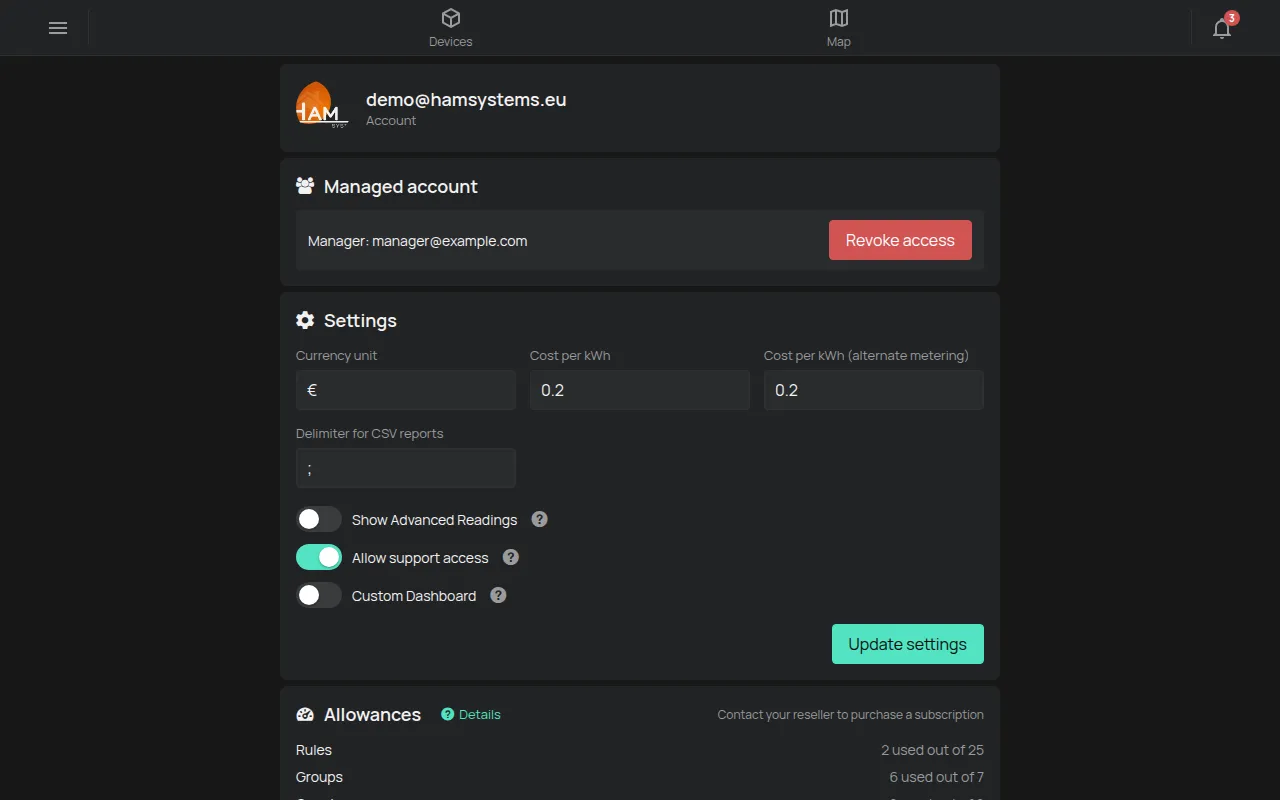
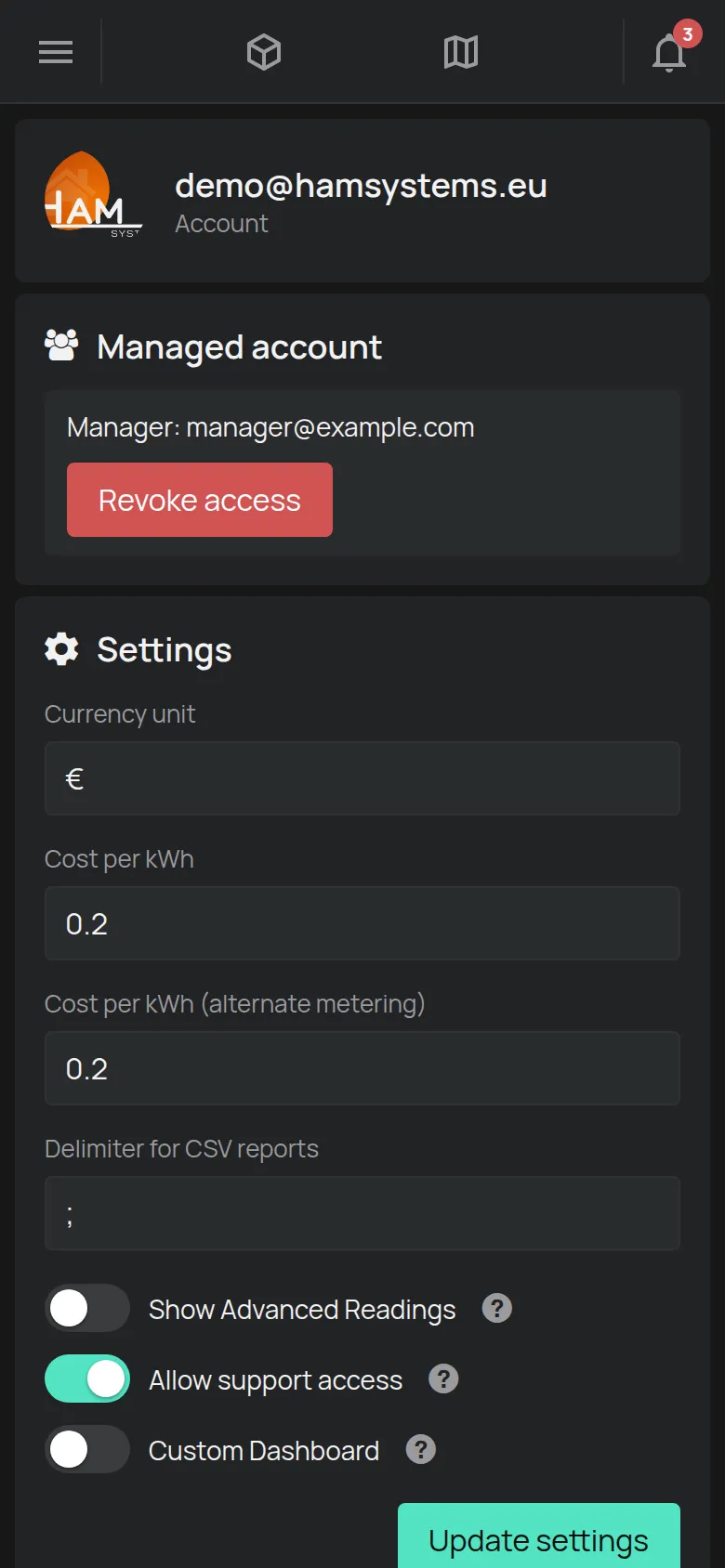
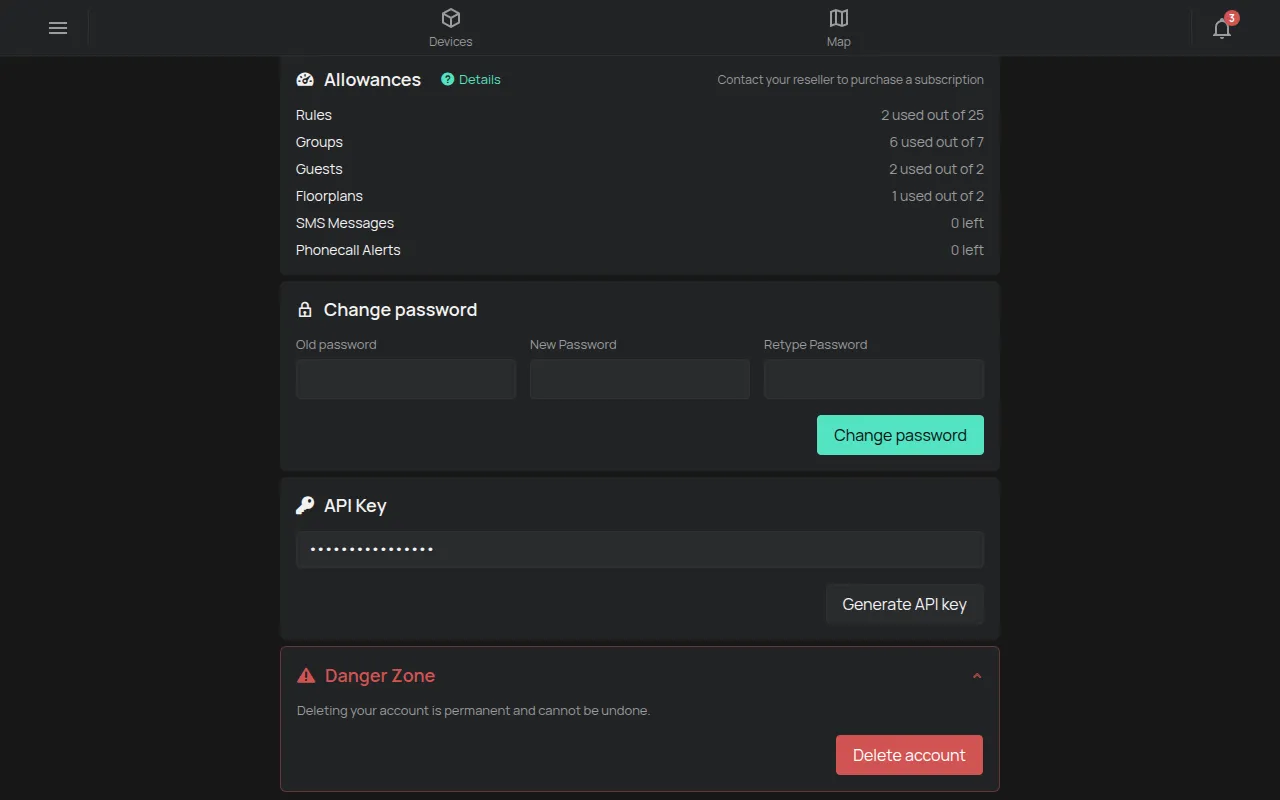
The page has these sections, from top to bottom:
- The e-mail of your account.
- Managed account and Management Requests, only when they exist. See Management by an installer or partner.
- Settings.
- Allowances. See What is included for free.
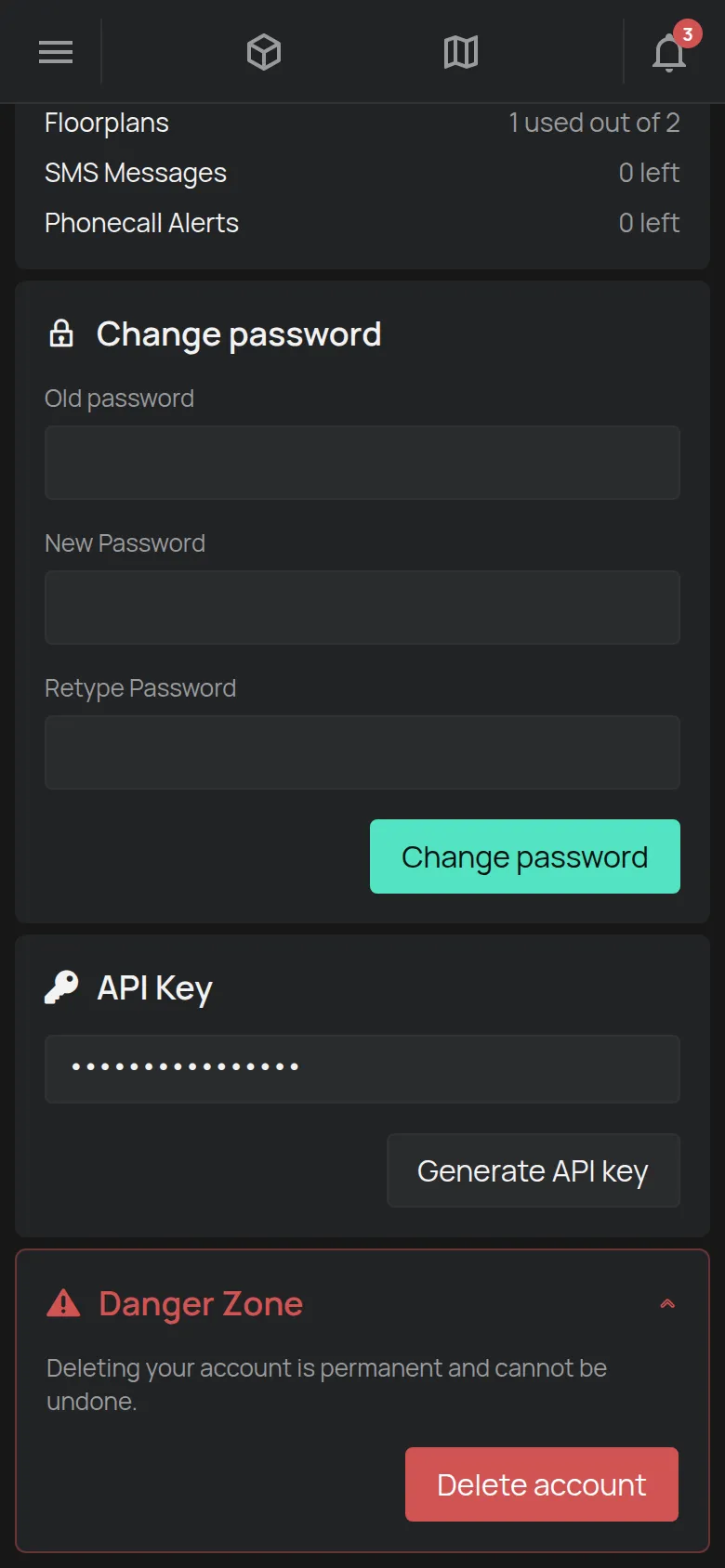
- Change password.
- API Key.
- Danger Zone, to delete the account.
Change the password
Section titled “Change the password”- On the Account page, go to the Change password section.
- In Old password, type your current password.
- In New Password, type the new password.
- In Retype Password, type the new password again.
- Tap Change password. The app shows Password updated successfully.
If the app shows Passwords do not match, the two new password fields are not the same. Type them again.
You forgot the password
Section titled “You forgot the password”- On the login page, tap Forgot password.
- Type the e-mail of your account.
- Tap Send.
- Open the e-mail that you get and follow the instructions.
If no e-mail arrives, look in the spam folder. Also see Problems with the app.
Change the e-mail
Section titled “Change the e-mail”The app has no field to change the e-mail. Send the old and the new e-mail to contact@hamsystems.eu. See Contact support.
Settings
Section titled “Settings”Change the values that you want and tap Update settings. The settings apply to the full account.
| Setting | What it does |
|---|---|
| Currency unit | The currency symbol for the energy cost. |
| Cost per kWh, Cost per kWh (alternate metering) | The energy price. See Energy use and cost. |
| Show Advanced Readings | Shows more readings, for example voltage and current. |
| Allow support access | Lets HAM Systems open your account to help you. |
You change the language and the theme at the bottom of the side menu. See Language, theme, units.
API key
Section titled “API key”The API key lets other programs read your data. The account has one key.
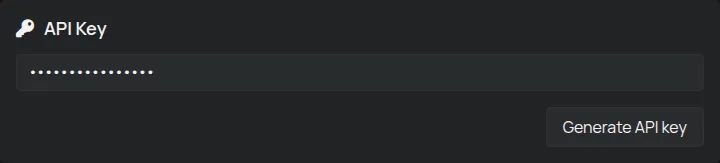
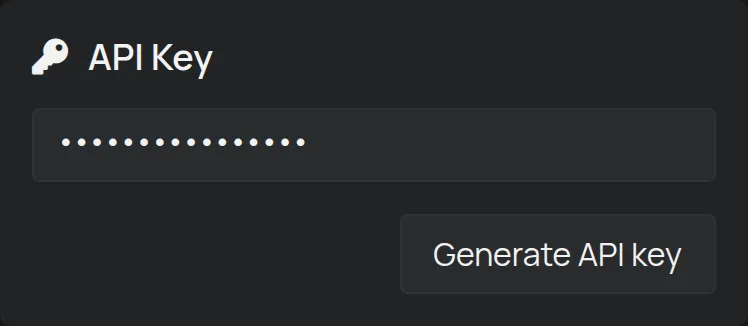
- If you have no key, the section shows No API key yet. Tap Generate API key.
- To copy the key, tap Copy.
The key gives access to all your devices. Do not send it by e-mail or chat. If another person has the key, make a new key. To use it, see REST API.
Delete the account
Section titled “Delete the account”- On the Account page, tap the Danger Zone title. The section opens.
- Tap Delete account.
- In the confirmation message, tap OK.
After you delete the account:
- The app logs you out at once.
- You get an e-mail with the deletion date, 15 days later.
- If you log in again before that date, the deletion stops.
- After the 15 days, the account is deleted and you get a second e-mail.
The account deletion does not delete the data that the devices recorded. To delete it, see Your data (retention, export, deletion).