

The notification bell
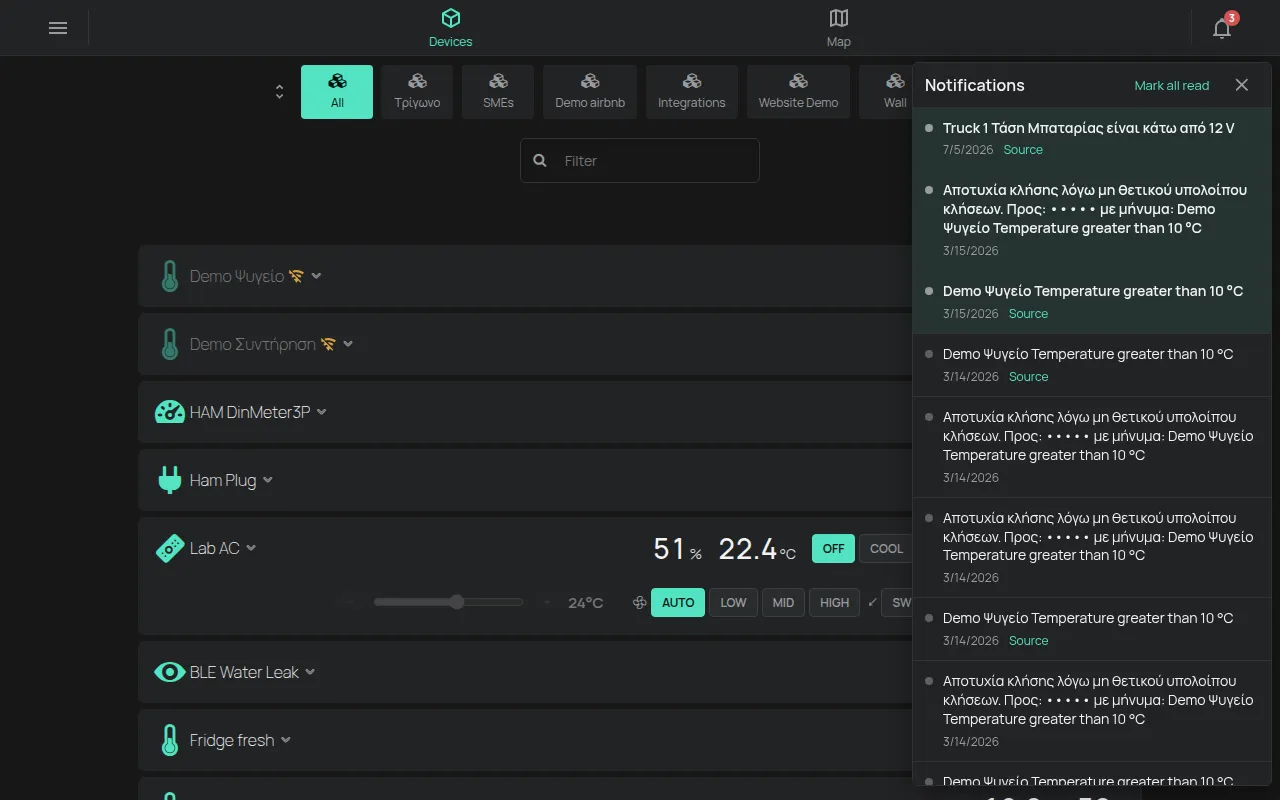
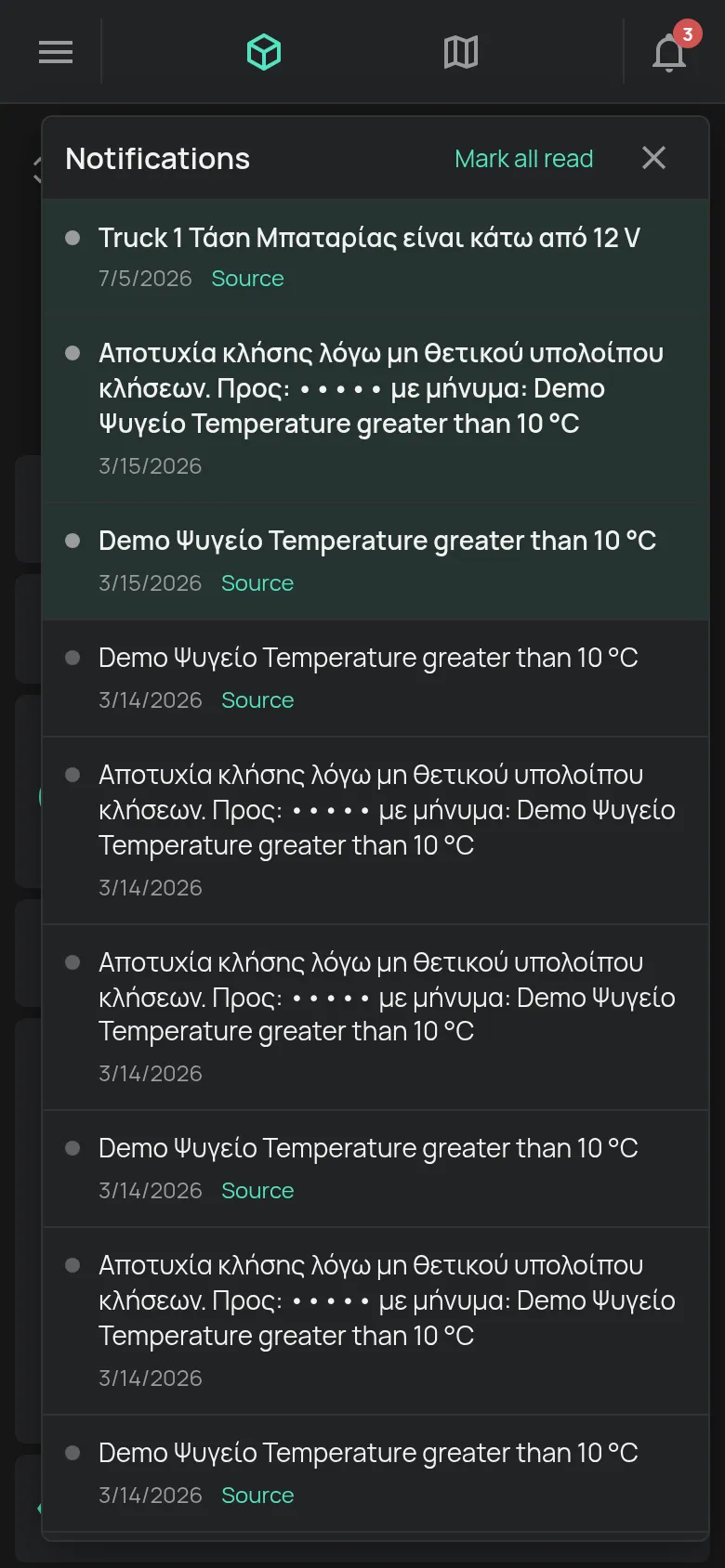
The bell in the top bar shows the notifications of your account. A number shows how many notifications you did not read. Above 99, it shows 99+.
What shows in the bell
Section titled “What shows in the bell”- Notifications from your rules, with the action Notify me (App). See notification channels.
- Share invitations from other accounts.
- Requests to manage your account.
- Messages about a failed SMS or call.
Read the notifications
Section titled “Read the notifications”- Click the bell.
- The list shows the 15 most recent notifications.
- Click a notification. The notification becomes read.
- To open the device of the notification, click Source.
To mark all of them as read, click Mark all read.
The colour of the dot shows the type of the notification. Red is an error and orange is a warning.
When there are no notifications, the list shows “There are not any notifications”.
Share invitation
Section titled “Share invitation”When a person shares a device with you, the notification has two buttons:
- Accept: the device goes into your list and its page opens.
- Decline: the invitation goes away.
See sharing.
Management request
Section titled “Management request”When a technician asks to manage your account, the notification has the link Account. Click it. Accept or decline the request on the Account page. See managed accounts.
Notifications on your phone
Section titled “Notifications on your phone”In the HAM app for phones, the notifications also come as push alerts. A web browser does not get push alerts. On a computer, check the bell.