

Floorplans
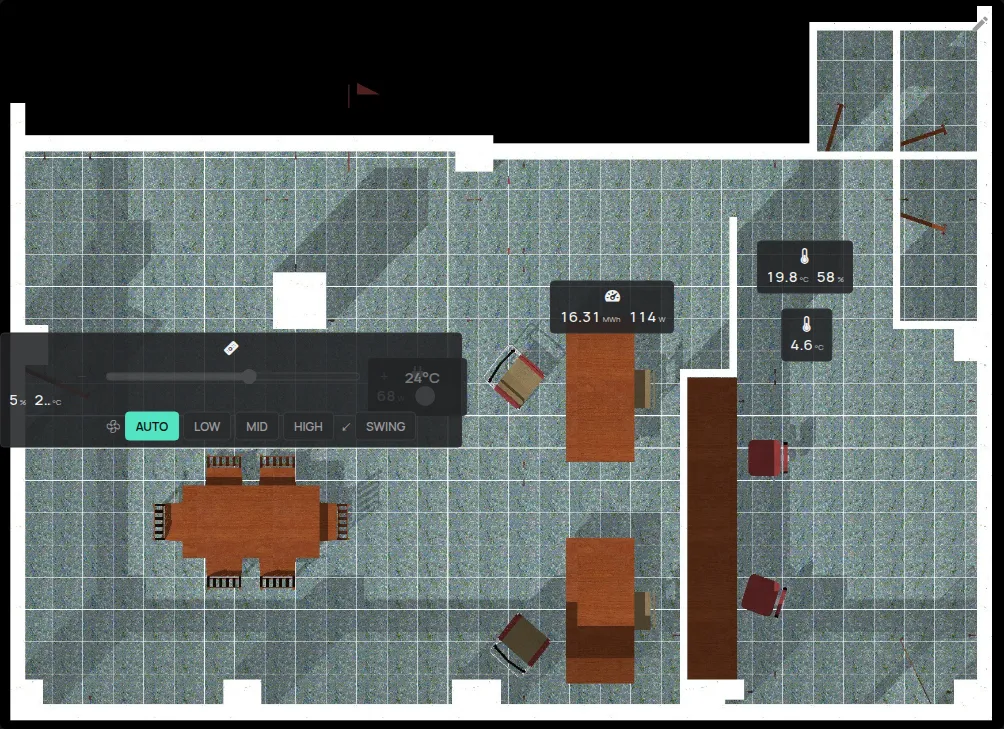
A floorplan is an image of your building with your devices on it, in their positions. Each device shows its live readings. Floorplans are in the custom dashboard of the app, as a widget.
You need:
- an image of the floorplan in PNG, JPEG or GIF, up to 1 MB,
- free floorplans in your account. The limit shows on the Account page, in Floorplans. See what is included.
Step 1: Turn on the custom dashboard
Section titled “Step 1: Turn on the custom dashboard”- Open the side menu.
- Click Account.
- In Settings, turn on Custom Dashboard.
- Click Update settings.
A new tab for the dashboard shows in the top bar. Its name is Dashboard until you change it.
Step 2: Add a floorplan to the dashboard
Section titled “Step 2: Add a floorplan to the dashboard”- Click the dashboard tab.
- Click the pencil Edit.
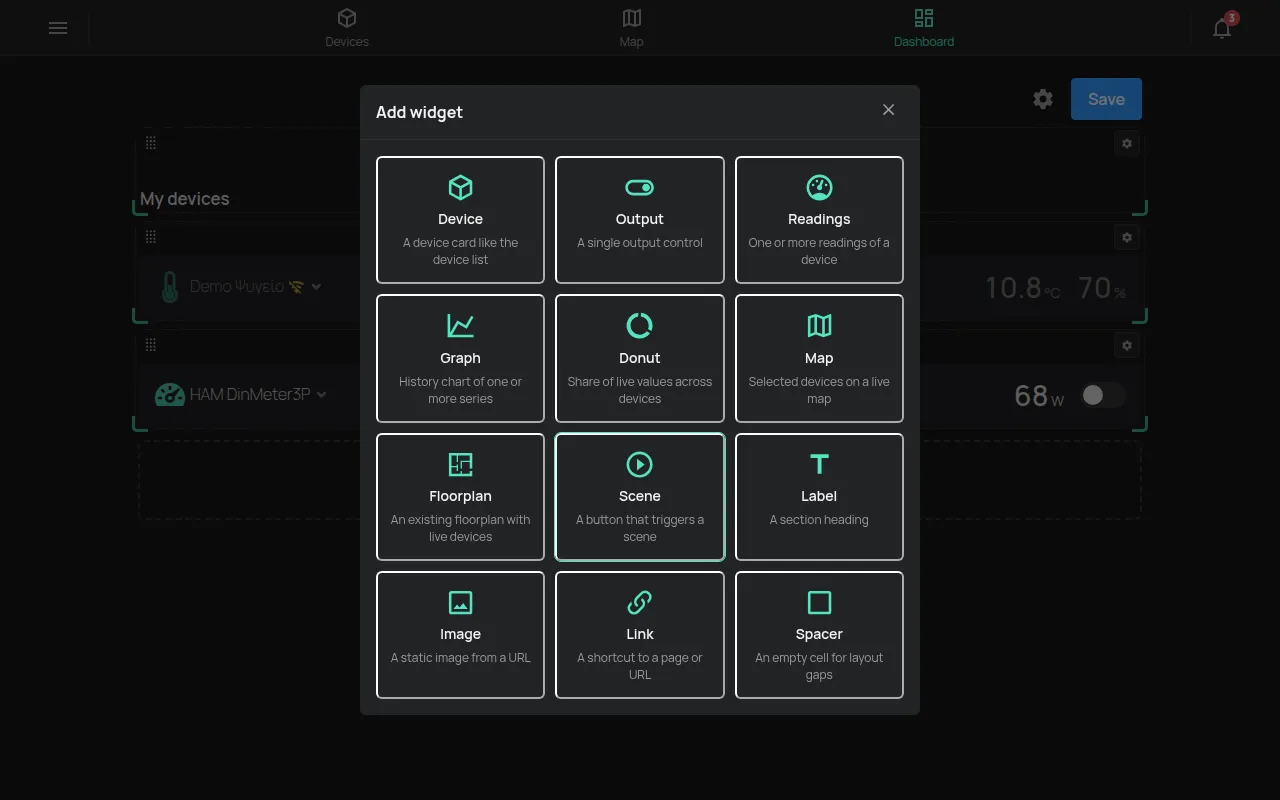
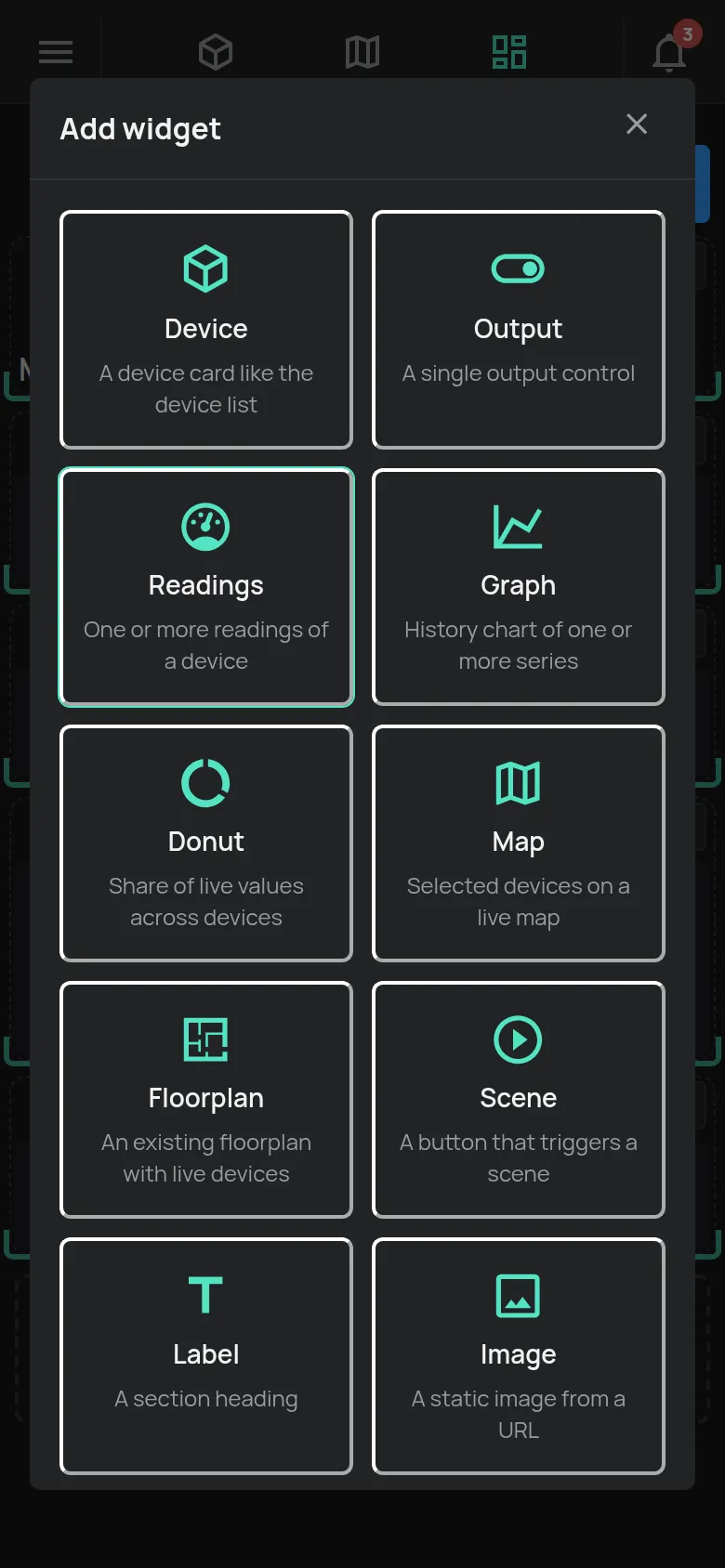
- Click the + Add widget.
- Select Floorplan.
- Click New floorplan.
- Type the Floorplan name.
- To show the device names, turn on Show device names.
- Click Apply.
The dashboard saves the changes automatically.
Step 3: Upload the image and put the devices on it
Section titled “Step 3: Upload the image and put the devices on it”- On the floorplan widget, click the pencil Edit floorplan.
- Click Replace image and select the floorplan image.
- Click Add device… and select a device.
- Drag the device to its position on the image.
- Do this again for each device.
The positions save automatically. To remove a device, click the × Remove from floorplan on the device and confirm.
If the image is larger than 1 MB, the app shows “Image must be under 1MB”. Make the image smaller and try again.
Use the floorplan
Section titled “Use the floorplan”- Each device shows 2 readings and its main output.
- The output works from the floorplan if you have Control access or higher.
- Click a device to open the device page.
To change the floorplan, you need Manage or owner access.
Other dashboard widgets
Section titled “Other dashboard widgets”The custom dashboard also has other widgets, for example Device, Output, Readings, Graph, Map, Scene, Label and Image. In edit mode, the Settings button of a widget changes its width and height.
The gear Dashboard settings changes the name, the icon, the width and the spacing of the dashboard. Download JSON downloads a copy of the dashboard.
A rule can change the outputs of all the devices on a floorplan, as for a group. See rule actions.