

Share devices
You can give access to a device to another person with a HAM account. For example, to an employee or partner, or to the maintenance technician.
You need: Manage or owner access to the device.
An employee who only sees the readings
Section titled “An employee who only sees the readings”This is the most usual case. The employee sees the readings, but does not change anything.
- The employee makes a free HAM account with their own e-mail. See Create an account.
- On the device page, open the Access and Sharing section. Type the e-mail of the employee and select View. Click Share.
For many devices at the same time, for example all the fridges, see Share many devices at the same time.
If the person does not want an account or needs access for a few days, use a guest. For example, a hotel guest.
Access levels
Section titled “Access levels”| Level | What it does |
|---|---|
| View | Sees the readings, the charts and the reports. |
| Control | All that View does. It also changes the outputs, for example it turns on a relay. |
| Manage | All that Control does. It also changes the settings, the schedules, the name and the sharing. |
| Owner | The account that added the device. You cannot change it in this section. |
You cannot give a level higher than your own level.
Share a device
Section titled “Share a device”- Open the device page.
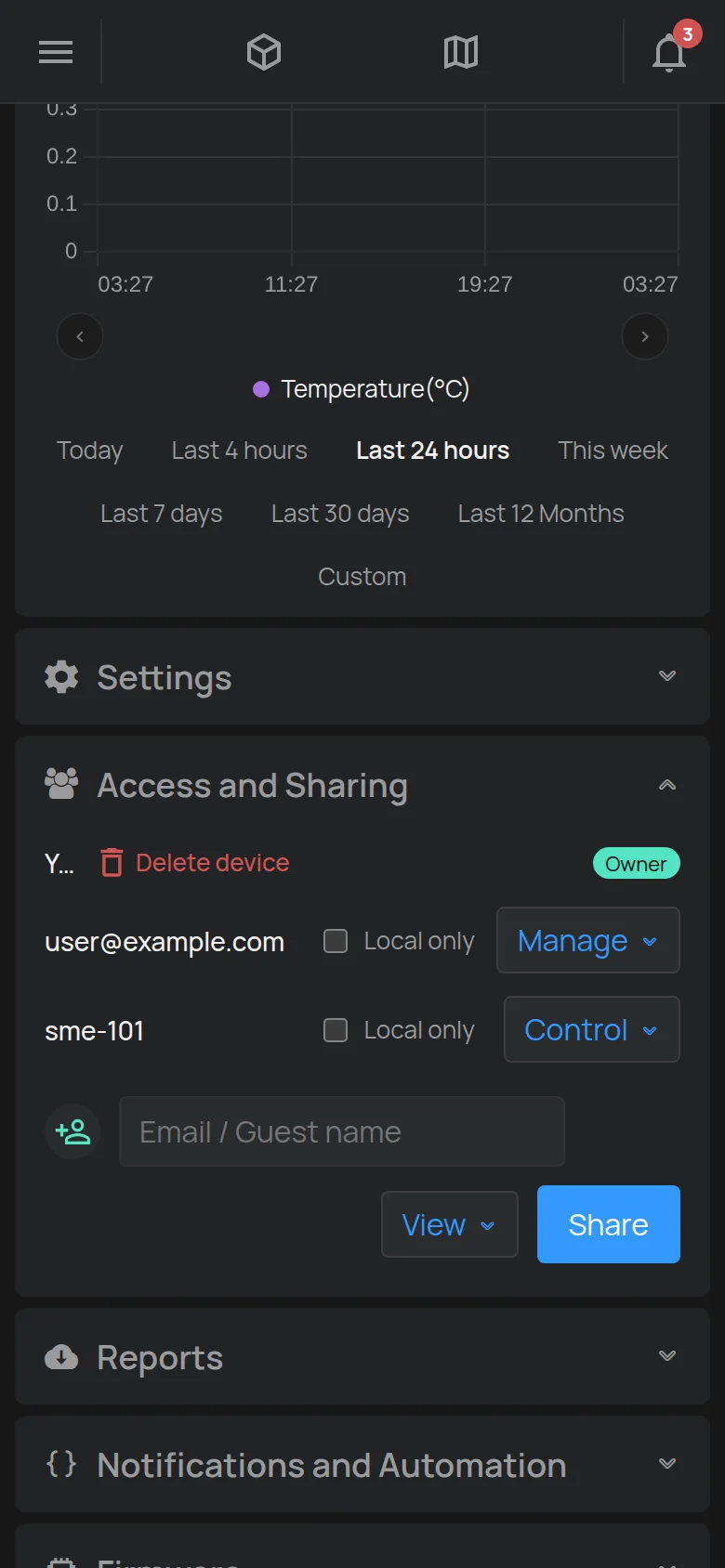
- Open the Access and Sharing section.
- In the Email / Guest name field, type the e-mail of the other account or the name of one of your guests.
- In the Access list, select the level.
- Click Share.
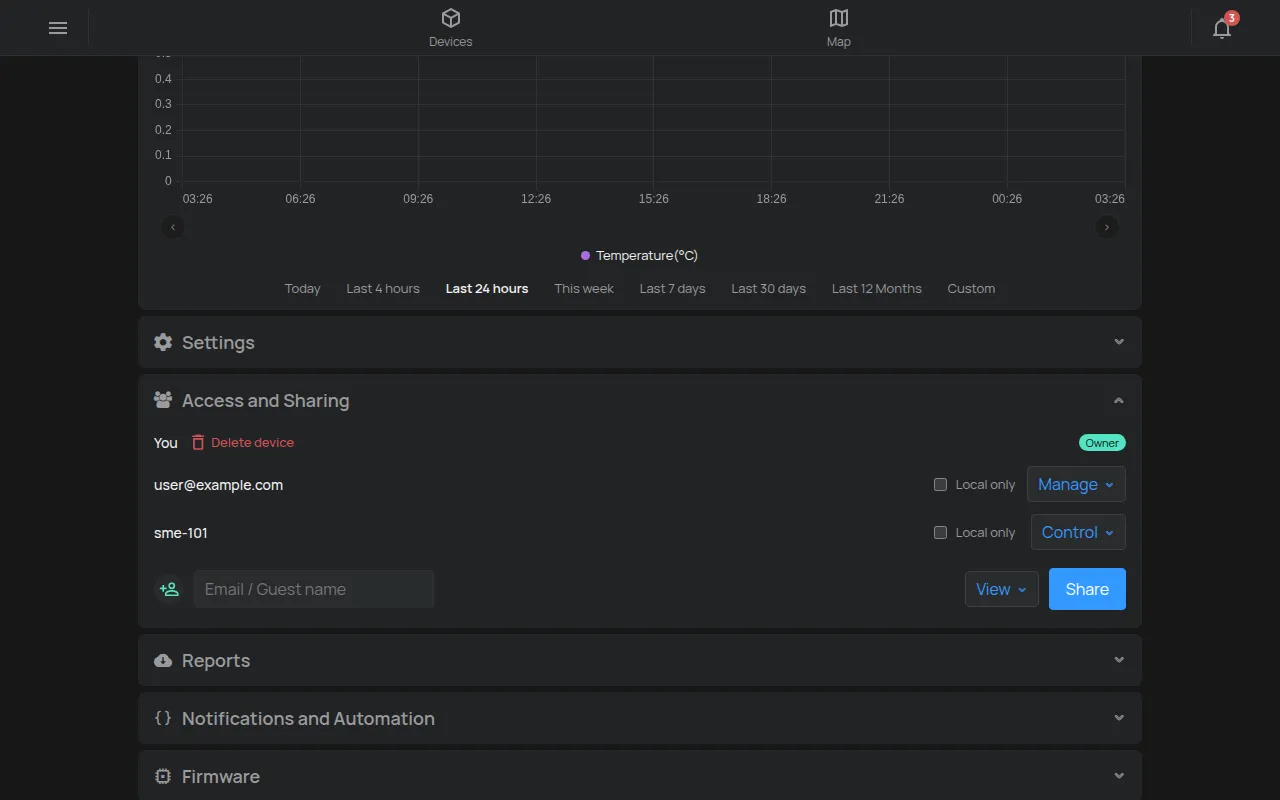
The other account gets an e-mail and a notification in the bell. Until the person accepts, the list shows Pending next to the e-mail. See notifications.
If the e-mail does not belong to a HAM account, the app shows “Email does not correspond to a user”. Ask the person to make an account first.
Share many devices at the same time
Section titled “Share many devices at the same time”- In the device list, open the Tools menu.
- Click Select devices.
- Select the devices.
- Click Share in the selection bar.
- Type the e-mail, select the Access and click Share.
Change or revoke access
Section titled “Change or revoke access”- Open the Access and Sharing section of the device.
- On the row of the account, select another level in the Access list.
- To revoke, select Revoke.
- Confirm.
After you revoke, the account loses access immediately.
You cannot change your own row (You). You also cannot change accounts with a level equal to or higher than your own level.
Local access only
Section titled “Local access only”Turn on Local only on the row of an account. Then the account sees the device only when it is on the same local network as the device.
Public device
Section titled “Public device”The row Anyone means that the device is public, with the level of this row.
Guests and managed accounts
Section titled “Guests and managed accounts”- For access without a HAM account, for example for a hotel guest, see guests.
- For a technician who manages all your account, see managed accounts.
Remove the device from your account
Section titled “Remove the device from your account”On the row You, click Delete device. The app asks you to confirm two times.