

Device groups
A group collects devices that you want to see together, for example the devices of a shop. A device can be in many groups.
The groups show above the device list. All shows all your devices.
Create a group
Section titled “Create a group”- In the device list, click New group.
- Type the Group name.
- Click Create group.
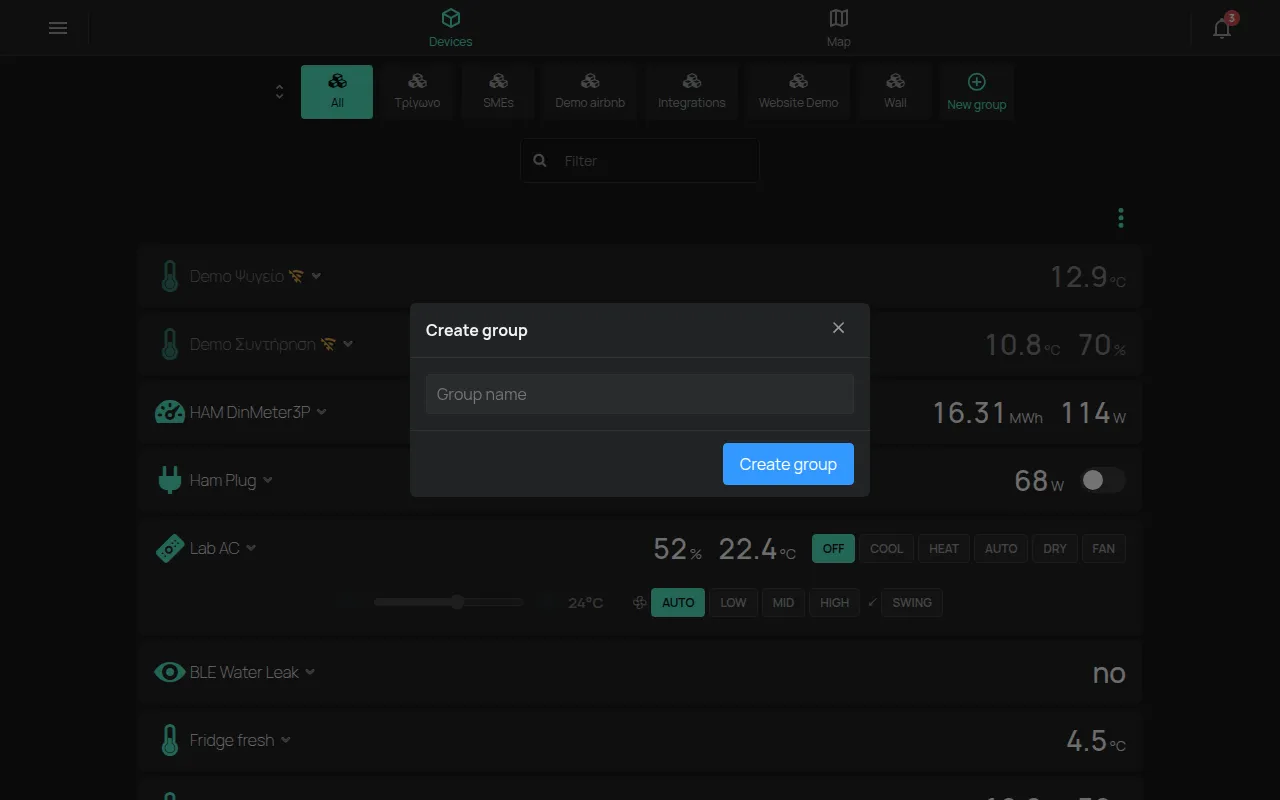
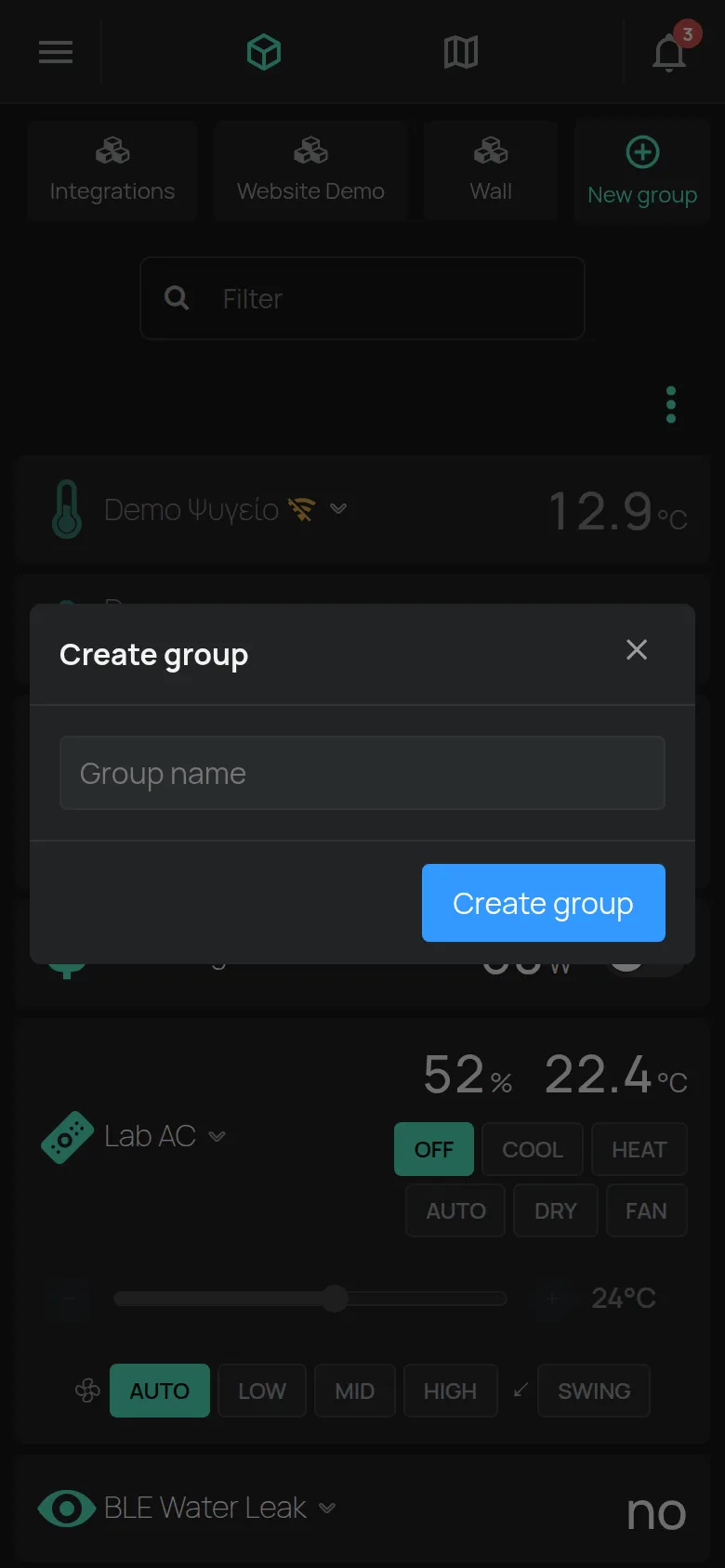
The new group is empty. To put devices in it, use Group settings or Select devices.
Add devices to a group
Section titled “Add devices to a group”From the group settings:
- Click the group to select it.
- Click the gear Group settings on the group.
- In Devices, select the devices. The Filter field finds a device.
From the device list, for many devices at the same time:
- Open the Tools menu.
- Click Select devices.
- Select the devices.
- Click Add to Group and select the group.
To take devices out of a group, select the group. Then select the devices and click Remove from group. The device stays in your account.
Group settings
Section titled “Group settings”Click the gear Group settings on the selected group. Each change is saved immediately.
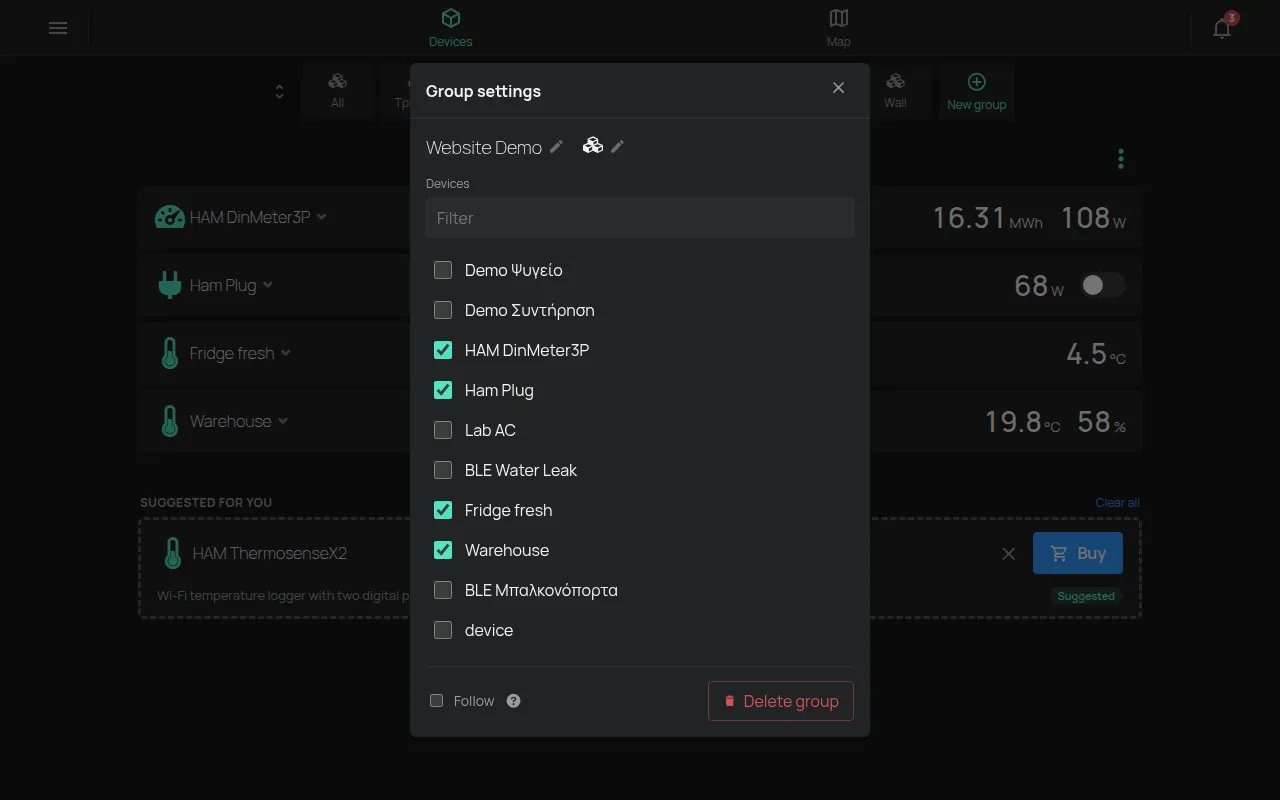
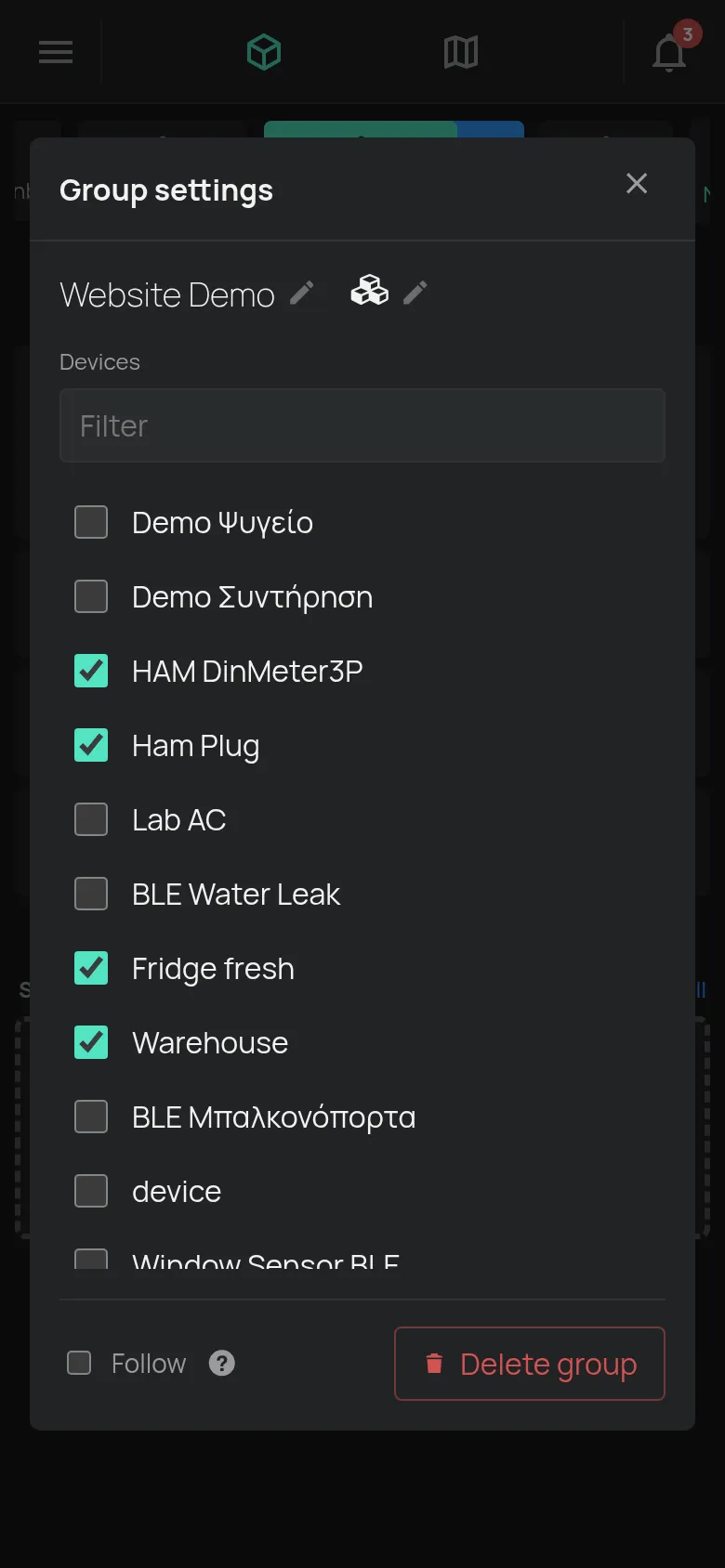
- The group name: click it to change it.
- Change icon: select an icon for the group.
- Devices: the devices in the group.
- Follow: when an output in the group changes, all the other outputs in the group change as well.
- Delete group: deletes the group. The devices stay in your account.
Many groups
Section titled “Many groups”When you have 5 or more groups, a button on the left of the groups opens the Groups list. From there you select a group quickly.
Each group keeps its own order of devices. See Reorder in the device list.
What else groups do
Section titled “What else groups do”- Scenes: inside a group, only the scenes that change this group show. See scenes.
- Rules: a rule can turn all the outputs of a group on or off. See rule actions.
- Data: the Data page selects devices by group. See charts.
- Local: the special group Local shows the devices on the same local network as you. You cannot change it.