

Bluetooth (BLE) devices
HAM Bluetooth (BLE) devices work on a battery and have no internet connection of their own. They do not need a WiFi setup. You claim them on your account with the Device key, and another HAM device listens to them.
Examples of BLE devices:
How the readings travel
Section titled “How the readings travel”- The BLE device sends its state over Bluetooth.
- A HAM WiFi device with the BLE hub feature, or a GPS tracker, hears it.
- This device sends the readings to the HAM cloud.
The Heard by reading on the page of the BLE device shows which device heard it last.
Add a BLE device
Section titled “Add a BLE device”-
Make sure that the hub device is online. If it is new, connect it to WiFi first. See Connect a device to WiFi.
-
Find the Device key on the label of the BLE device. Write it down before you install the device.
-
In the app, open the Devices list and tap the ⋮ menu (Tools).
-
Tap Add new device.
-
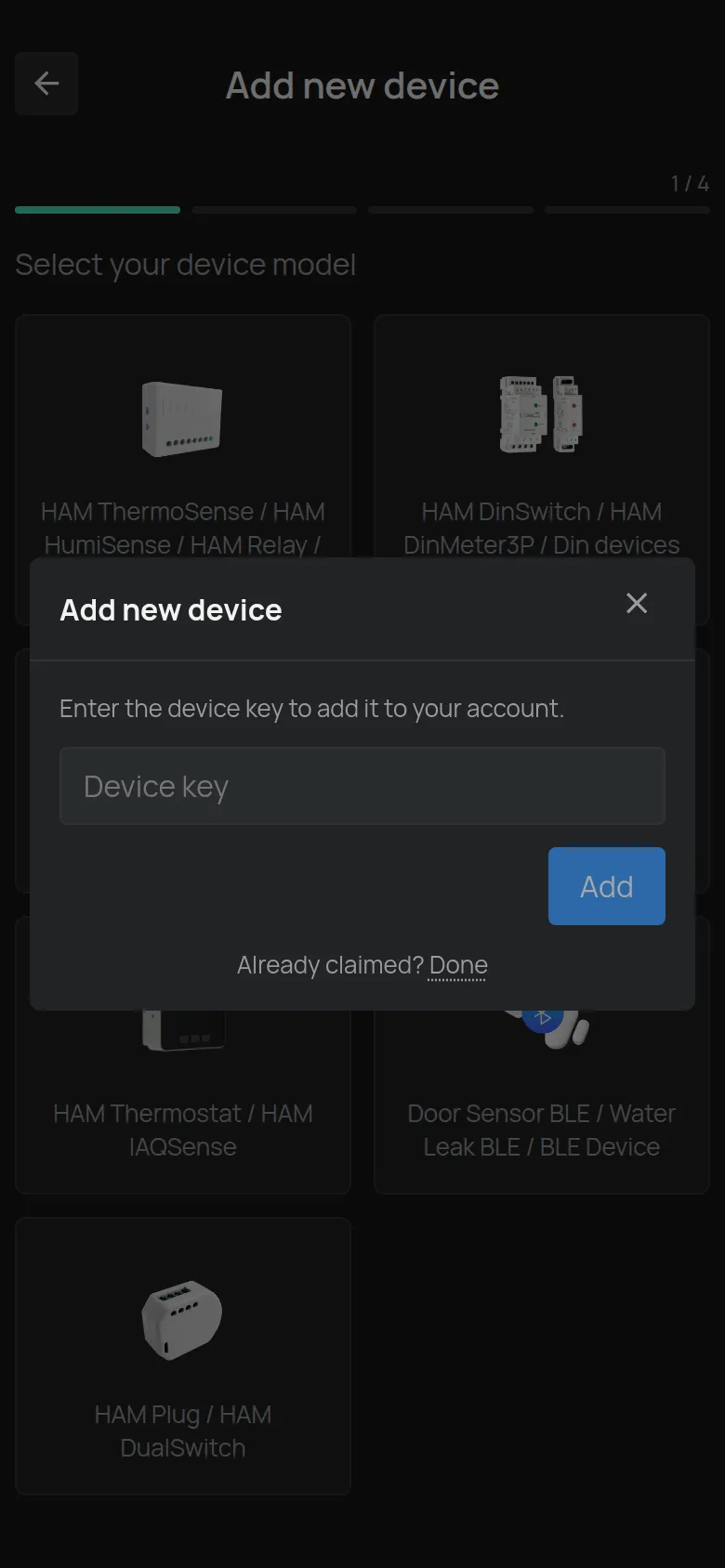
Tap Door Sensor BLE / Water Leak BLE / BLE Device.
The Add new device dialog opens immediately.
-
Type the key in Device key.
-
Tap Add.
The app opens the page of the BLE device.
You can do the same claim from a computer. See Claim a device with its Device Key.
Placement
Section titled “Placement”- Put the BLE device near the hub device. For the door contacts, the product page gives a range of up to about two rooms.
- Concrete walls and metal make the range shorter.
- After you install it, open the page of the BLE device and check that readings arrive.
The placement instructions for each product are on its page, in the device catalogue.
The BLE device shows as offline
Section titled “The BLE device shows as offline”| Cause | What to do |
|---|---|
| The hub device is offline. | Check the hub device first. See The device shows as offline. |
| The BLE device is far from the hub device. | Move one of the two closer. |
| The battery is low. | Check the Battery reading and replace the battery. |