

The device list
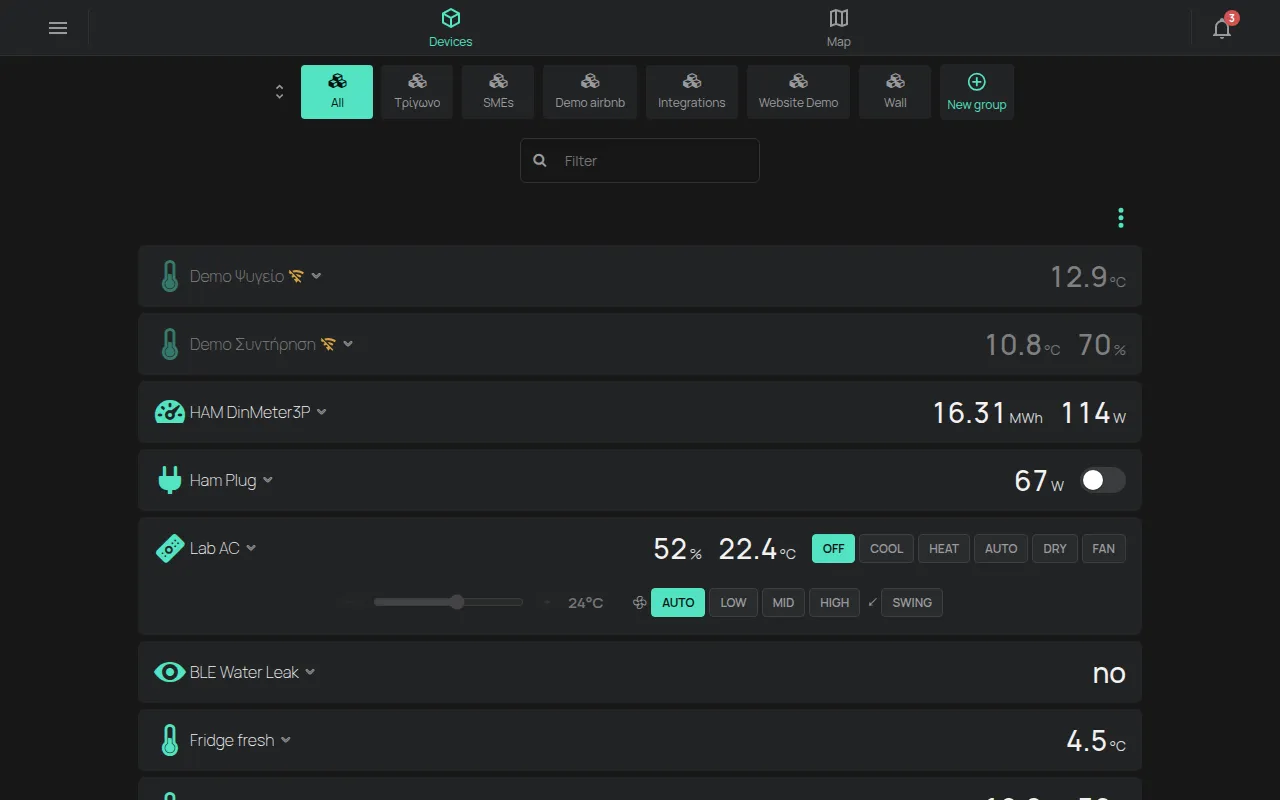
The device list is the home page of the app. It opens from the Devices tab in the top bar.
The device card
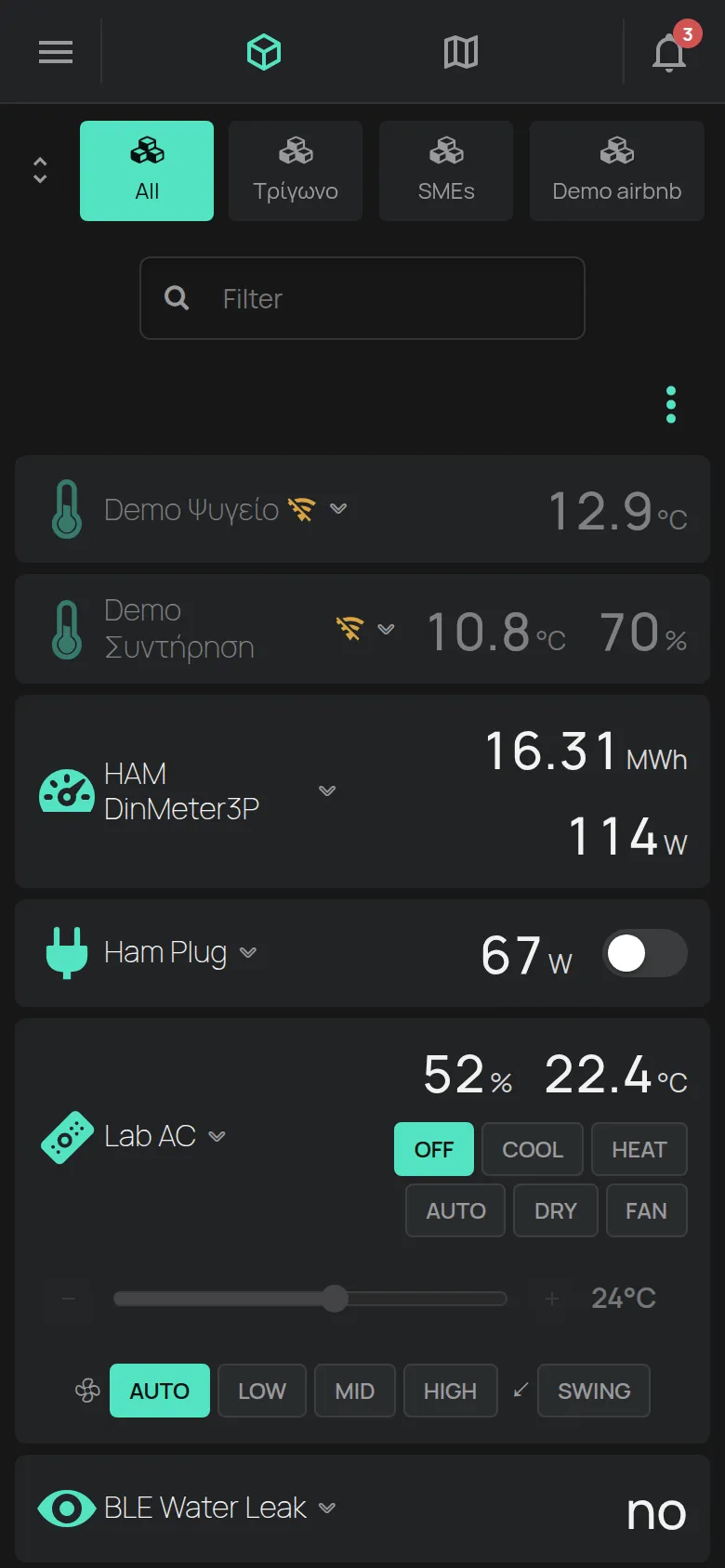
Section titled “The device card”Each device has one card. The card shows:
- the icon and the name of the device,
- the main reading, for example the temperature or the power,
- the outputs, for example a switch. The outputs work from the card.
Click the card header to see all the readings. Click it again to close it.
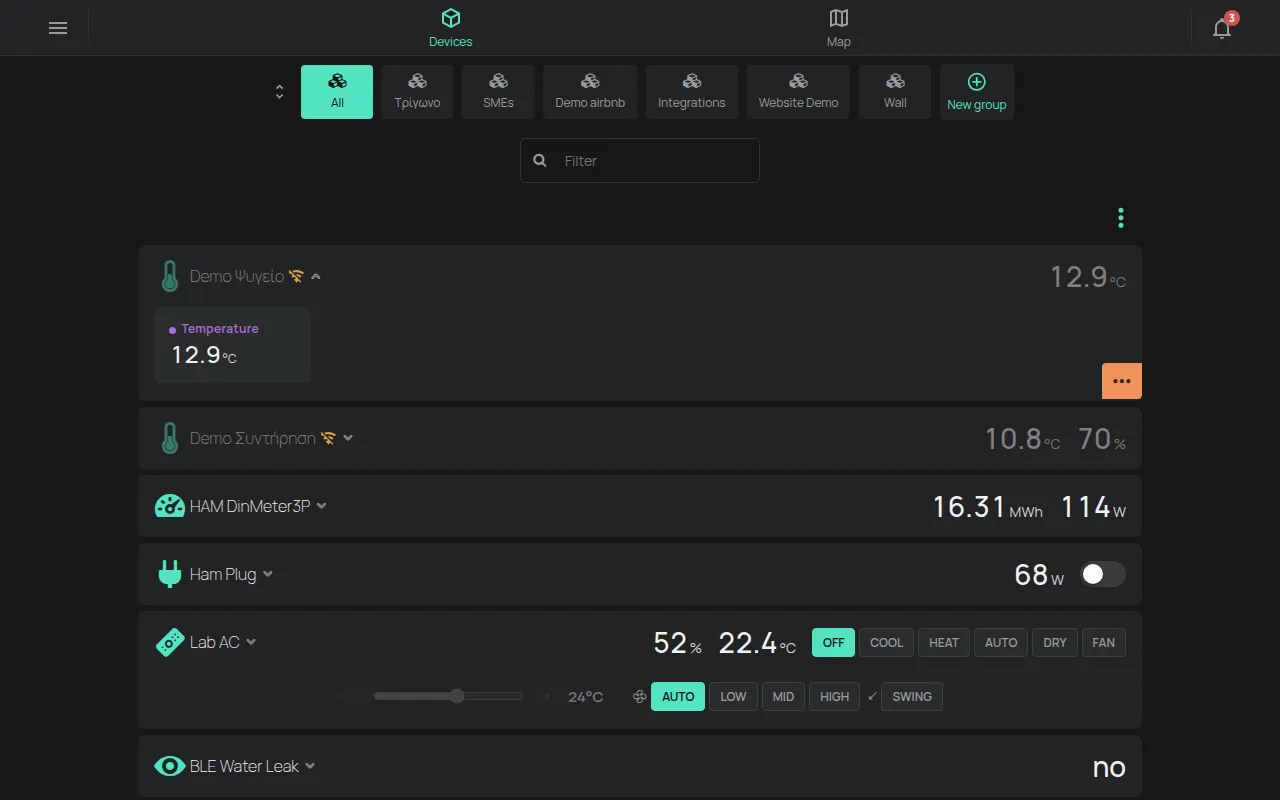
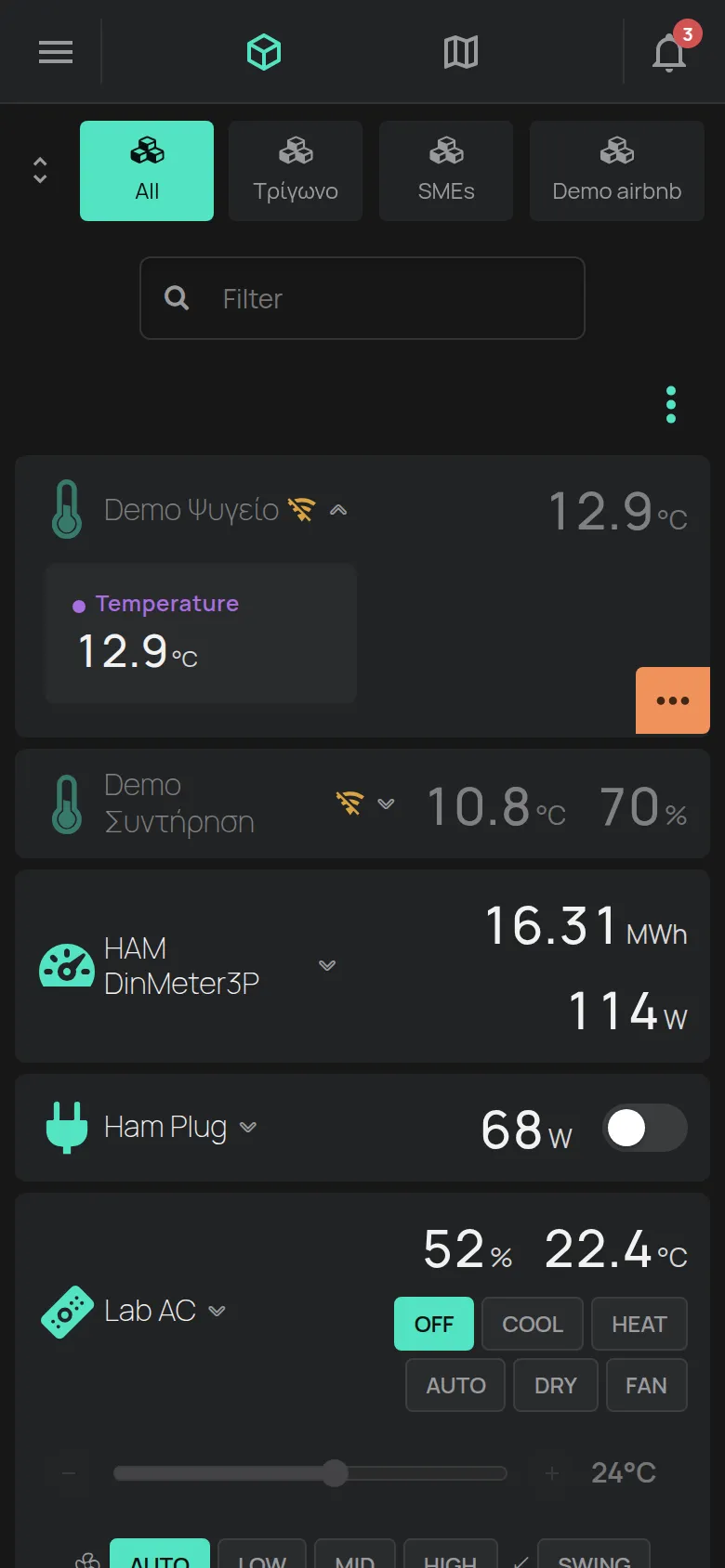
To open the device page, click the three dots on the open card and select Open device.
Signs on the card
Section titled “Signs on the card”- A crossed-out WiFi sign means that the device is offline. Click it to see the Last Connection and the Network. See what to do when a device is offline.
- A warning or alarm icon shows a problem on the device.
- The text “Updating firmware” shows while the device updates its software.
Groups
Section titled “Groups”The groups are above the list:
- All: all your devices.
- One item for each of your groups.
- Local: the devices on the same local network as you.
- New group: makes a new group.
See device groups.
Search for a device
Section titled “Search for a device”The Filter field shows when a group has more than 4 devices. Type part of the name or the serial number, for example e12:57. On a computer, the f key moves the cursor to the field.
The Tools menu
Section titled “The Tools menu”Click the three dots on the right, above the cards, to open the Tools menu.
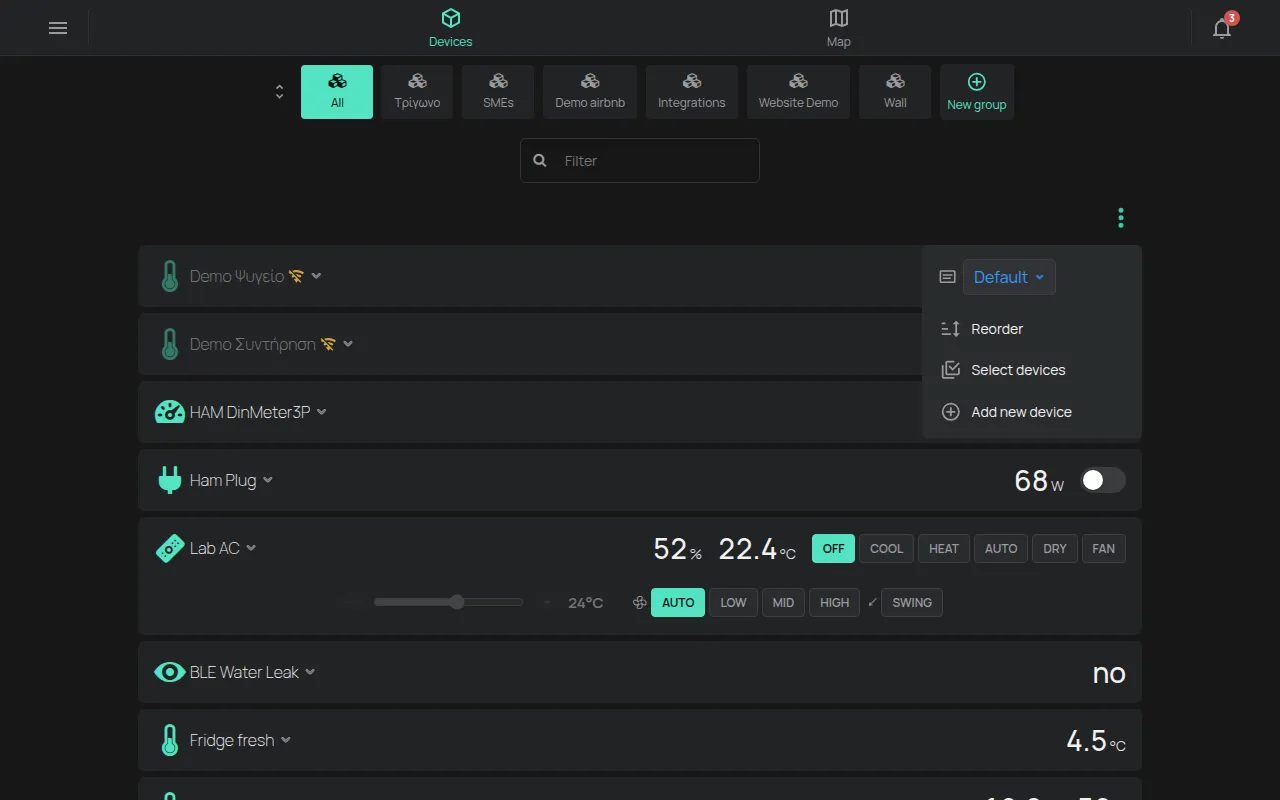
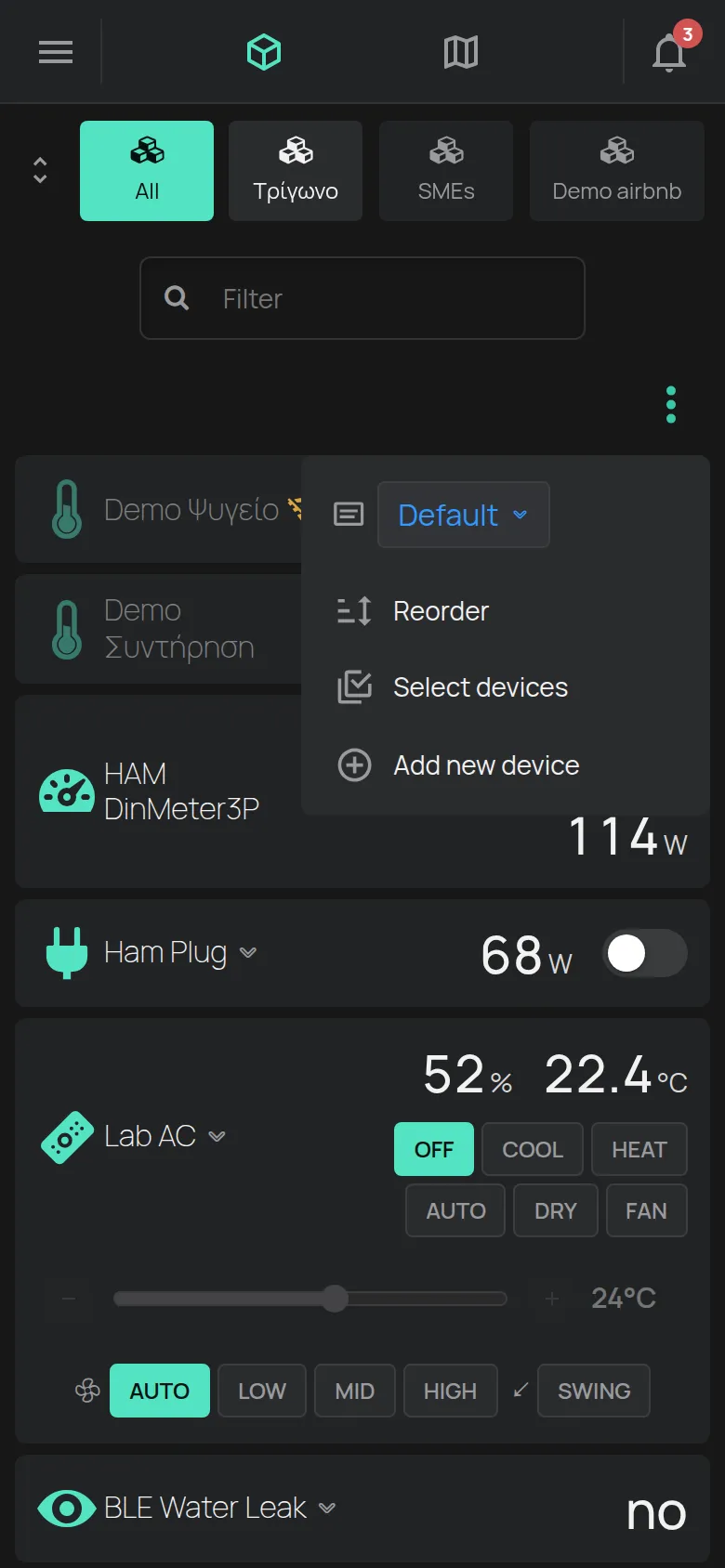
- Show on card: the reading that all the cards show. The Default option shows the main reading of each device. The choice applies only in this browser or on this phone.
- Reorder: changes the order of the devices.
- Select devices: selects many devices at the same time.
- Add new device: starts the setup of a new device. See your first device.
Change the order
Section titled “Change the order”- Open the Tools menu.
- Click Reorder.
- Drag a card by its handle to the new position.
The new order is saved when you drop the card. Each group keeps its own order.
Actions on many devices
Section titled “Actions on many devices”- Open the Tools menu.
- Click Select devices.
- Select the devices. The checkbox in the selection bar selects all the devices.
- Click an action in the selection bar.
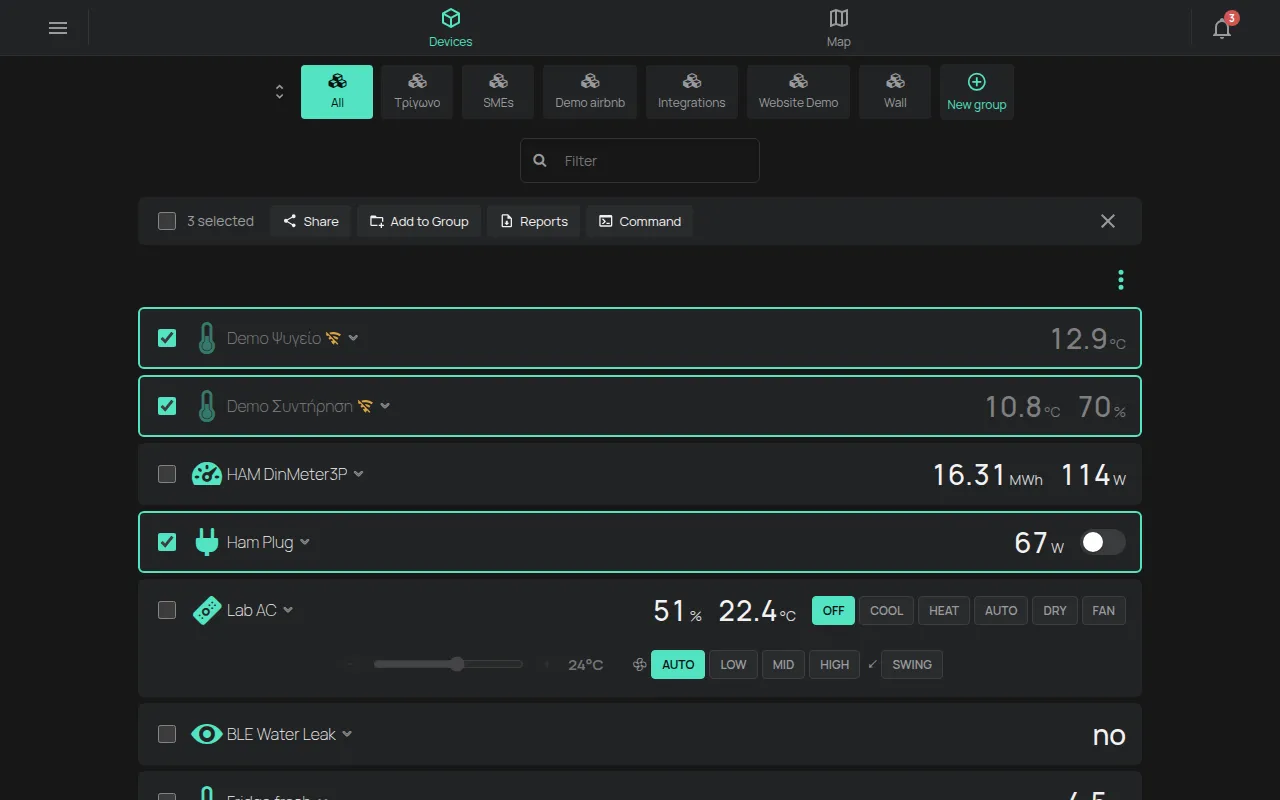
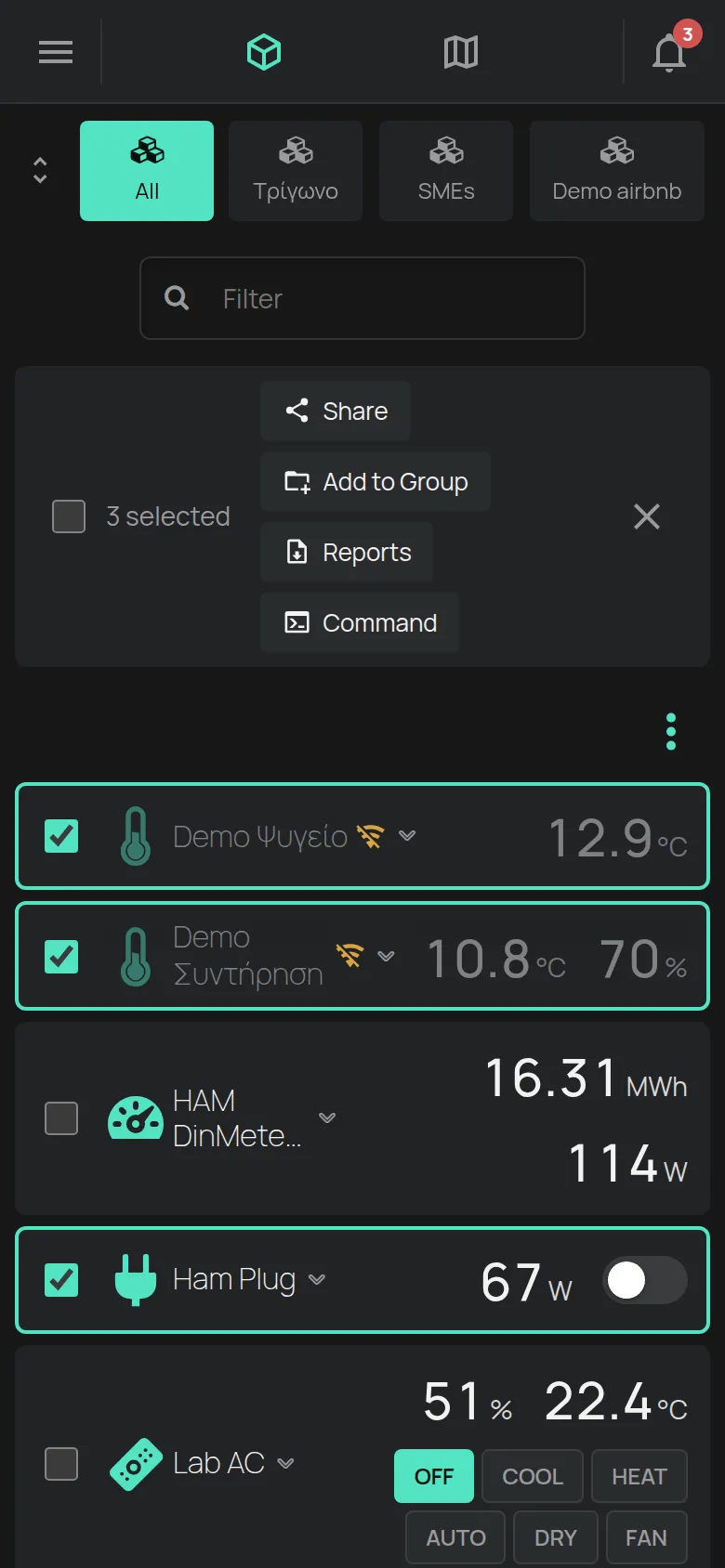
The actions in the selection bar:
- Share: gives another user access to the devices. See sharing.
- Add to Group: puts the devices in a group.
- Remove from group: takes the devices out of the group on the screen. It shows only inside a group.
- Reports: makes one report for all the devices. See reports.
- Paste schedules: copies schedules to the devices. See schedules.
Scenes
Section titled “Scenes”If you have scenes, their buttons show above the cards. One click runs the scene. See scenes.
Suggested for you
Section titled “Suggested for you”At the bottom of the list, the Suggested for you section can show a product that matches your devices. Click Dismiss to hide the suggestion. The dismissal applies only in this browser or on this phone.
When the list is empty
Section titled “When the list is empty”The message “No devices yet” means that the account has no devices. To add a device, see your first device. The message “No devices” means that the group or the filter has no devices.