

Management by an installer or partner
An installer or partner can manage your account if you accept it. The account and the devices stay yours.
What the manager can do
Section titled “What the manager can do”- Get into your account at any time, without your password.
- Set up your devices, rules and subscriptions.
- Send you messages in the app.
This helps when your installer put in the devices and maintains them for you.
When you get a request
Section titled “When you get a request”The manager sends a request to the e-mail of your account. You get an e-mail and an alert in the bell. The alert opens the Account page.
- Open the side menu and tap Account.
- In the Management Requests section, find the e-mail of the manager.
- Tap Accept. The app asks you to confirm two times. Tap OK in the two messages.
If you do not want a manager, tap Decline and confirm.
How you see your manager
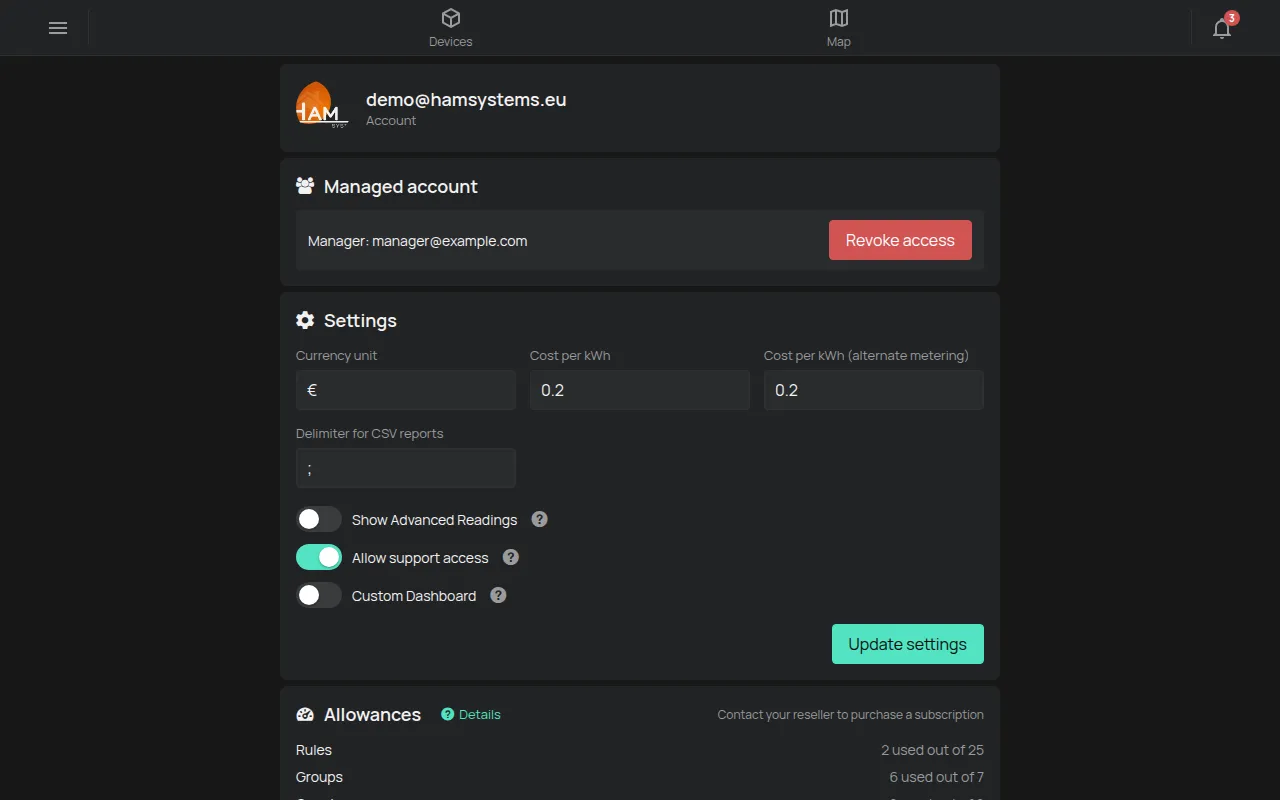
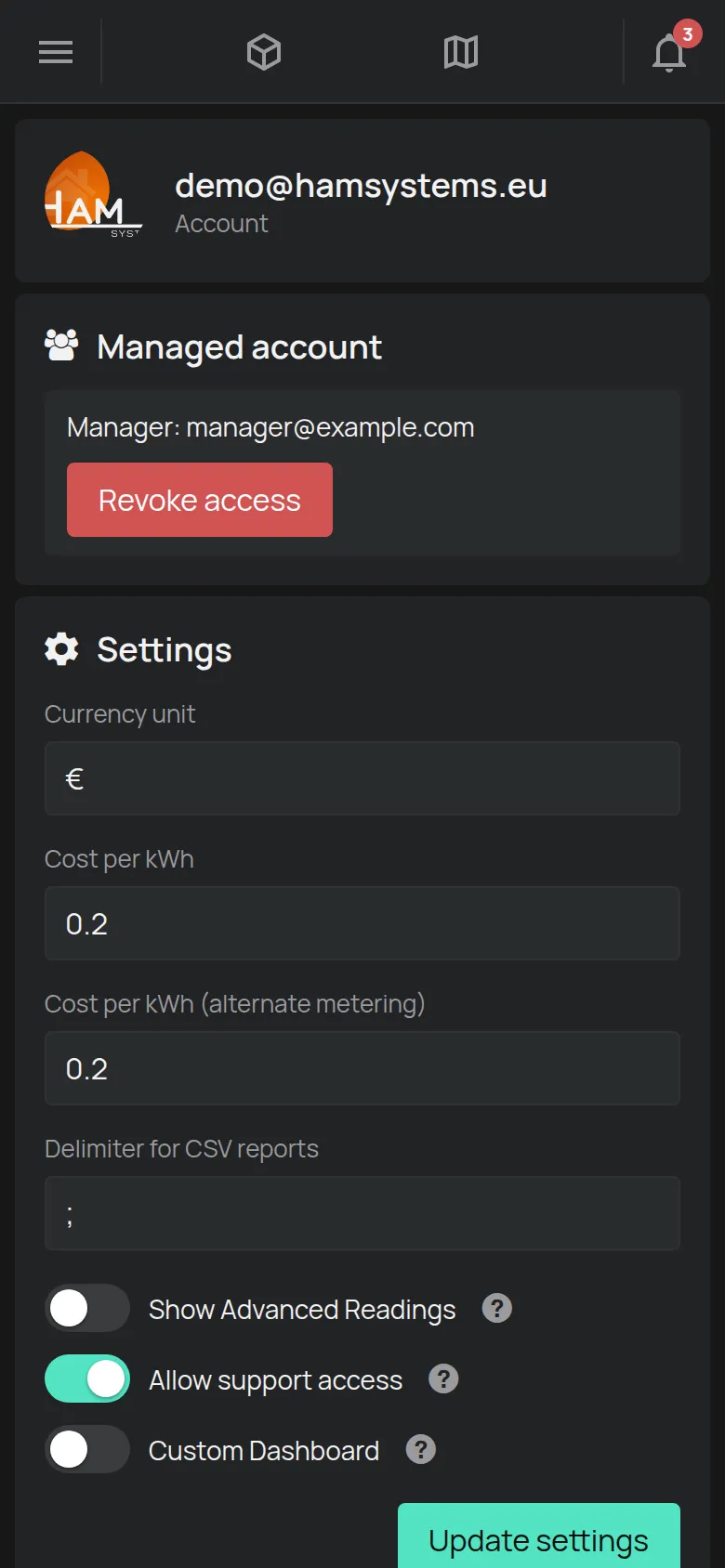
Section titled “How you see your manager”After you accept, the Account page has the Managed account section. The section shows the e-mail of the Manager.
Stop the management
Section titled “Stop the management”- On the Account page, go to the Managed account section.
- Tap Revoke access.
- In the confirmation message, tap OK.
The manager loses access to your account. Your devices and rules stay as they are.
Accounts with a partner brand
Section titled “Accounts with a partner brand”Some partners give the app with their own brand. Then:
- The app can show the logo of the partner.
- The links to the shop, support and orders can be missing or go to the partner.
- You buy packages and subscriptions from the partner. See What is included for free.
For support, contact your partner first.
For installers and partners
Section titled “For installers and partners”If your account is a manager account, the side menu has the Managed accounts page. To make your account a manager account, contact support.
- Open the Managed accounts page.
- Tap +.
- In Enter user email, type the e-mail of the customer account.
- Tap OK. The customer gets the request.
The Accounts you manage list shows each customer. A clock means that the request is pending. A check mark means that the customer accepted it.
For each customer who accepted, you have two buttons:
- Imposter puts you into the account of the customer. The app asks you to confirm.
- Send notification sends a message to the customer.
The bin deletes the request or the management.