

Output controls (relays, switches)
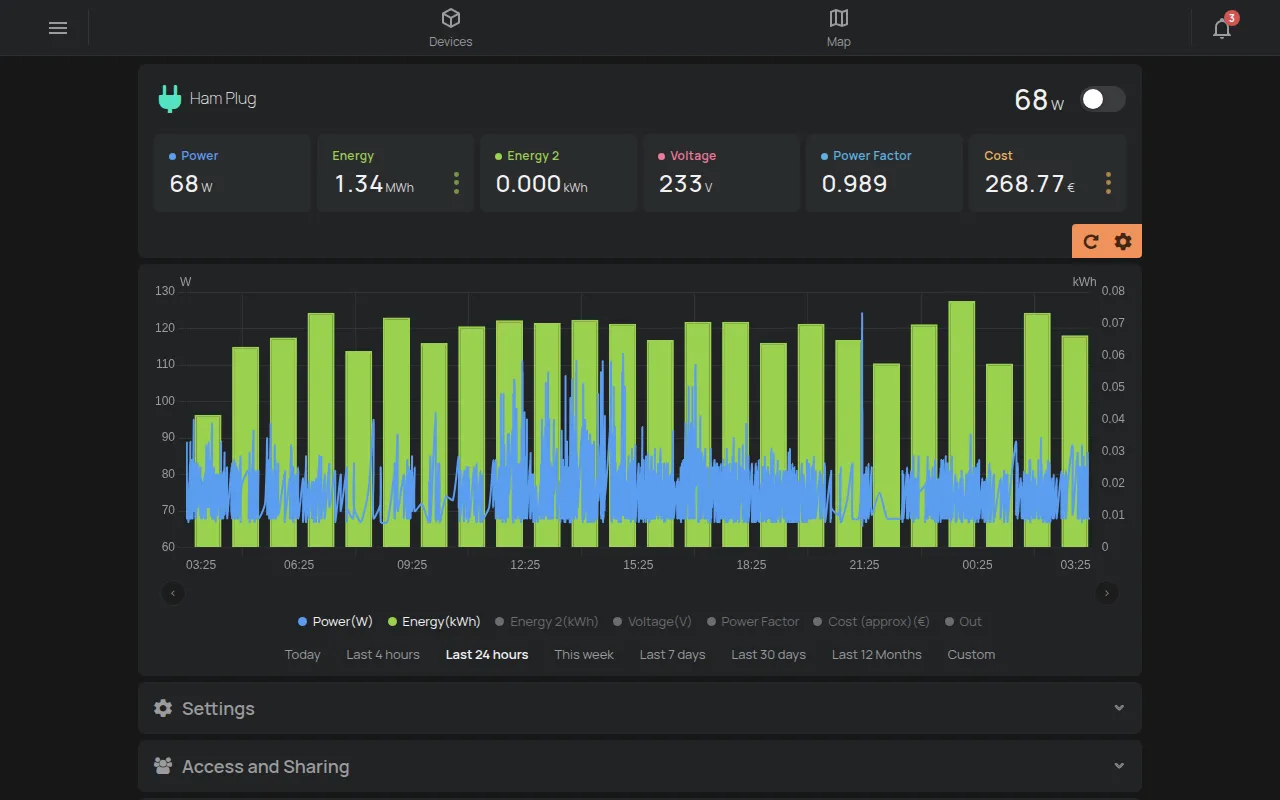
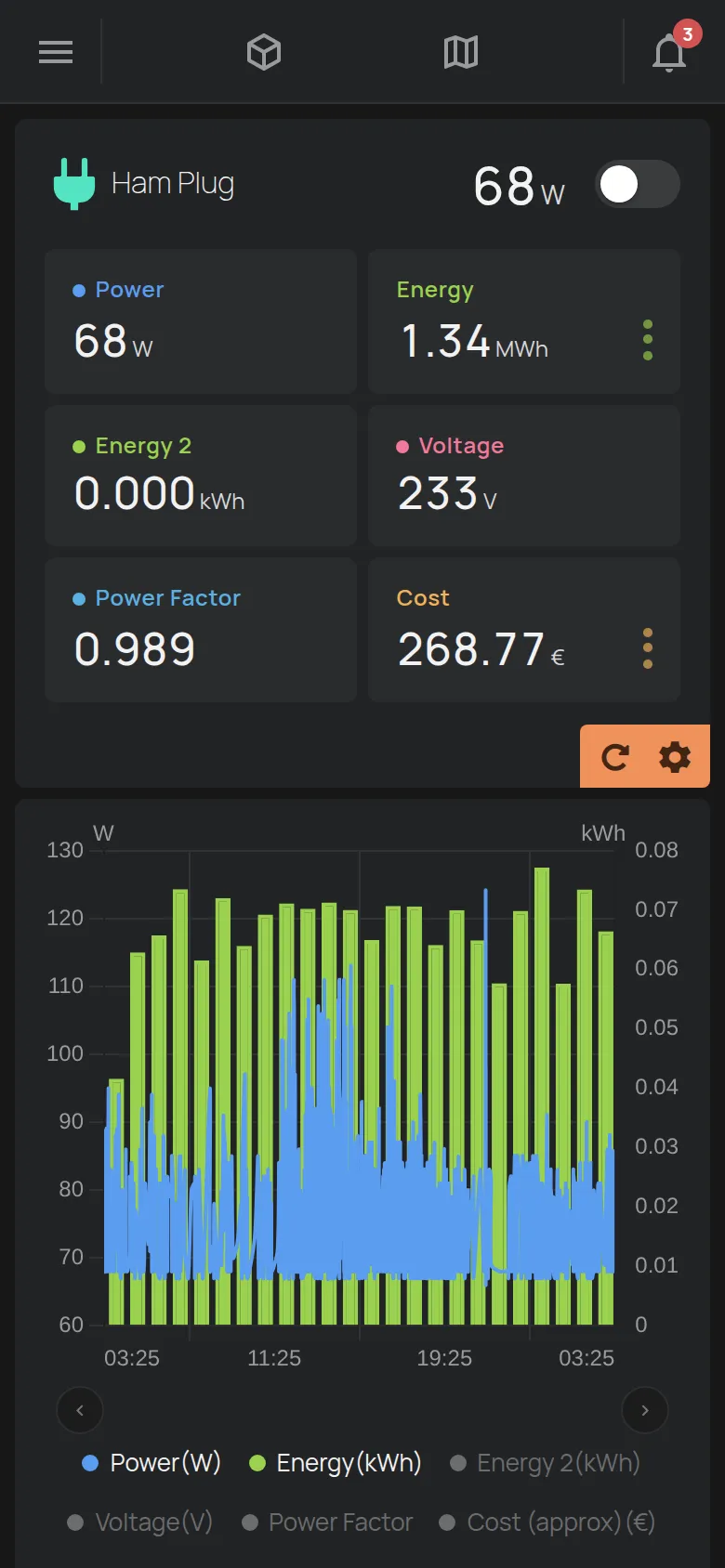
An output is a relay, a switch or a mode that the device controls. You change it from the card in the device list or from the device page.
You need: Control, Manage or owner access to the device. See sharing.
Change an output
Section titled “Change an output”The type of button depends on the device:
- Switch: click it to turn the output on or off. For example, HAM Plug and Relay.
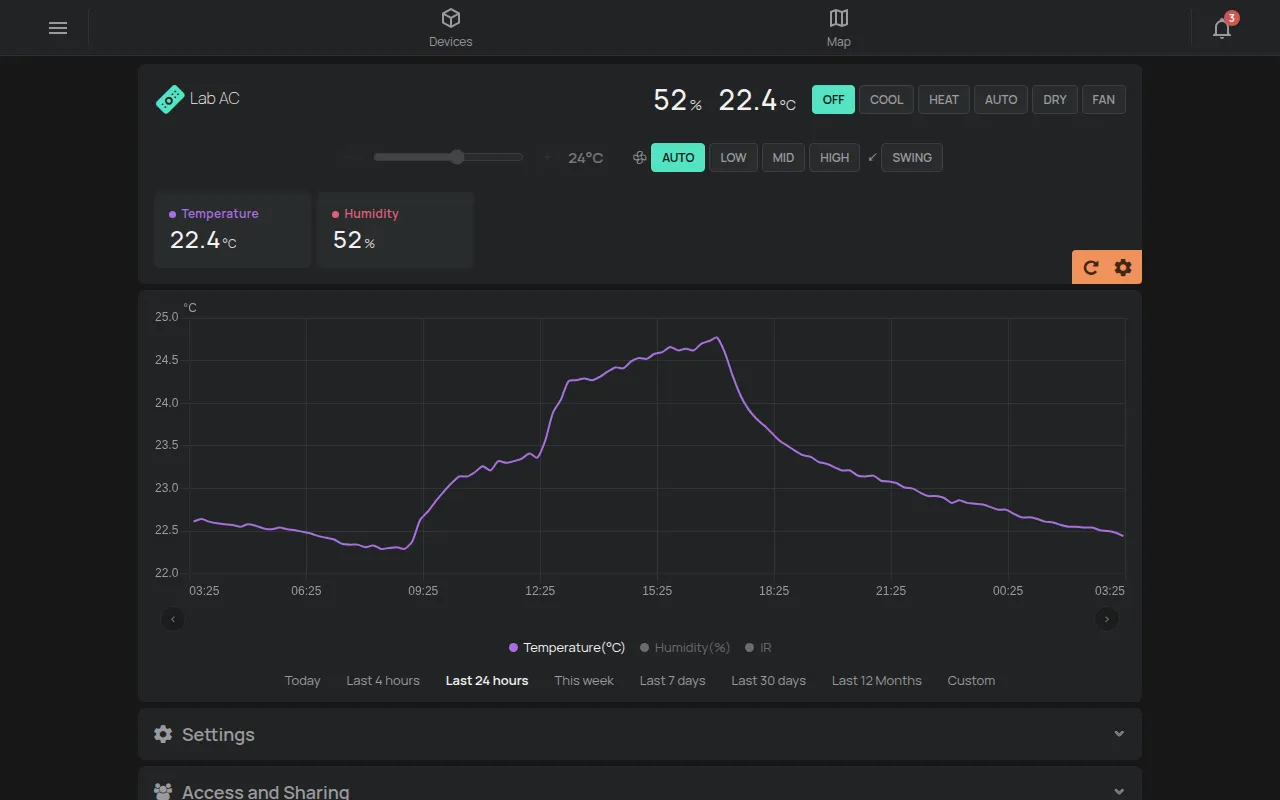
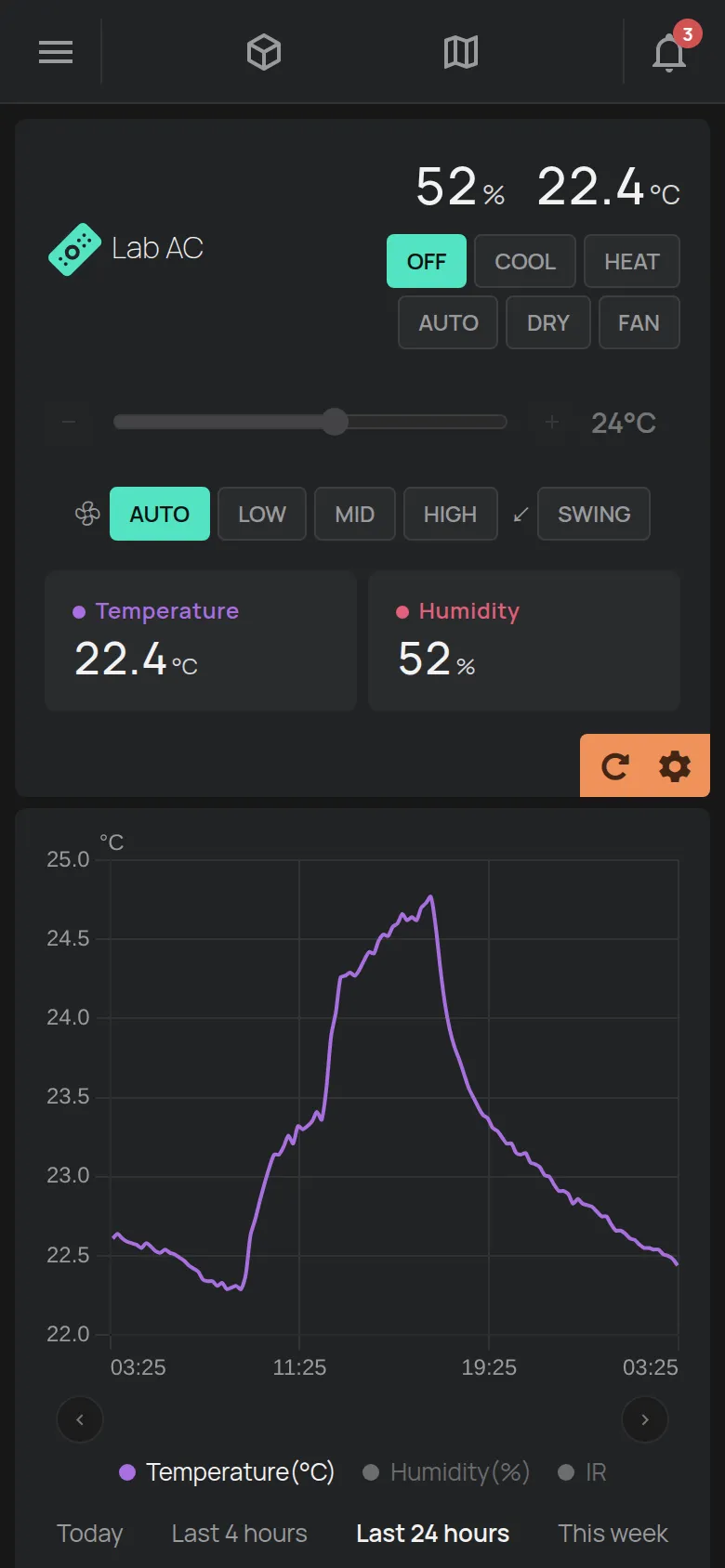
- Mode buttons: click a mode, for example OFF, COOL, HEAT or AUTO. The active mode has a colour.
- Target temperature: drag the slider or click − and +.
- Speed: drag the slider.
If the device is offline, the output does not change.
Air conditioner
Section titled “Air conditioner”RemoteAC has:
- the modes OFF, COOL, HEAT, AUTO, DRY and FAN,
- the temperature from 17 to 30 °C, only in the COOL and HEAT modes,
- the Fan with AUTO, LOW, MID and HIGH,
- the Swing with the SWING button.
LED dimmer
Section titled “LED dimmer”LED Dimmer has mode buttons and a colour control with Hue, Saturation, Brightness and White. Click Save as favorite to keep a colour.
Settings of an output
Section titled “Settings of an output”Each output has its own settings: name, auto turn-off, confirmation and PIN code.
- Open the device page.
- Click the gear Edit in the corner of the readings.
- Click the gear Settings next to the output.
- Change the settings.
- Click Save to close the window.
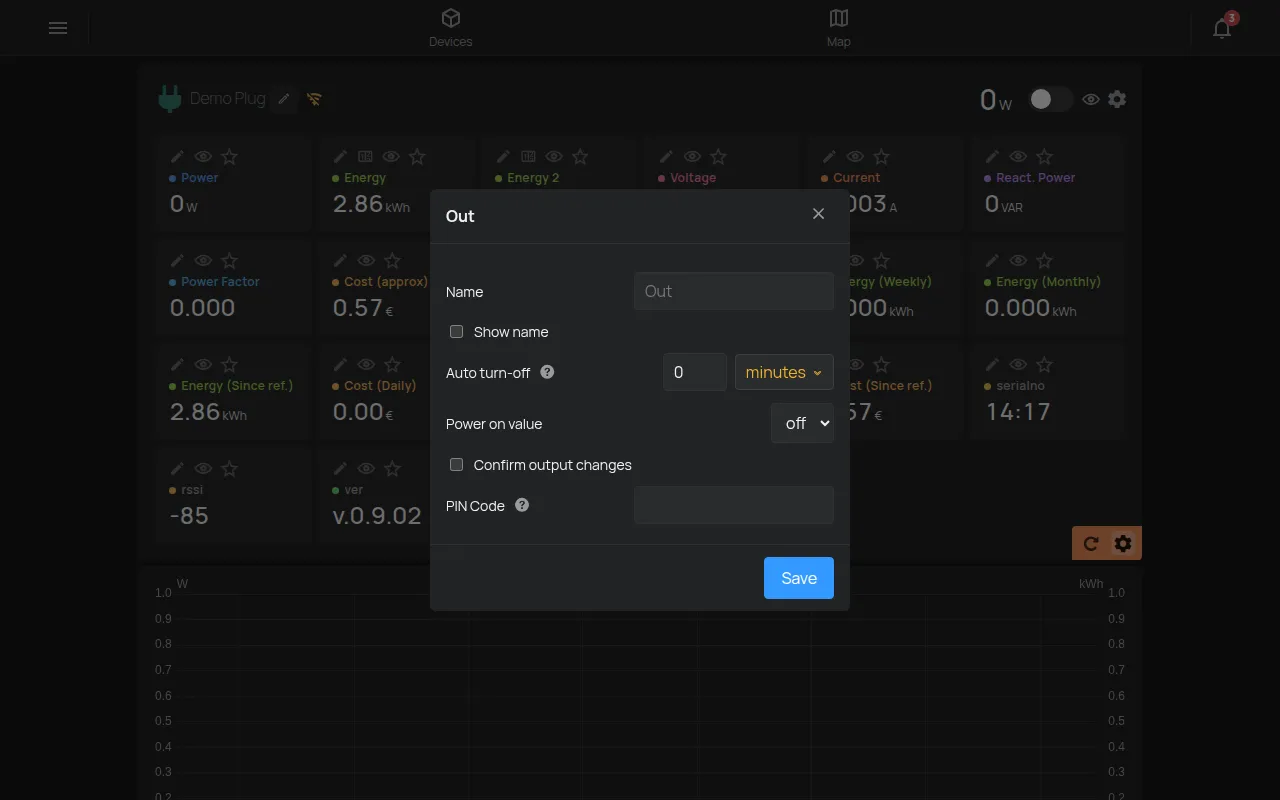
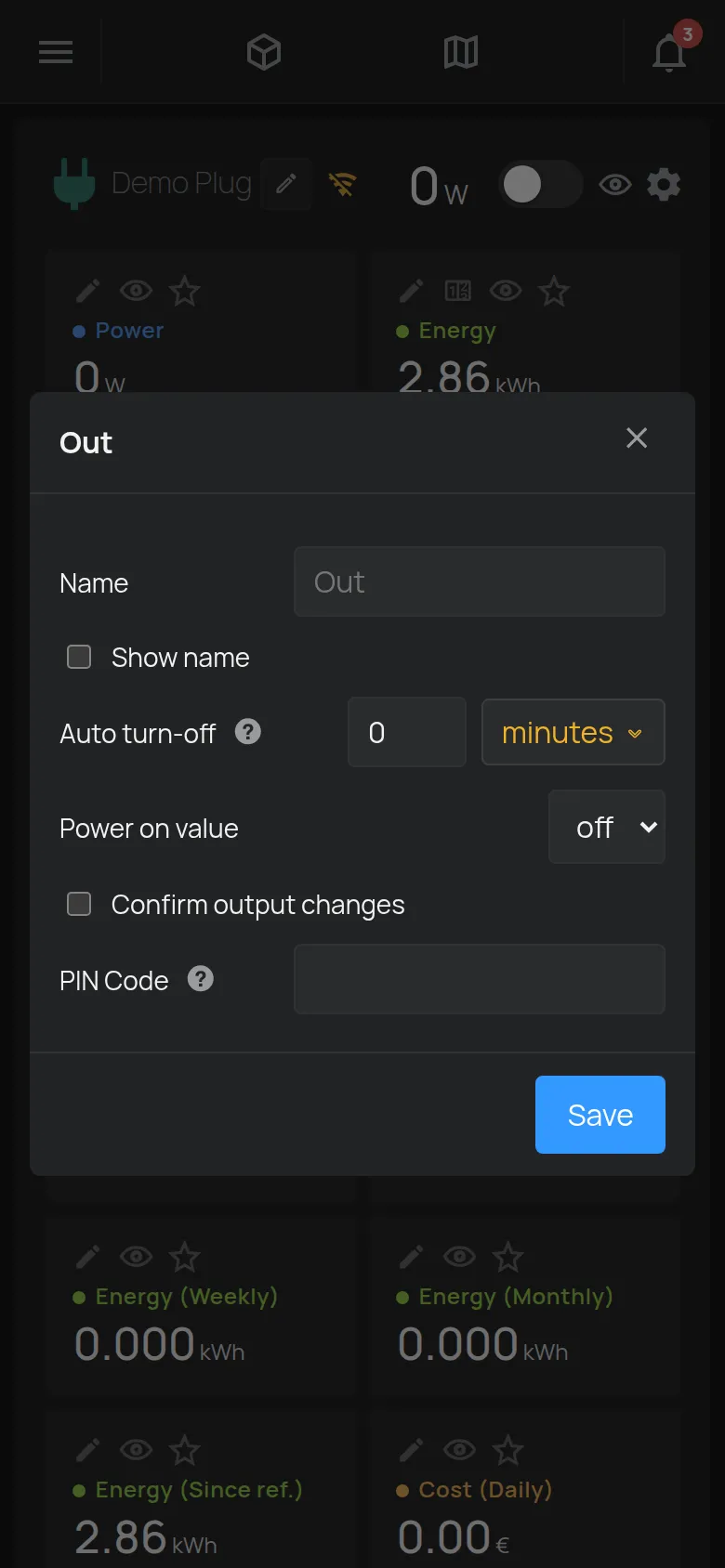
Each change is saved immediately. The settings:
- Name: the name of the output.
- Show name: shows the name next to the button.
- Auto turn-off: the output turns off by itself after the time that you set. This also applies when you turn the output on with the button on the device. Set 0 to turn it off.
- Power on value: the state of the output, inactive or active, when the device starts.
- Min and Max: the limits of the target temperature.
- Allowed modes: the modes that show. At least one must stay.
- Minimum temperature and Maximum temperature: the limits for the air conditioner.
- Confirm output changes: the app asks before the output changes.
- PIN Code: the app asks for the code before the output changes.
Only the settings that apply to the output show.
Protection from a wrong click
Section titled “Protection from a wrong click”- Open the settings of the output.
- Turn on Confirm output changes.
- For more protection, type a PIN Code.
- Click Save.
After that, the app asks for confirmation before each change. The question shows, for example, “Turn on” and the name of the output. With a PIN, the app shows “Please enter PIN Code”.
Hide an output
Section titled “Hide an output”In edit mode, the eye next to the output switches its visibility between default, hidden and shown.
Automatic control
Section titled “Automatic control”- For control at set times, see schedules.
- For control from a reading, for example the temperature, see create a rule.
- For control of many outputs with one click, see scenes.
- For outputs that change together, see Follow in groups.