

Map and GPS routes
The Map page shows all your devices that have a location. It is useful for GPS trackers and for devices in many places.
The Map tab shows in the top bar only when you have at least one GPS device or one device with a location.
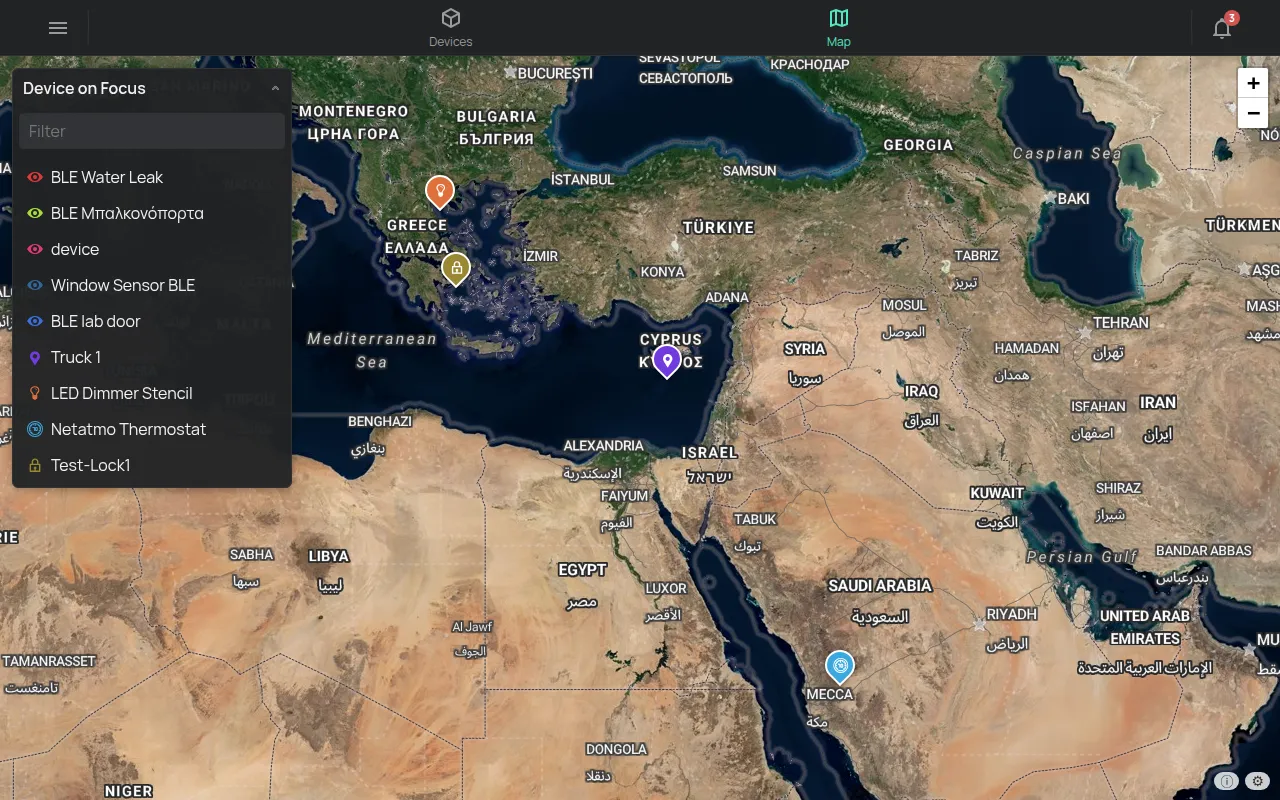
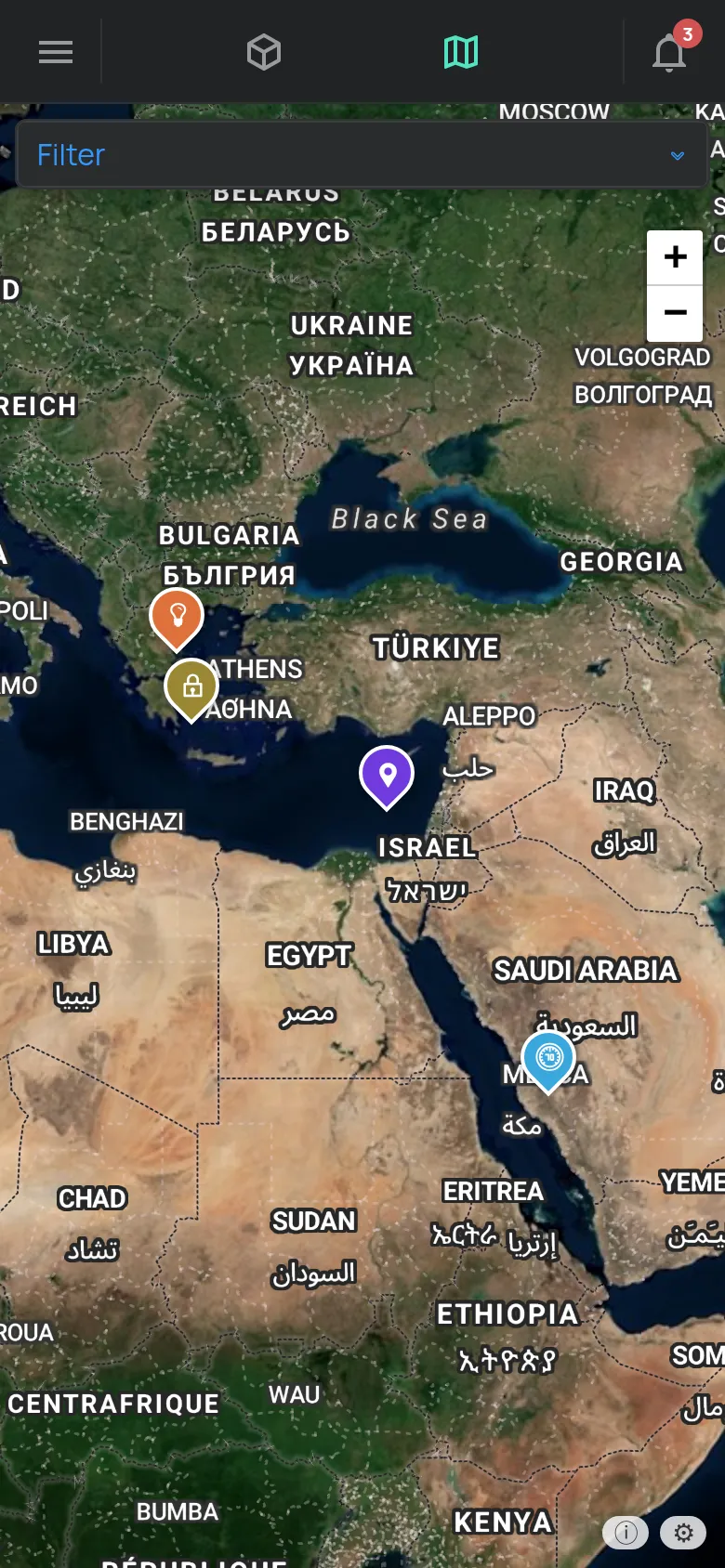
See a device on the map
Section titled “See a device on the map”- Click the Map tab.
- In the Device on Focus list, select the device. The Filter field finds a device.
- The map zooms in to the device.
- To open the device page, click the marker of the device again.
You can also click the marker of a device on the map.
When you select a device:
- The map shows the route of the last 24 hours and the stops.
- The bottom panel shows the readings and the outputs of the device.
- The map follows the device when it moves.
If you have 1 to 5 GPS devices and you do not select one, the map shows the last trip of each one.
If you move or zoom the map, the map stops fitting automatically.
Markers on the map
Section titled “Markers on the map”- Each device has a marker with its icon.
- An arrow shows a device that moves, with its direction.
- The red circles are the stops.
Click a marker or a stop to see the details.
Routes for another range
Section titled “Routes for another range”For the route of another day, open the page of the GPS device. In the chart, select the range. The device map shows the route for ranges of up to 7 days. See charts.
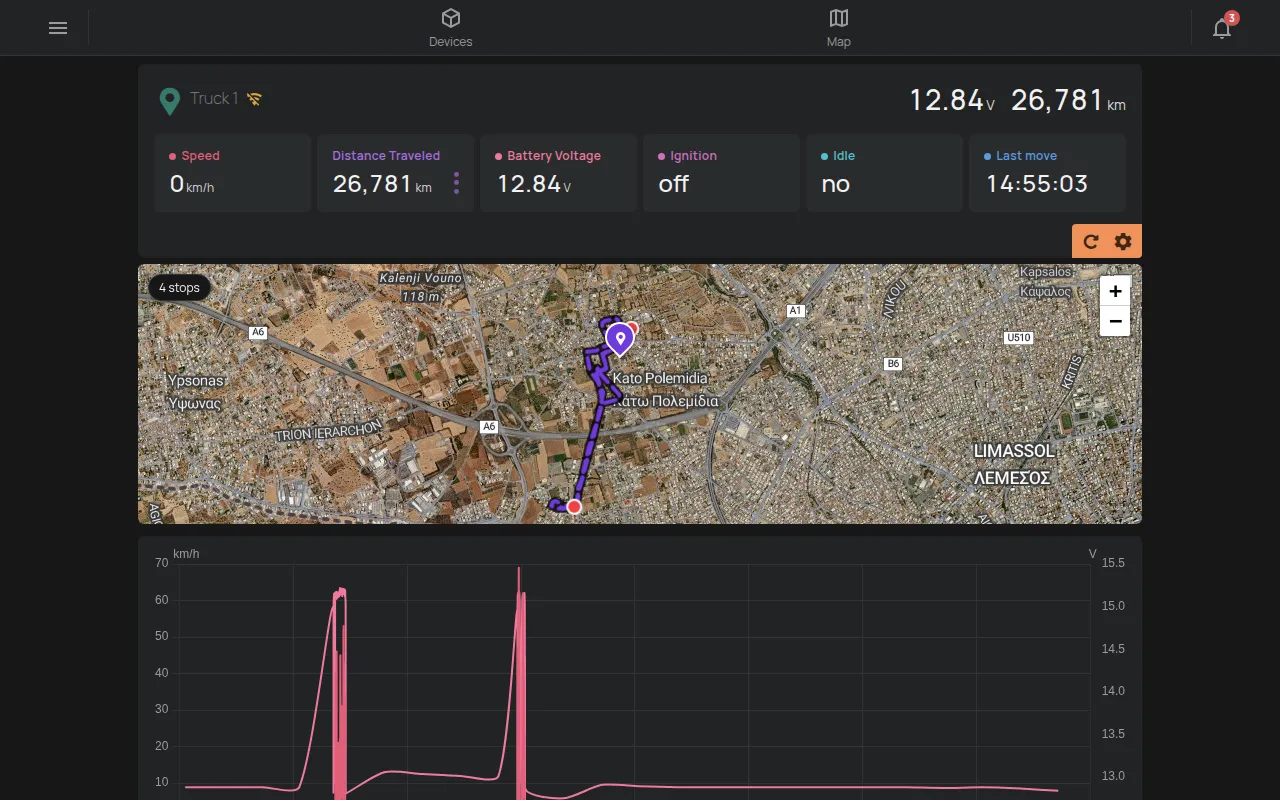
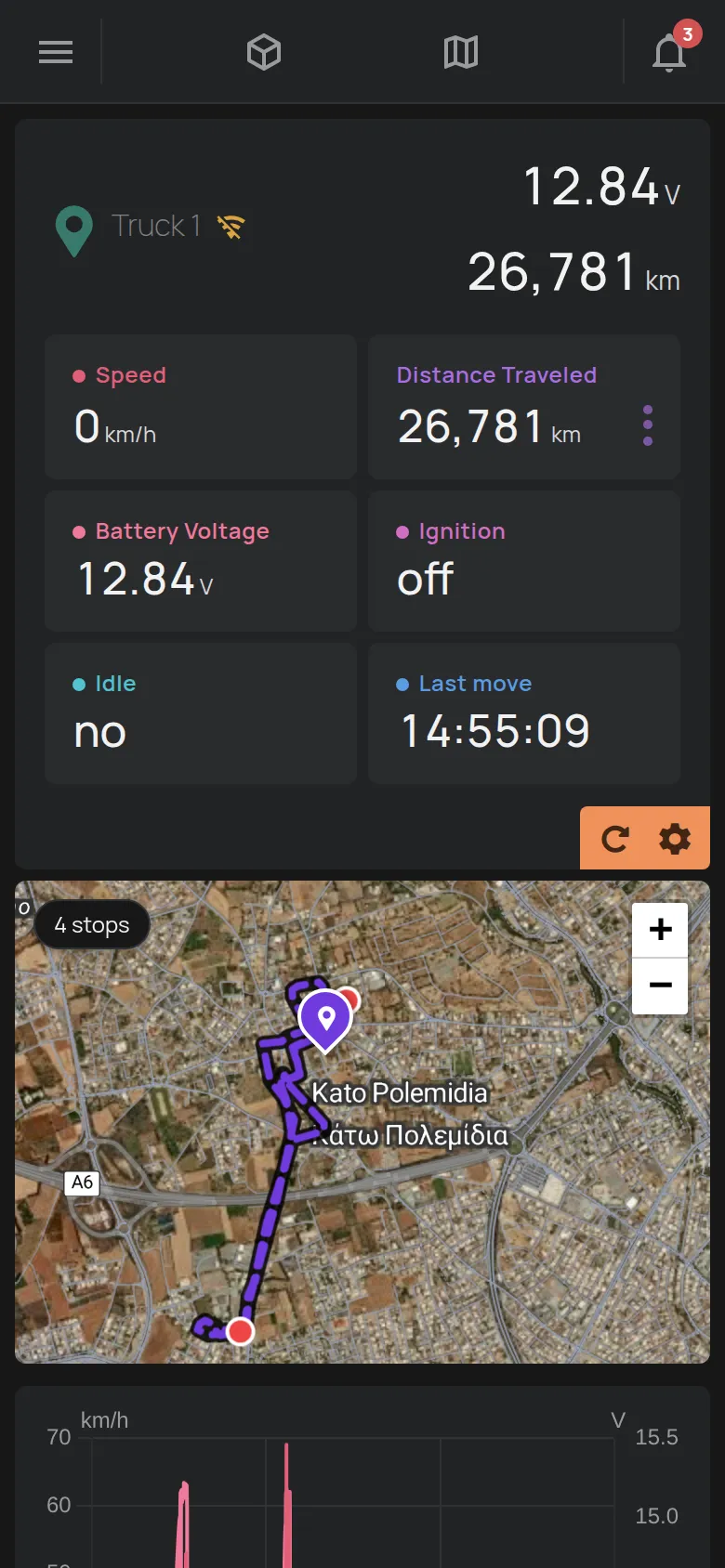
For a list of all the stops, make the Stops report. See reports.
Give a name to a location
Section titled “Give a name to a location”You can give a name to a place, for example “Warehouse”. The name shows on the stops at this place.
- Right-click the map or a stop. On a phone, touch and hold.
- In the Name this location window, type the name in the Label field.
- Click Save.
On an open stop, the pencil Name this location opens the same window.
Map style
Section titled “Map style”- Click the gear at the bottom right of the Map page.
- In the Map Style window, select a style.
The styles are:
- Theme: follows the theme of the app.
- Dark.
- Light.
- Satellite.
The selection is saved in your account.
A device does not show
Section titled “A device does not show”The map shows only devices with a location. A new GPS device shows after its first location. If the device does not send data, see device offline.