

Install a GPS tracker in a vehicle
GPS trackers (FMC920, FMC880, FMC230) connect to the internet over the mobile network, with a SIM card. They do not need WiFi. They need power from the vehicle and a claim with the Device key.
The models, readings and settings are on the GPS trackers page.
Before you start
Section titled “Before you start”- The tracker has a SIM with active data. Trackers are usually sold with data for 6 or 12 months. See Subscriptions.
- You have the label with the Device key. Take a photo of it before the installation. After it, the tracker is usually hidden.
- You have a HAM account and the app on your phone or computer.
Mounting and power
Section titled “Mounting and power”The mounting point depends on the model. These instructions come from Teltonika.
| Model | Where it goes |
|---|---|
| FMC920 | Behind the dashboard, as near to the window as possible. The label side points to the open sky, with no metal above it. Keep it away from water and humidity. |
| FMC880 | On the vehicle battery, with the double-sided tape on its back. The GPS antenna and the LEDs point up. First clean the dust from the battery. |
| FMC230 | The label side points to the open sky. At least 3/4 of the area above it must be free of metal. The best reception is when you mount it outside the vehicle. |
-
Select the point from the table.
-
Install the tracker with the “Mount this side up” side up. This gives a better GPS signal.
-
Connect the red wire to the positive (+) of the vehicle battery. The supply voltage is 10-30 VDC.
-
Connect the black wire to ground.
-
Attach the tracker so that it does not move.
The wires and inputs for each model are on the GPS trackers page.
Teltonika instructions for the electrician
Section titled “Teltonika instructions for the electrician”- Teltonika recommends that you connect the power and ground wires directly to the battery terminals. The FMC880 is made for this connection.
- If the ground does not go to the battery, connect it to the vehicle frame or to a metal part fixed to the frame. Scrape the paint off at the contact point.
- Do not connect the wires to the on-board computer or to a control unit of the vehicle.
- Attach the wires to other fixed wires or to parts that do not move. Keep them away from hot and moving parts.
- If the wires go through places with heat, humidity or dirt, add more insulation.
- After you connect the tracker, measure the voltage again. The voltage must not drop.
Check with the LEDs
Section titled “Check with the LEDs”The tracker has two LEDs: Navigate for GPS and Status for operation. When both blink about once per second, the installation is correct.
The LEDs have the same meaning on the FMC920, FMC880 and FMC230.
| LED | What you see | What it means |
|---|---|---|
| Navigate | On all the time | The tracker does not receive a GPS signal. |
| Navigate | Blinks every second | Normal operation. GPS works. |
| Navigate | Off | GPS is off. The tracker does not work or it is in sleep mode. |
| Navigate | Blinks fast all the time | The tracker gets new software. |
| Status | Blinks every second | Normal operation. |
| Status | Blinks every two seconds | The tracker is in sleep mode. |
| Status | Blinks fast for a short time | The tracker communicates over the mobile network. |
| Status | Off | The tracker does not work or it is starting. |
The tracker finds its position more easily in an open space. For the first check, take the vehicle out of basements and closed garages.
Claim on your account
Section titled “Claim on your account”-
In the app, open the Devices list and tap the ⋮ menu (Tools).
-
Tap Add new device.
-
Tap HAM GPS / GPS Tracker.
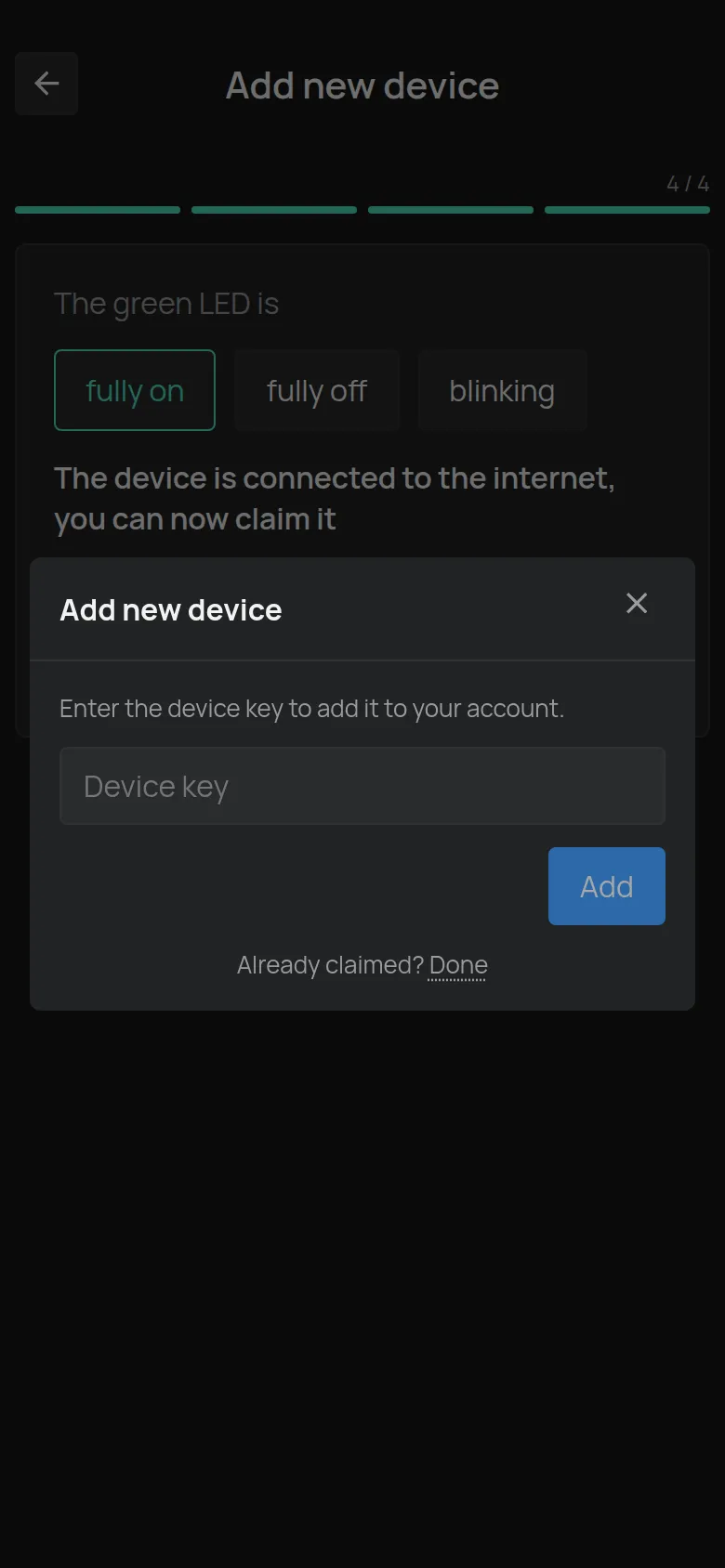
The Add new device dialog opens immediately.
-
Type the Device key from the label.
-
Tap Add.
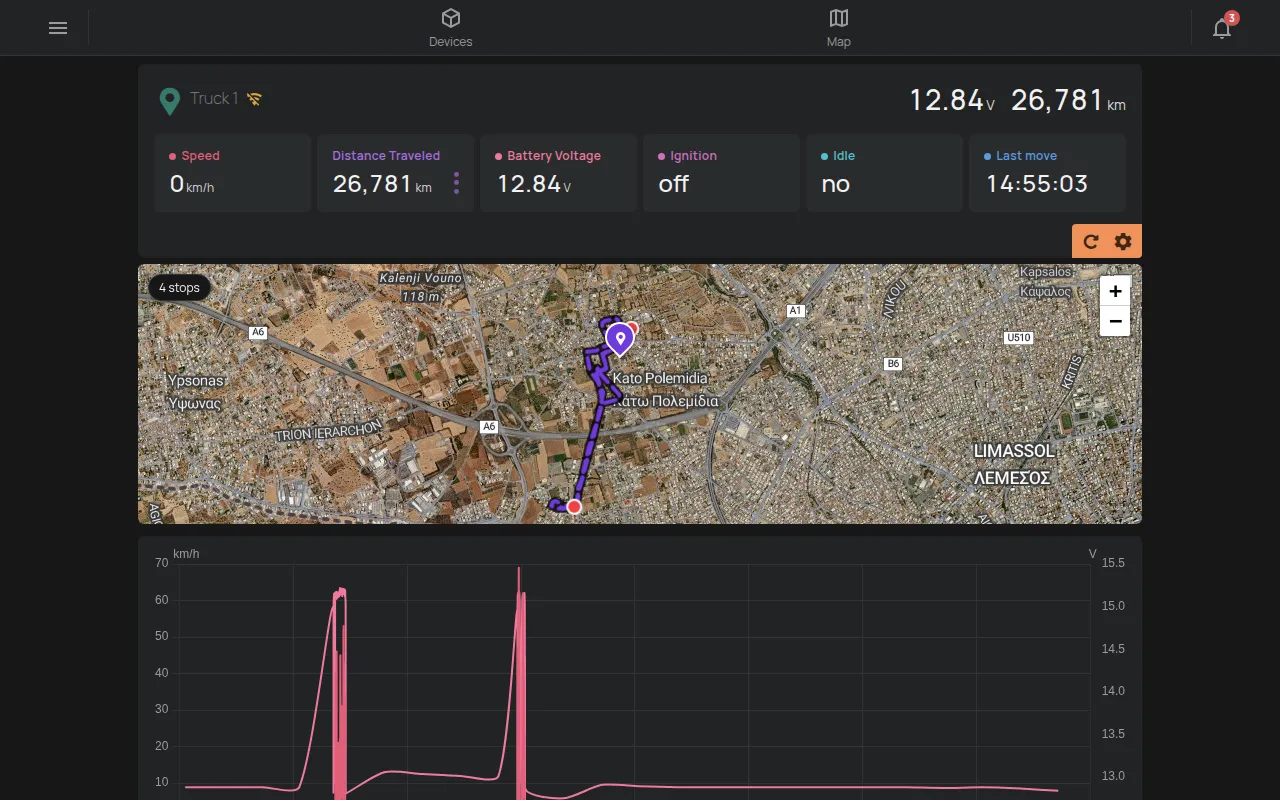
The app opens the page of the tracker. From a computer, see Claim a device with its Device Key.
After the claim
Section titled “After the claim”- Give the tracker the name or the plate number of the vehicle. See Device settings.
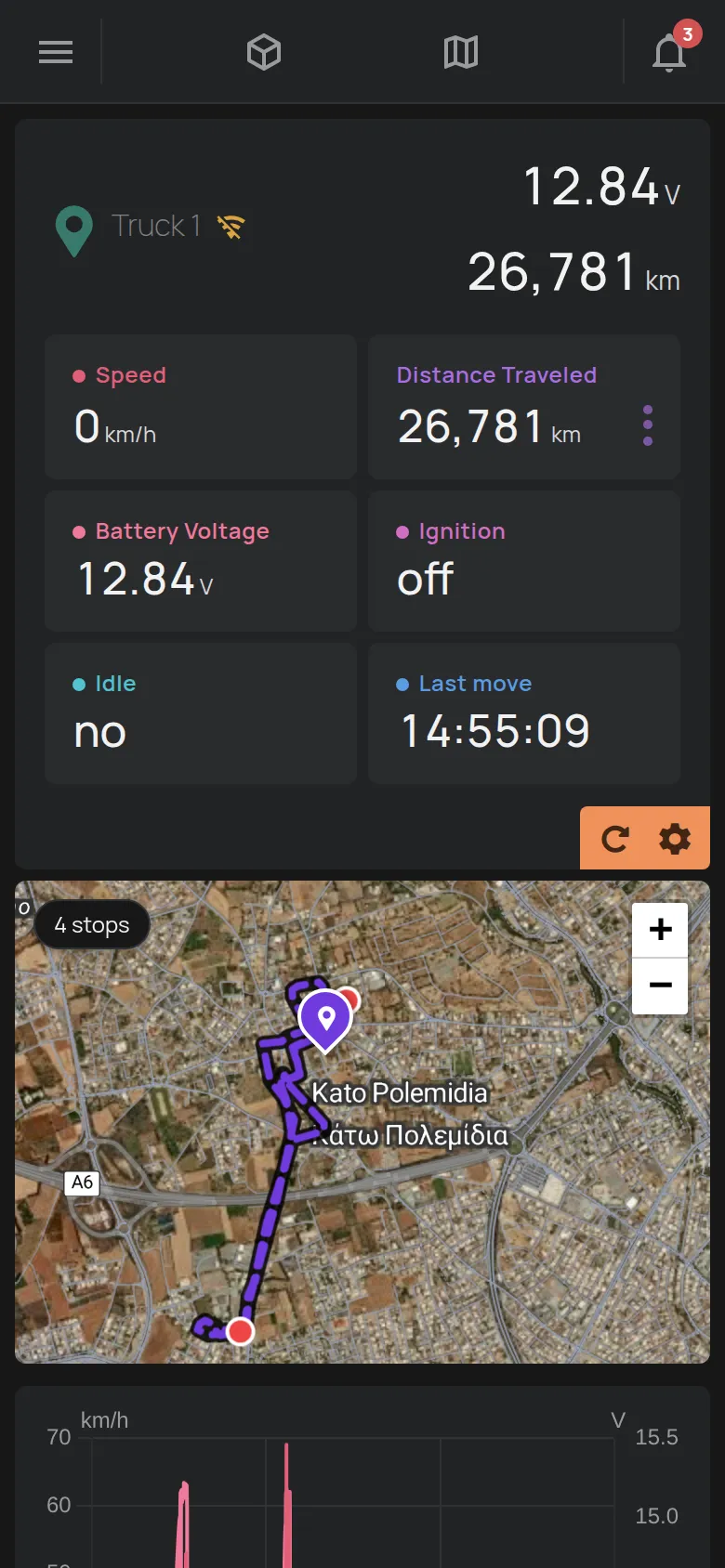
- See the position and the route on Map and GPS routes.
- Set an alert for when the vehicle leaves an area, or when the tracker loses its connection. See Create a rule and Get an alert when a device goes offline.
The tracker shows as offline
Section titled “The tracker shows as offline”| Cause | What to do |
|---|---|
| The vehicle is at a point without mobile signal, for example in a basement. | The tracker connects again when it finds a signal. |
| The SIM data expired. | Renew it with a SIM product from the shop. |
| The power was cut. | Check the wires and the supply fuse with your electrician. |
For more, see The device shows as offline.