

Create an account
You need a HAM account to see your devices. The same account works at app.hamsystems.eu and in the phone app.
New account
Section titled “New account”-
Open the HAM app on your phone or app.hamsystems.eu.
-
Tap Create account.
-
Type your e-mail in the Email field.
-
Type a password in the Password field. The password has 8 to 64 characters.
-
Type the same password again in the Retype Password field.
-
Tap Sign up.
The app creates the account, signs you in and opens the device list. The list is empty until you add your first device.
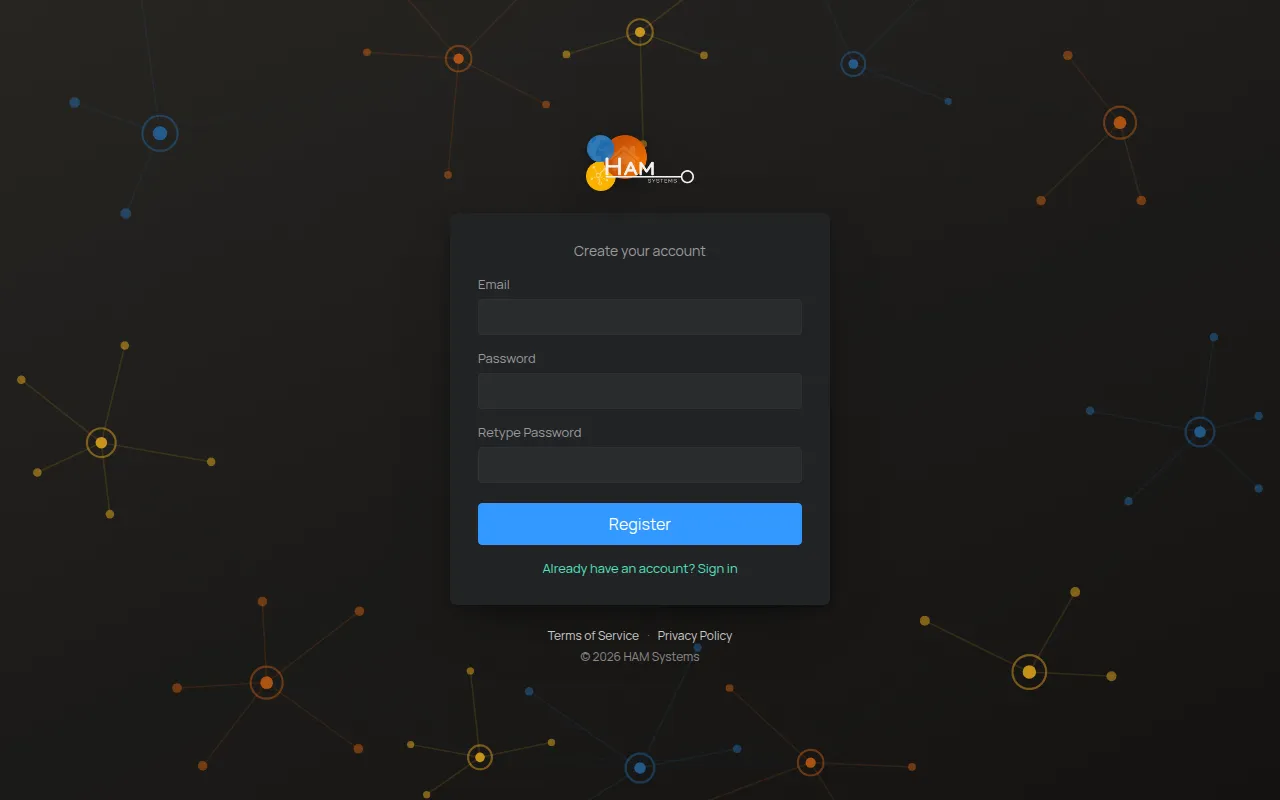
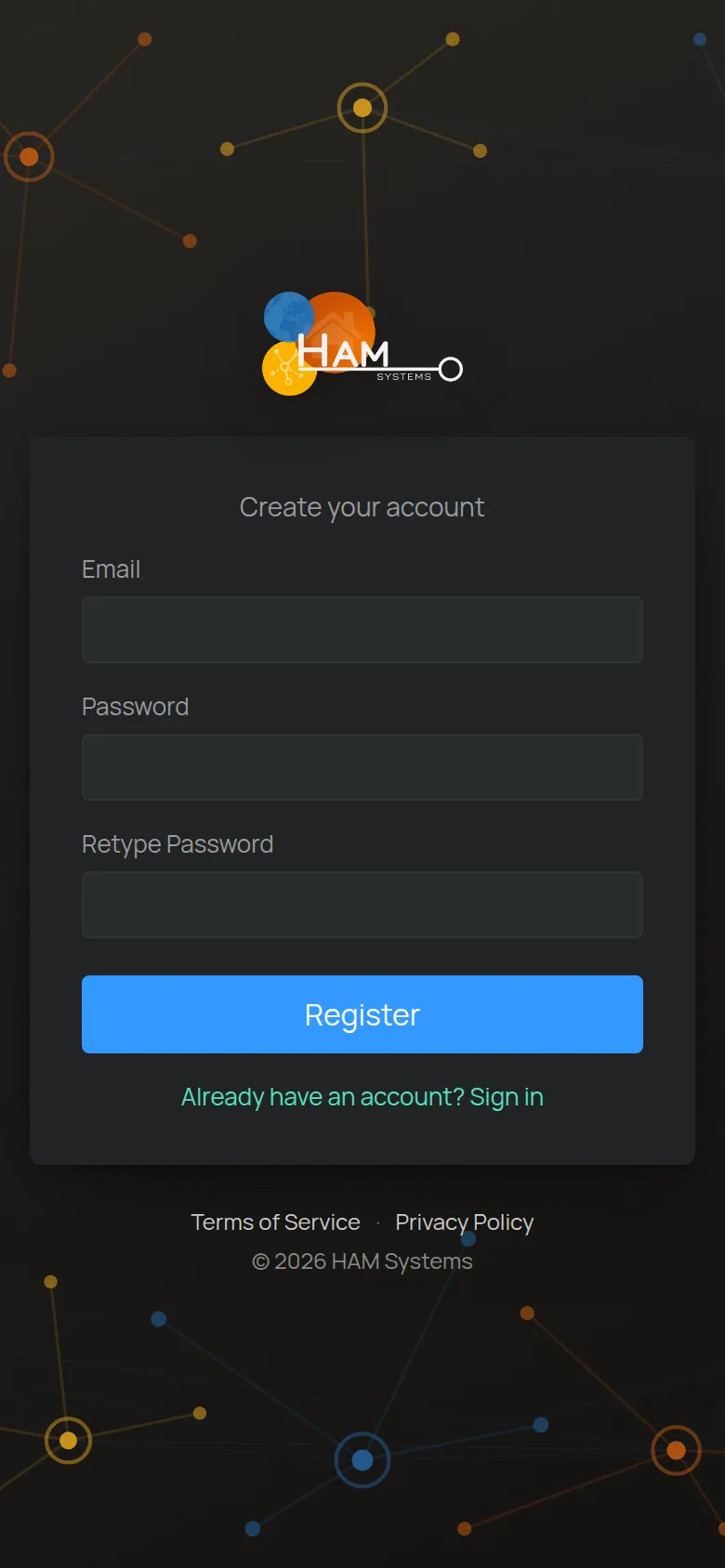
If you see Passwords don’t match, type the password again in both fields. If you see Registration failed, check the e-mail. An account with this e-mail may already exist. Then tap Already have an account? Sign in.
Sign in
Section titled “Sign in”-
Open the HAM app or app.hamsystems.eu.
-
Type your Email and Password.
-
Tap Sign in.
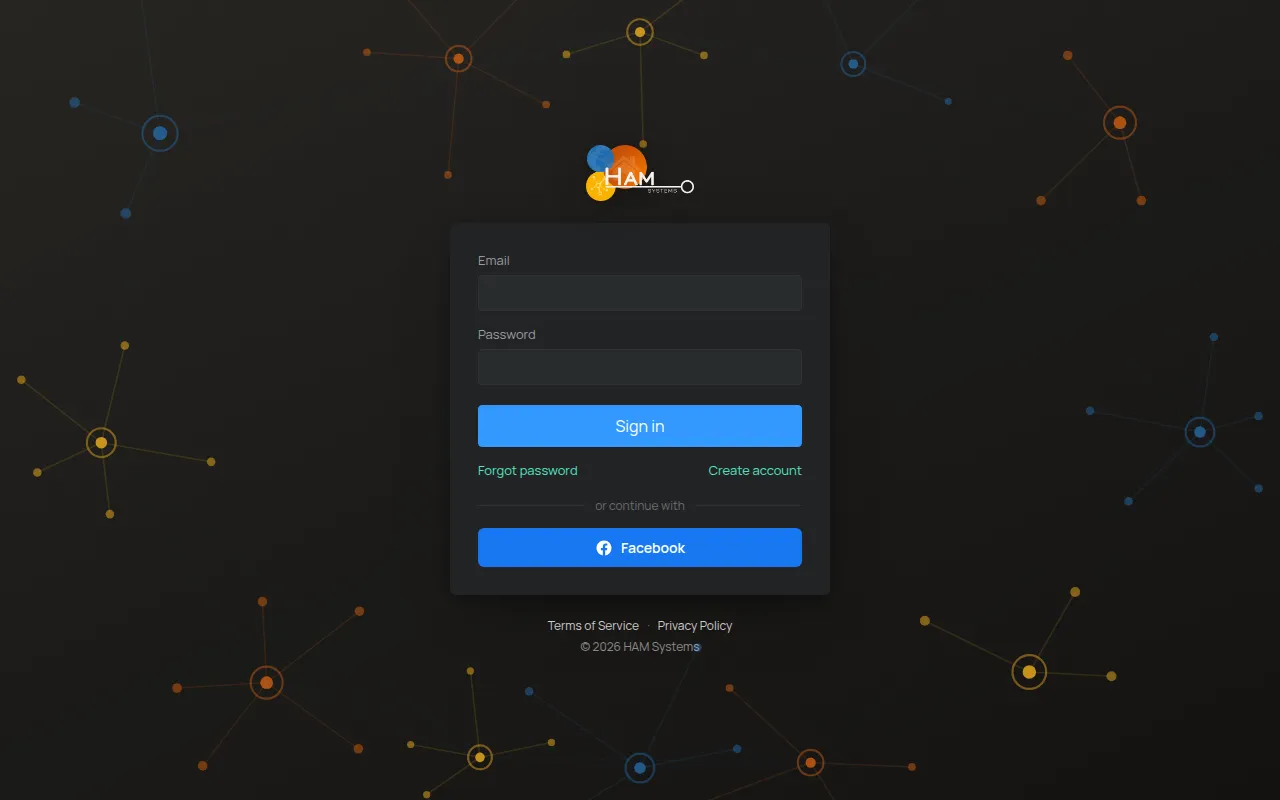
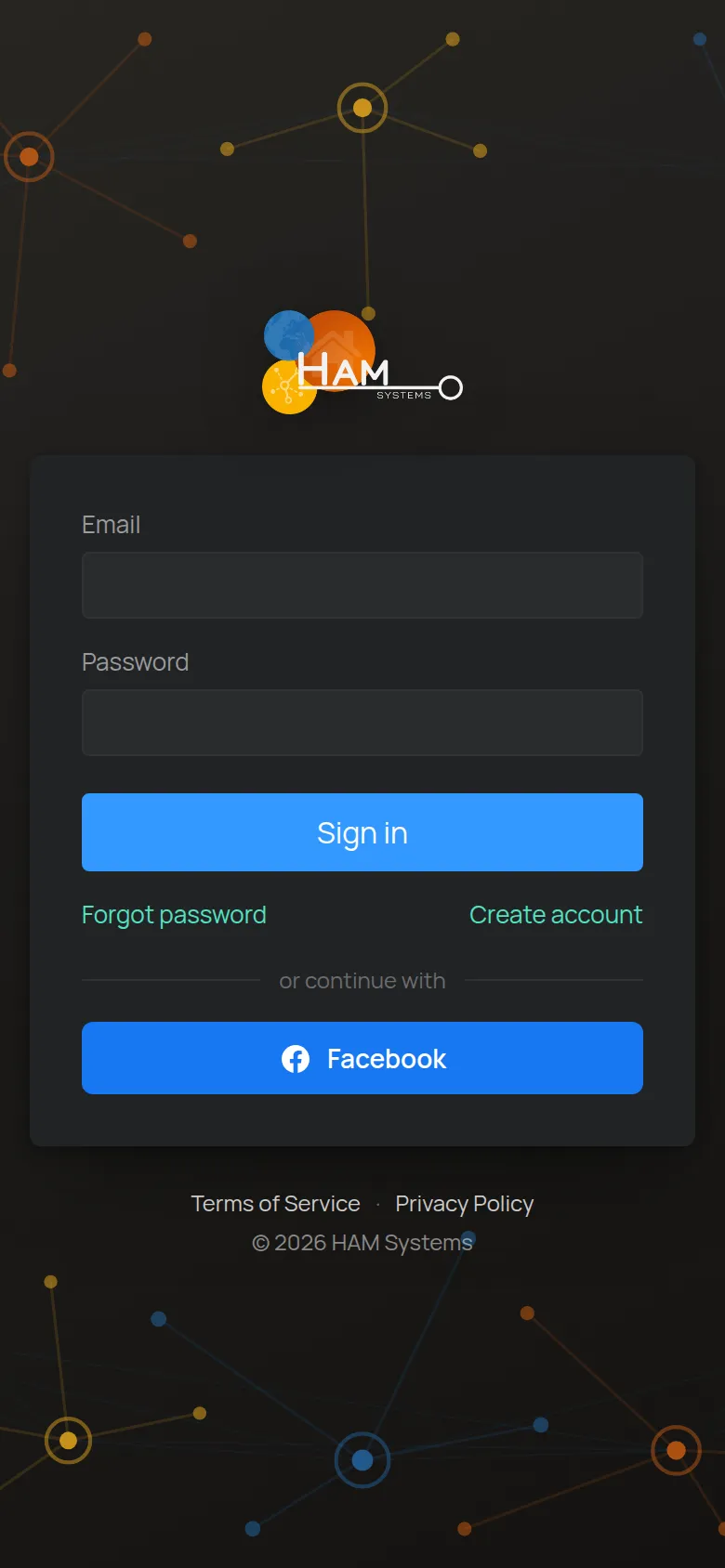
You can also sign in with Facebook, from the or continue with area. On iPhone there is also a Sign in with Apple button.
If you type a wrong password many times, the page can ask you to confirm that you are not a robot (reCAPTCHA).
You forgot your password
Section titled “You forgot your password”-
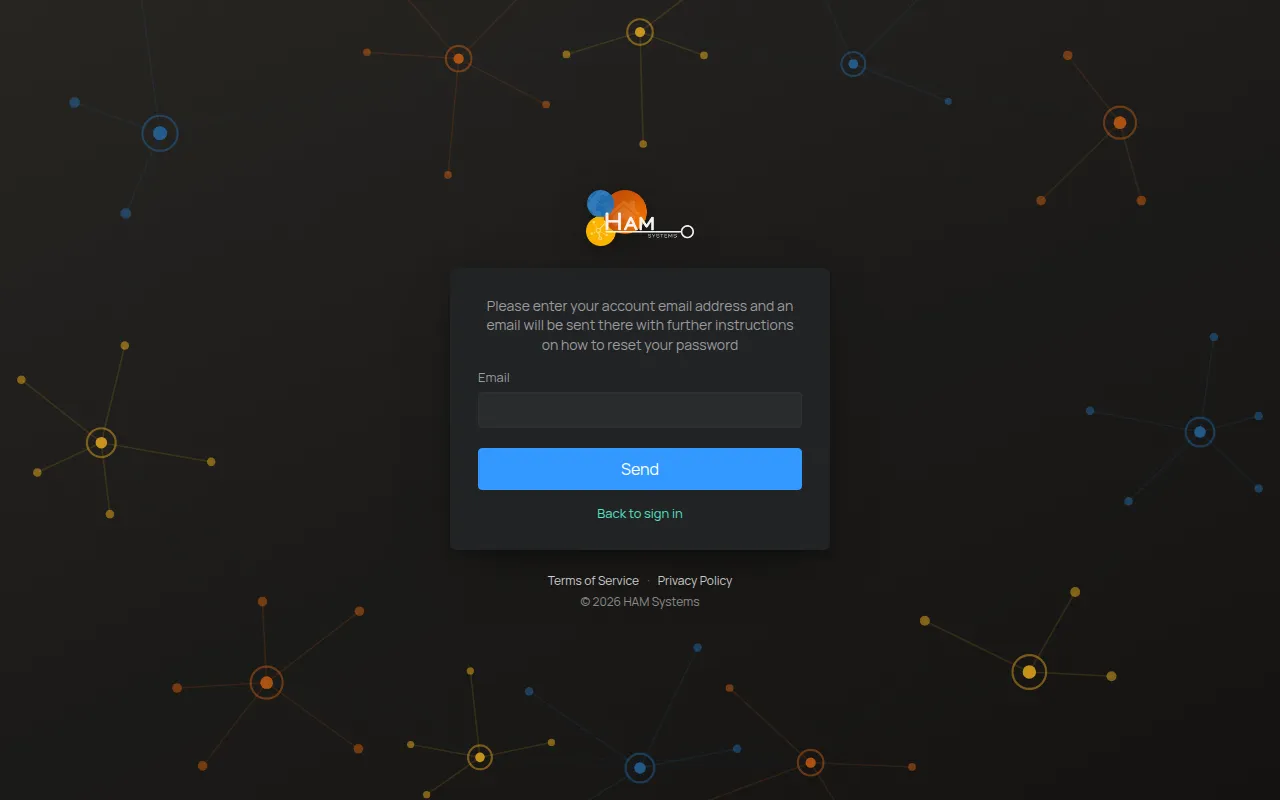
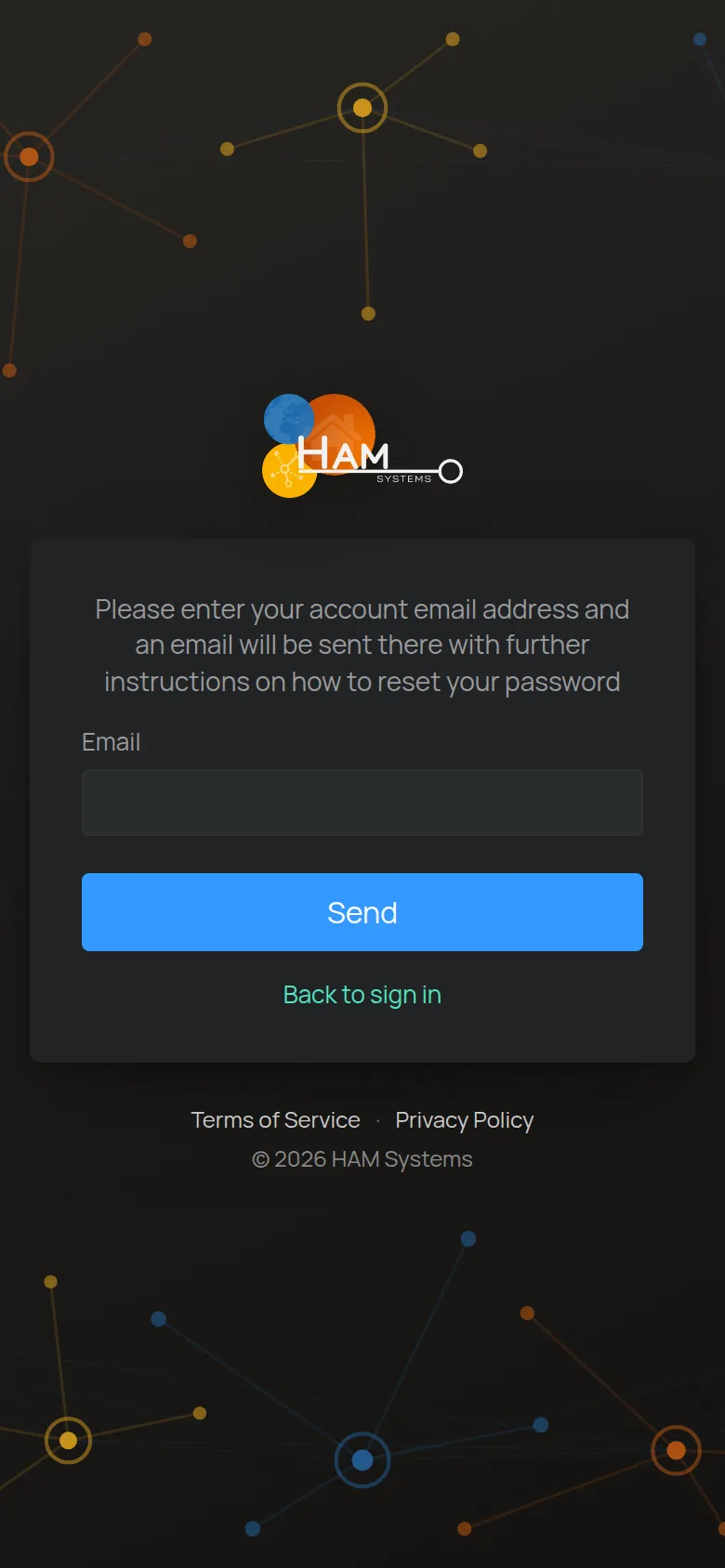
On the sign-in screen, tap Forgot password.
-
Type the e-mail of your account.
-
Tap Send.
You see the message Please check your email for further instructions.
-
Open the e-mail from HAM Systems and tap the link.
The Reset Password page opens. The Token in your email field is already filled in.
-
Type the new password in New Password and again in Retype Password.
-
Tap Submit.
The app saves the new password and signs you in.
If you cannot find the e-mail, check your spam folder. If it did not arrive, contact support.