

Connect a device to WiFi
A new WiFi device does not know your network. The setup wizard in the HAM app sends the name and password of your WiFi to the device. Then you add the device to your account.
The setup works only from the phone app (Android or iPhone). The WiFi details go from the phone directly to the device. They do not go through the HAM servers.
Vehicle GPS trackers and Bluetooth (BLE) devices do not need this page. See Install a GPS tracker in a vehicle and Bluetooth (BLE) devices.
Before you start
Section titled “Before you start”- The network is 2.4 GHz and has internet access.
- Your phone is connected to the same network.
- Bluetooth is on on the phone.
- The device is at the point where it will stay and has power.
- You have the label with the Device key.
The full check is on Before you install.
Step 1: Select the model
Section titled “Step 1: Select the model”-
Open the HAM app.
-
In the Devices list, tap the ⋮ menu (Tools).
-
Tap Add new device.
-
In Select your device model, tap the option that contains your device.
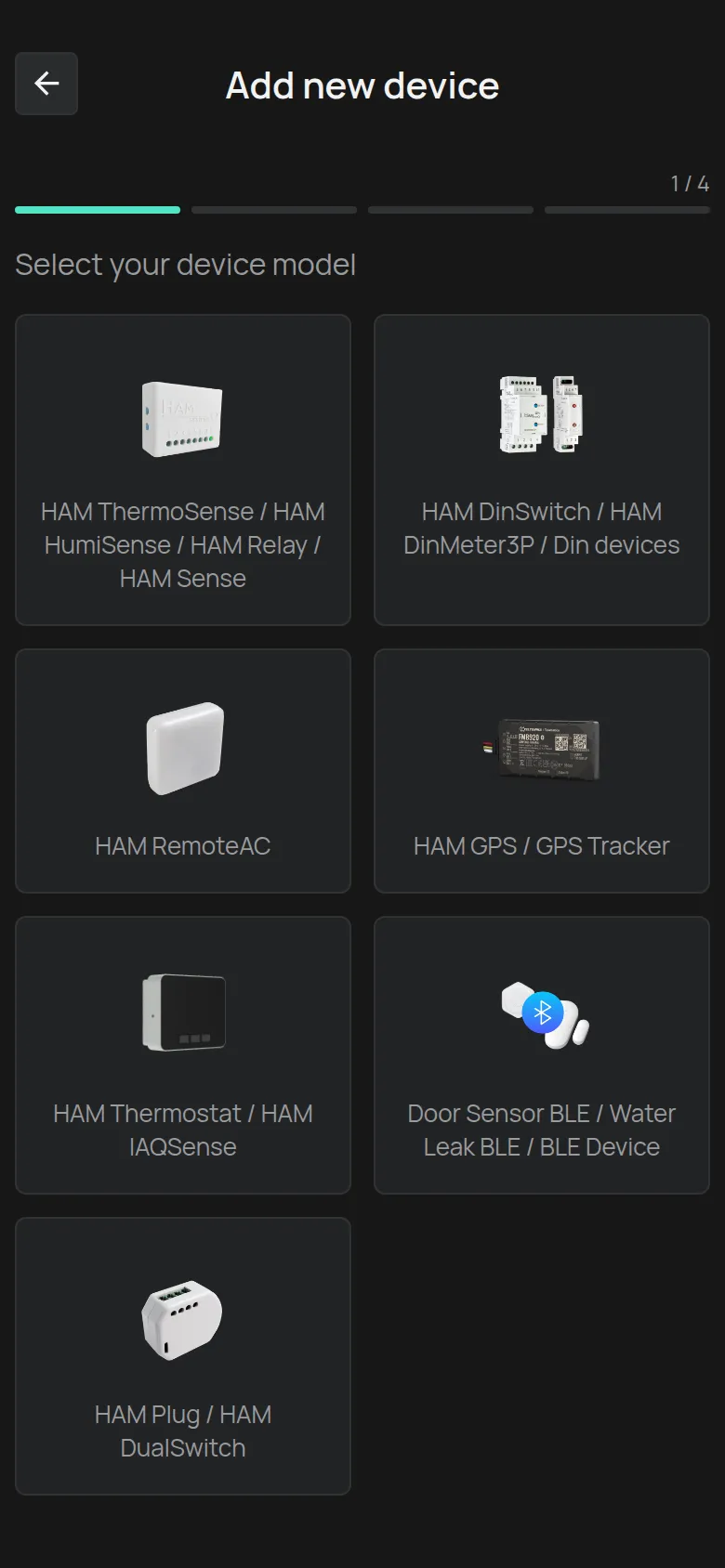
Each option covers devices with the same setup method:
| Option in the list | How the device goes into setup mode |
|---|---|
| HAM ThermoSense / HAM HumiSense / HAM Relay / HAM Sense | Press and hold the setup button for a few seconds, until the green LED blinks. |
| HAM DinSwitch / Din devices (HAM DinSwitch, HAM DinSwitchM) | Press and hold the on/off button for a few seconds, until the LED blinks. |
| HAM DinMeter3P | Press and hold the SETUP button for a few seconds, until the green LED blinks. |
| HAM RemoteAC | Press and hold the setup button for a few seconds, until the green LED blinks. |
| HAM Thermostat / HAM IAQSense | Press and hold the middle button for a few seconds, until the WiFi icon blinks. |
| HAM Plug / HAM DualSwitch | The device has no setup button. Wait until the LED blinks. |
| HAM GPS / GPS Tracker | No WiFi needed. The app opens the claim immediately. |
| Door Sensor BLE / Water Leak BLE / BLE Device | No WiFi needed. The app opens the claim immediately. |
You cannot find your device? See the Installation section on the device page, in the device catalogue. For example, the HAM SonicSense has the same box as the HAM Sense. If you are not sure, contact support.
Step 2: Type the WiFi details
Section titled “Step 2: Type the WiFi details”-
In WiFi network, select your network.
If you do not see it, tap the Rescan button next to the list. For a hidden network, select Other… and type the name in Wi-Fi Network Name.
-
Type the WiFi password in Password.
-
Tap Next.
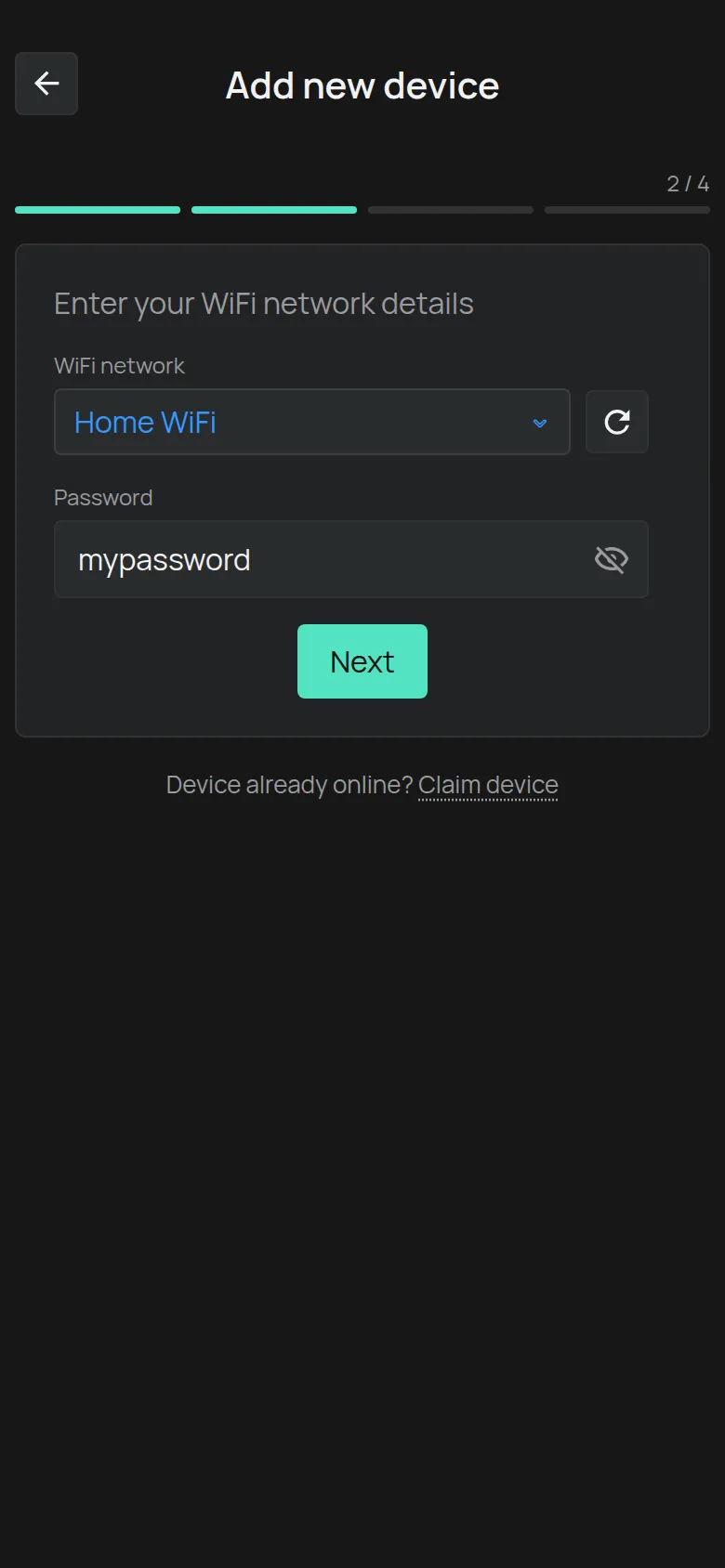
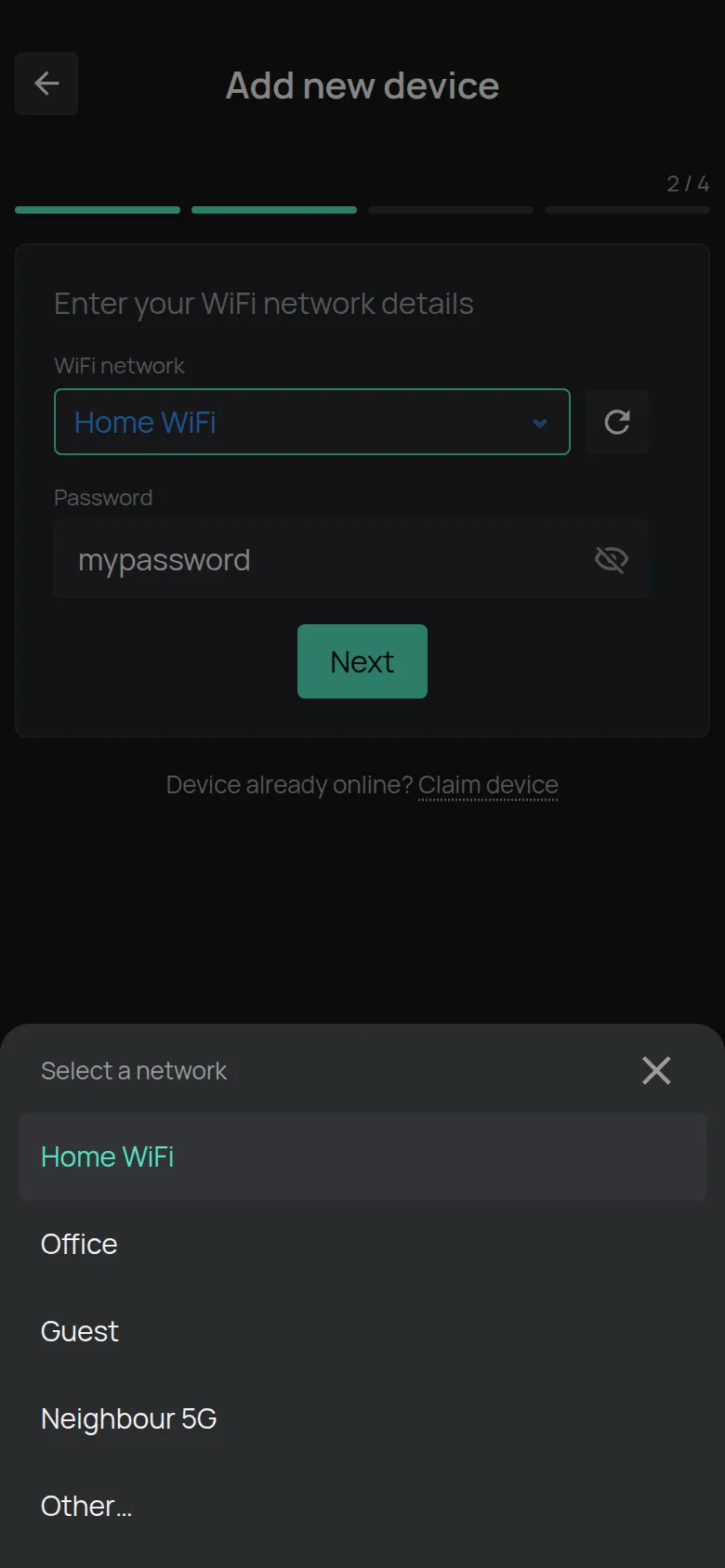
The password shows in clear text, so you can check it. Tap the eye to hide it. The app remembers the password for each network. Next time it fills it in for you.
On Android, the network list needs the location permission. If the list does not show, type the network name by hand.
Step 3: Put the device in setup mode
Section titled “Step 3: Put the device in setup mode”-
Read the instruction on the screen. The instruction changes with the model.
-
Do what the instruction says. For example, press and hold the setup button until the LED blinks.
-
Tap Next.
The button becomes active after 2 seconds. Until then it shows Please wait...
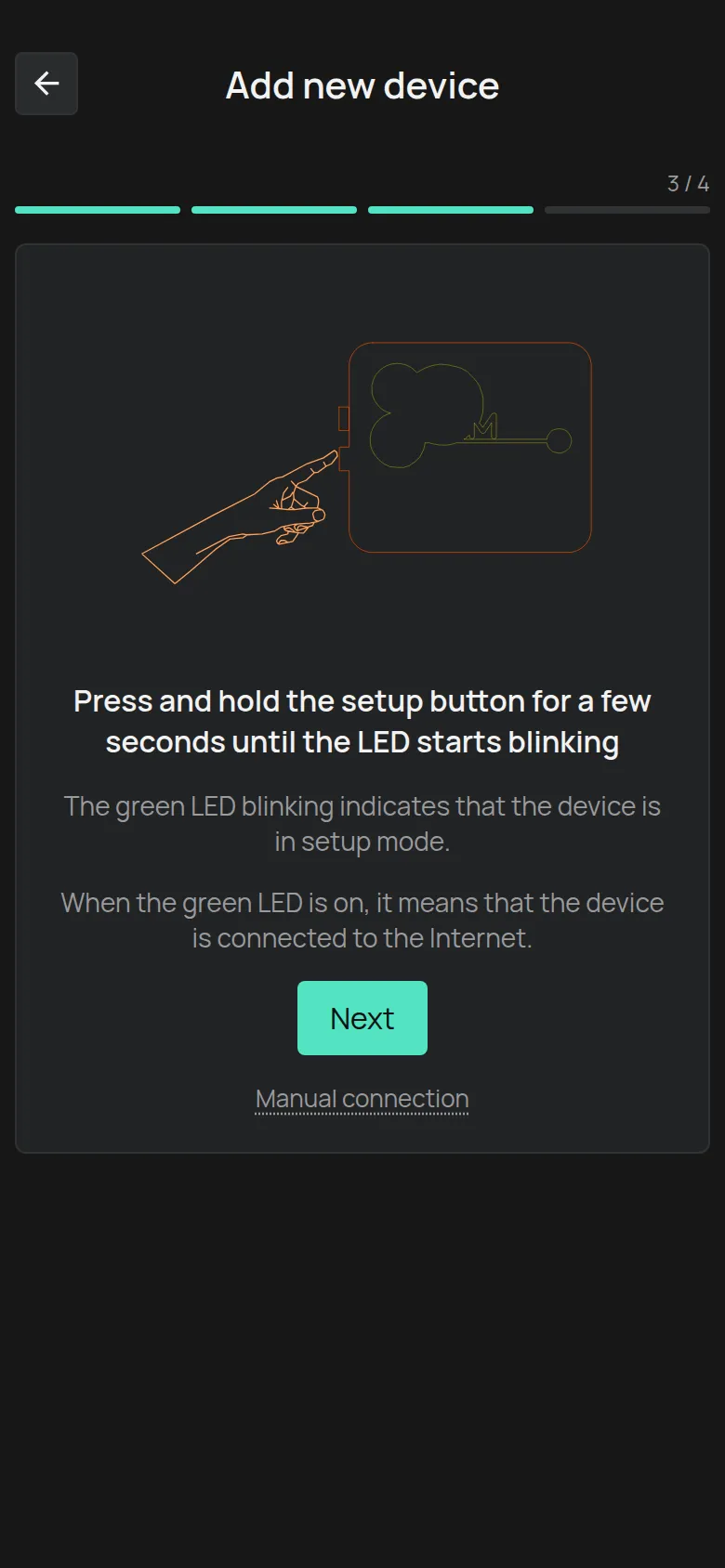
If you see Please enable Bluetooth, turn on Bluetooth on the phone.
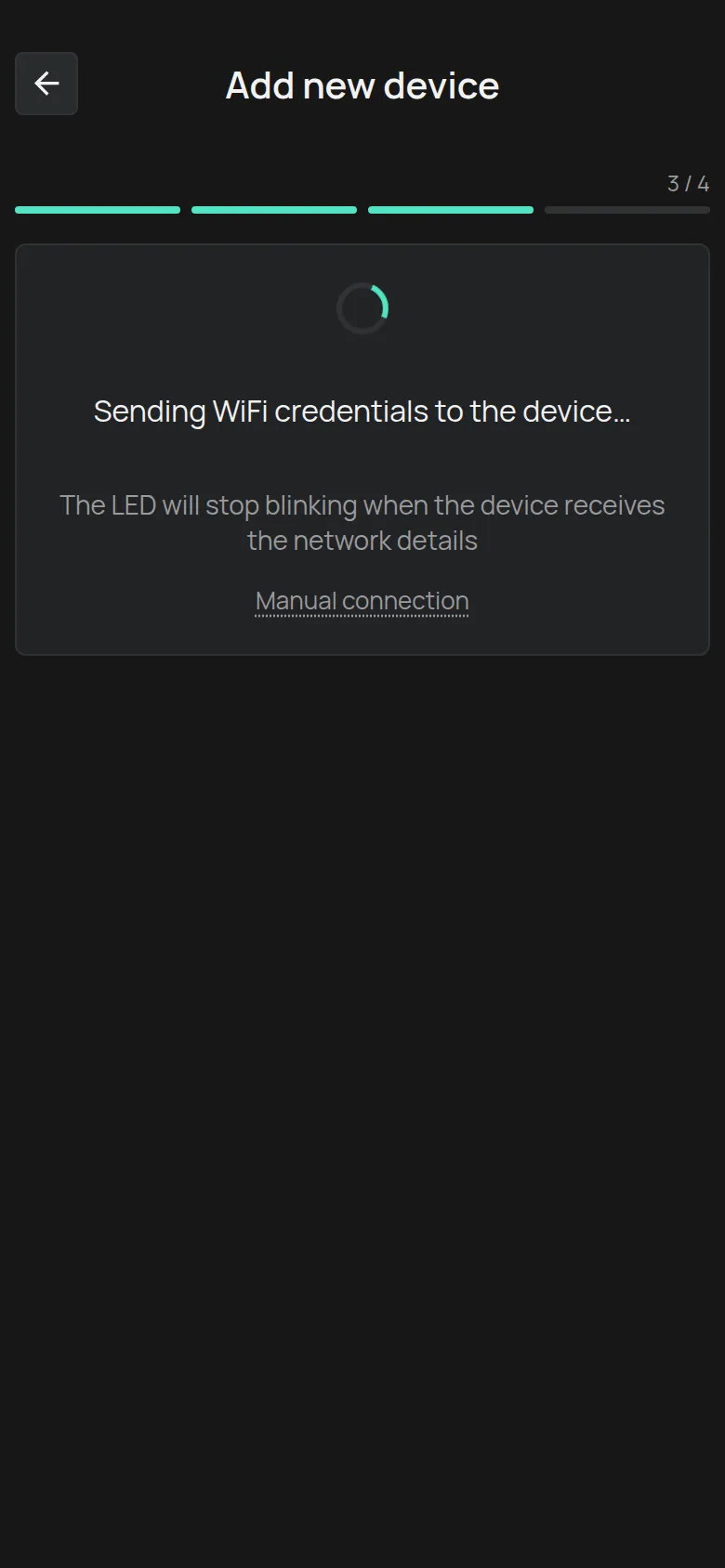
The app sends the details to the device over WiFi and over Bluetooth at the same time. You see the message Sending WiFi credentials to the device…. The LED stops blinking when the device receives the details.
Step 4: Check the LED
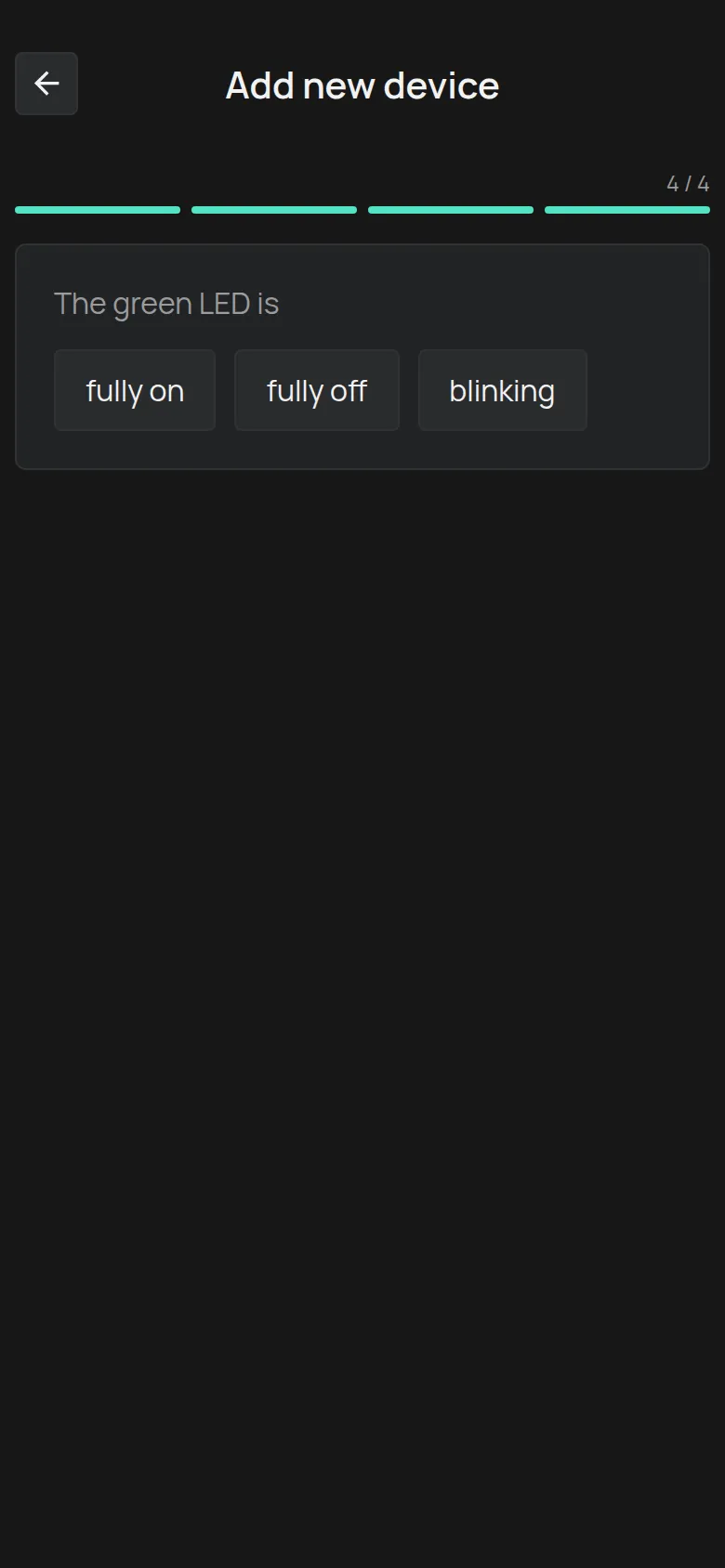
Section titled “Step 4: Check the LED”The app asks what The green LED is doing. Wait a few seconds and tap the answer.
fully on
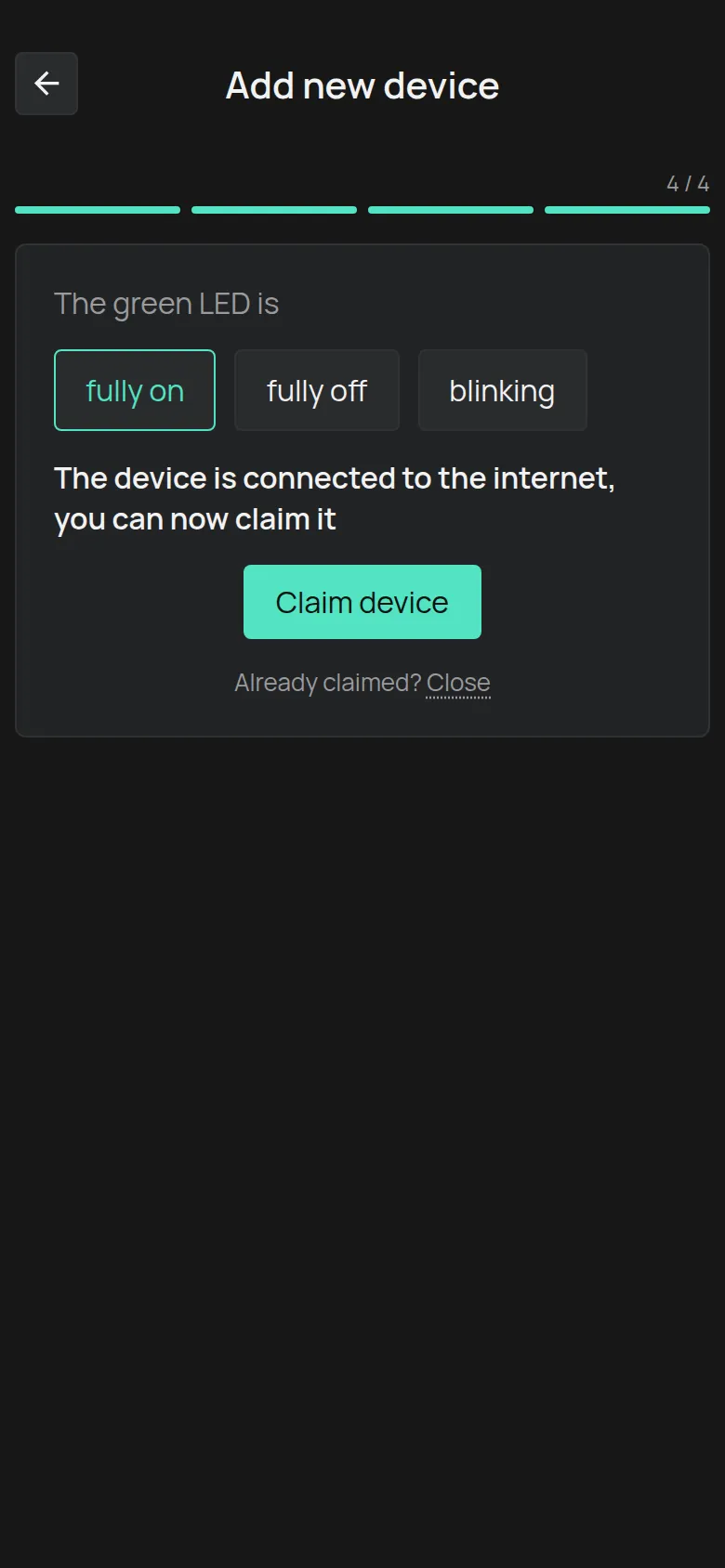
Section titled “fully on”The device is connected to the internet. Continue to step 5.
fully off
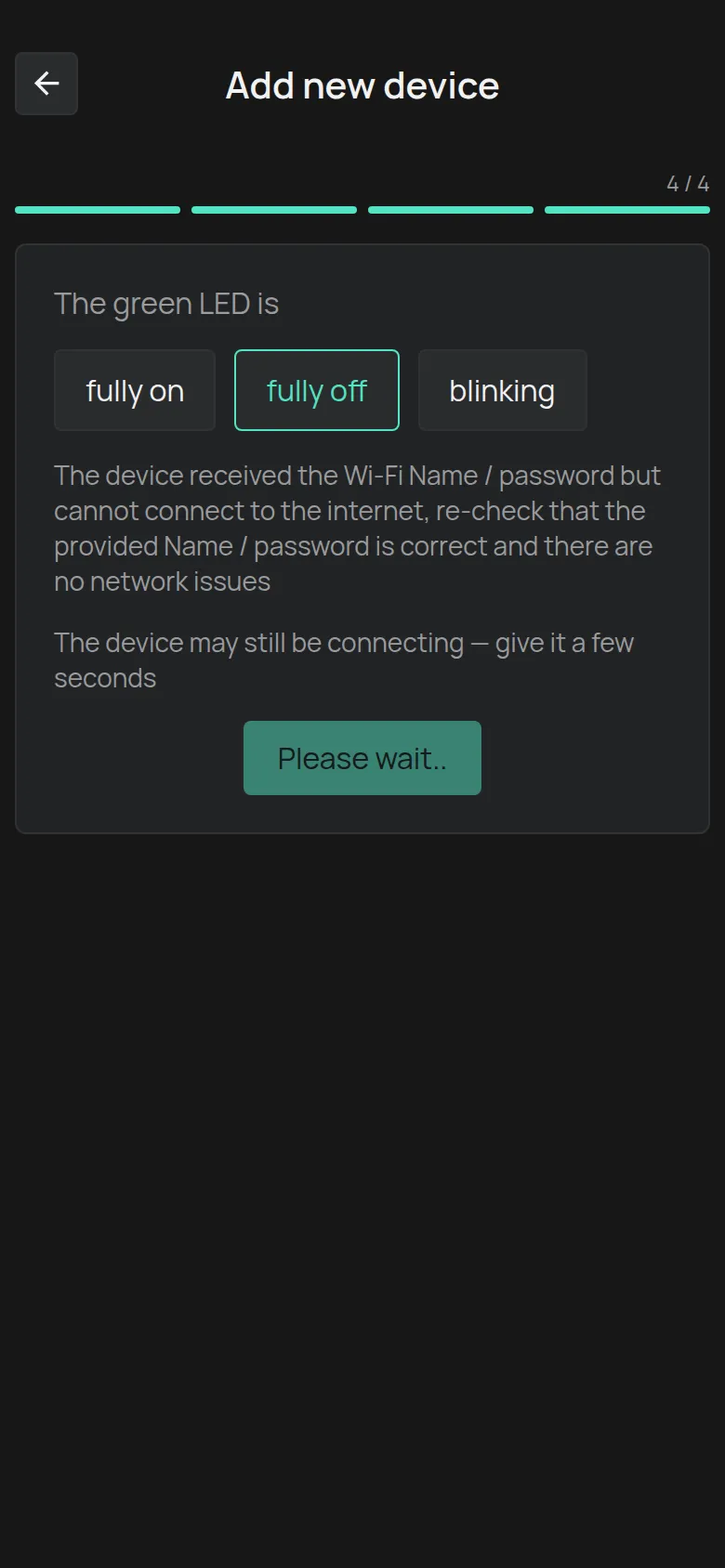
Section titled “fully off”The device received the WiFi details, but it cannot connect to the internet.
-
Wait a few seconds. The device can still be connecting.
-
Tap Back. The button becomes active after 5 seconds.
-
Check the WiFi name and password.
-
Start again from step 3.
If the LED stays off, see The WiFi connection fails.
blinking
Section titled “blinking”The device did not receive the WiFi details.
-
Put the device in setup mode again, as the screen tells you.
-
Tap Send.
-
If the LED still blinks, tap Manual connection and follow Connect through the device hotspot.
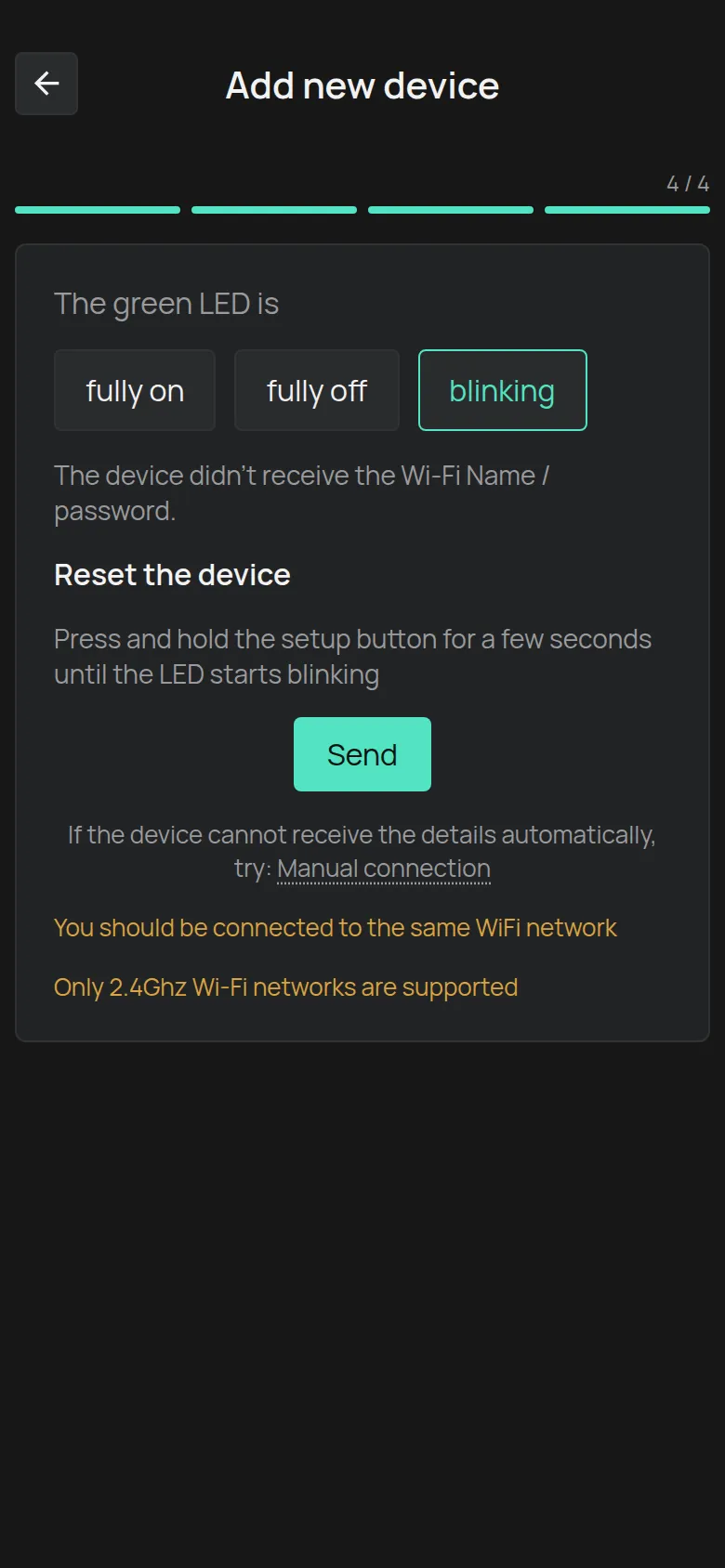
The screen reminds you of two rules: You should be connected to the same WiFi network and Only 2.4Ghz Wi-Fi networks are supported.
Step 5: Claim the device
Section titled “Step 5: Claim the device”-
Tap Claim device.
-
Type the Device key from the label.
-
Tap Add.
The app opens the page of the new device.
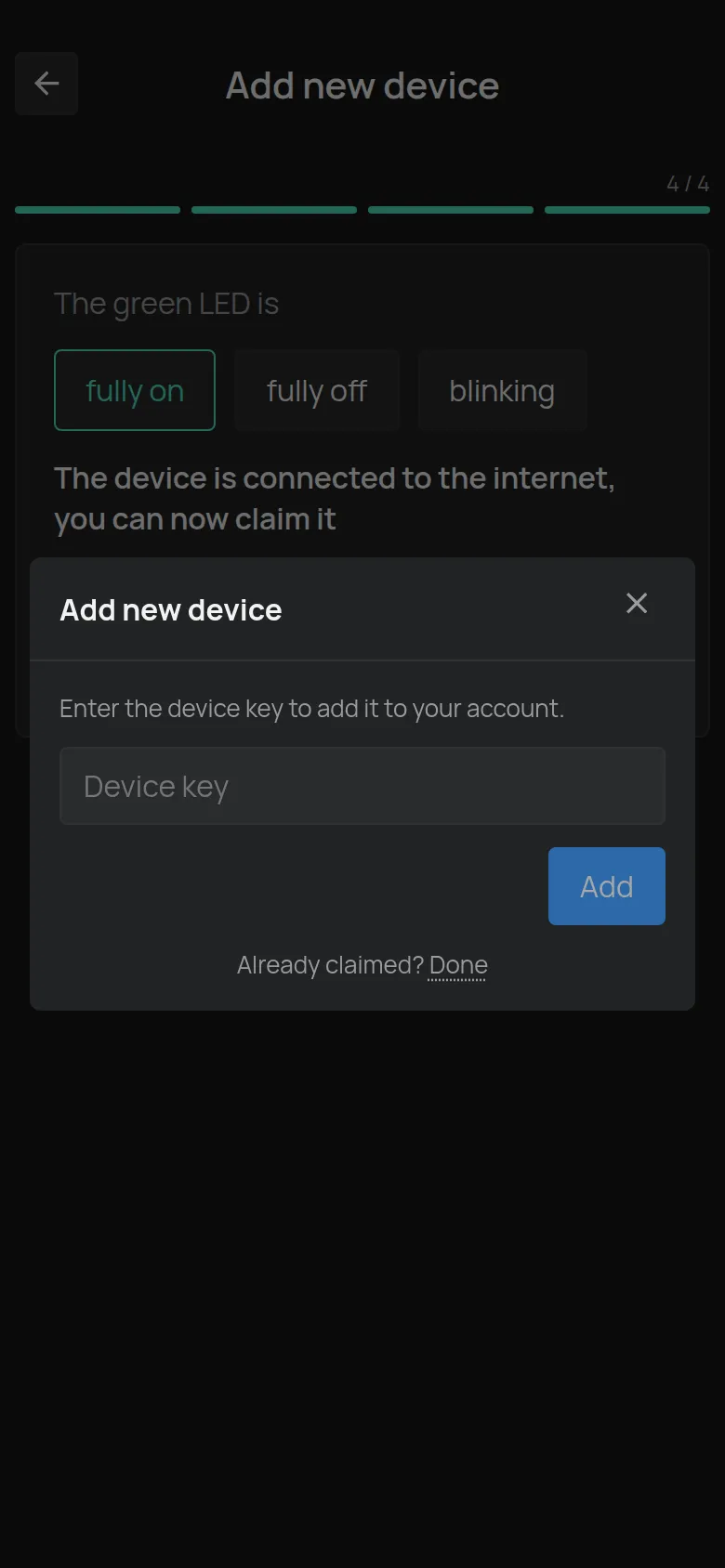
If the device is already on your account, for example because you changed your router, you do not need a new claim. Tap Close next to Already claimed?.
For the error messages, see Claim a device with its Device Key.
If something goes wrong
Section titled “If something goes wrong”- The app cannot send the details: Connect through the device hotspot.
- The LED does not come on: The WiFi connection fails.
- The device connected, but later it shows as offline: The device shows as offline.