

The WiFi connection fails
What you see
Section titled “What you see”At the last step of the setup, the app asks what the LED does: The green LED is fully on, fully off or blinking. Your answer shows the problem.
| The green LED is | What it means | What to do |
|---|---|---|
| fully on | The device is connected. | Continue and claim the device. |
| blinking | The device did not receive the WiFi name and password. | See The LED is blinking. |
| fully off | The device received the details, but it cannot connect to the internet. | See The LED is off. |
Some devices show the connection in a different way. For example, on the HAM RemoteAC the blue LED goes off. The thermostat shows a steady connection icon. See What the LED colours mean and the page of your device.
The LED is blinking
Section titled “The LED is blinking”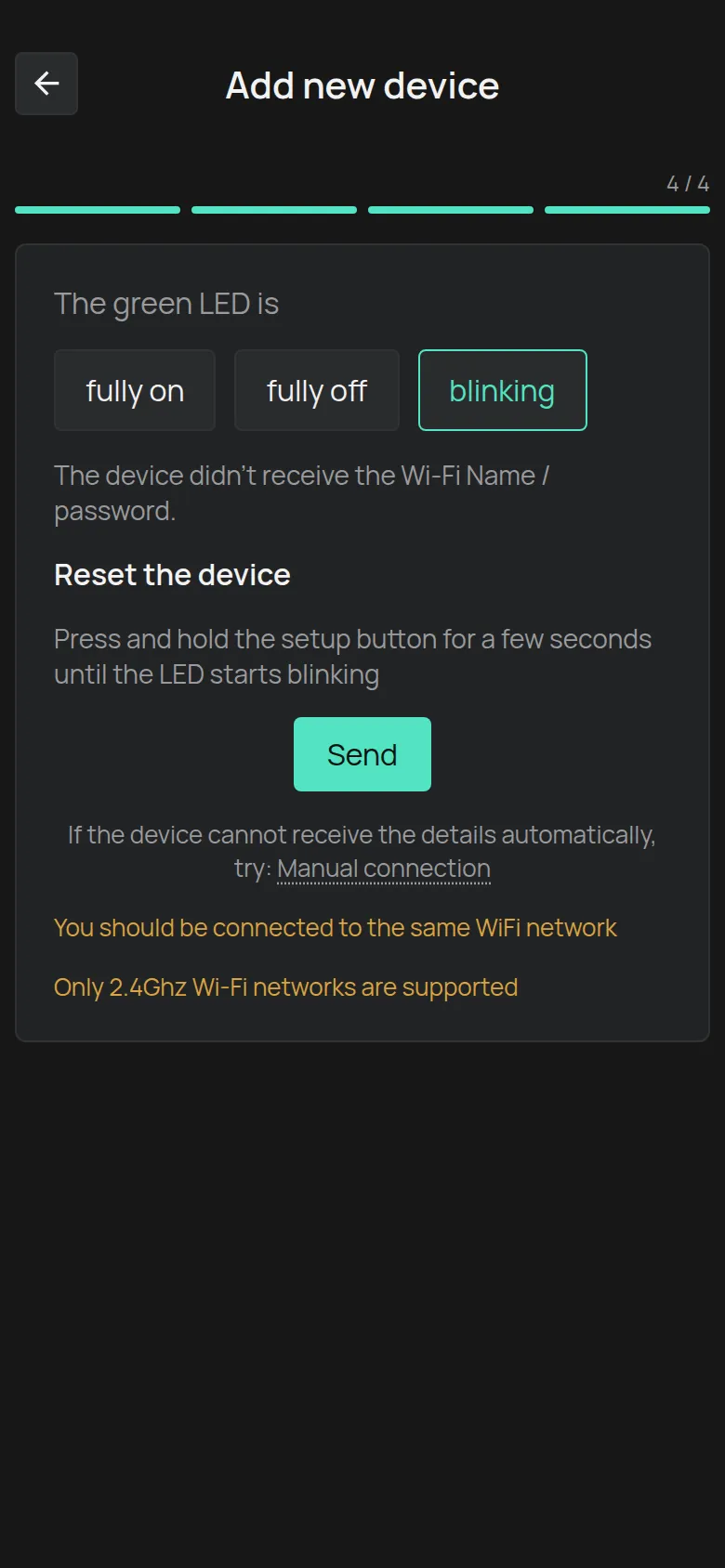
The device did not receive the WiFi details. This occurs frequently on the first attempt.
- Hold the setup button of the device until the LED starts to blink.
- Tap Send. Usually the second attempt is successful.
- If it is not successful, tap Manual connection. See the next section.
Also read the two messages at the bottom of the screen:
- Only 2.4Ghz Wi-Fi networks are supported. HAM devices do not connect to a 5 GHz network.
- You should be connected to the same WiFi network. Connect your phone to the WiFi that you want the device to use.
Manual connection
Section titled “Manual connection”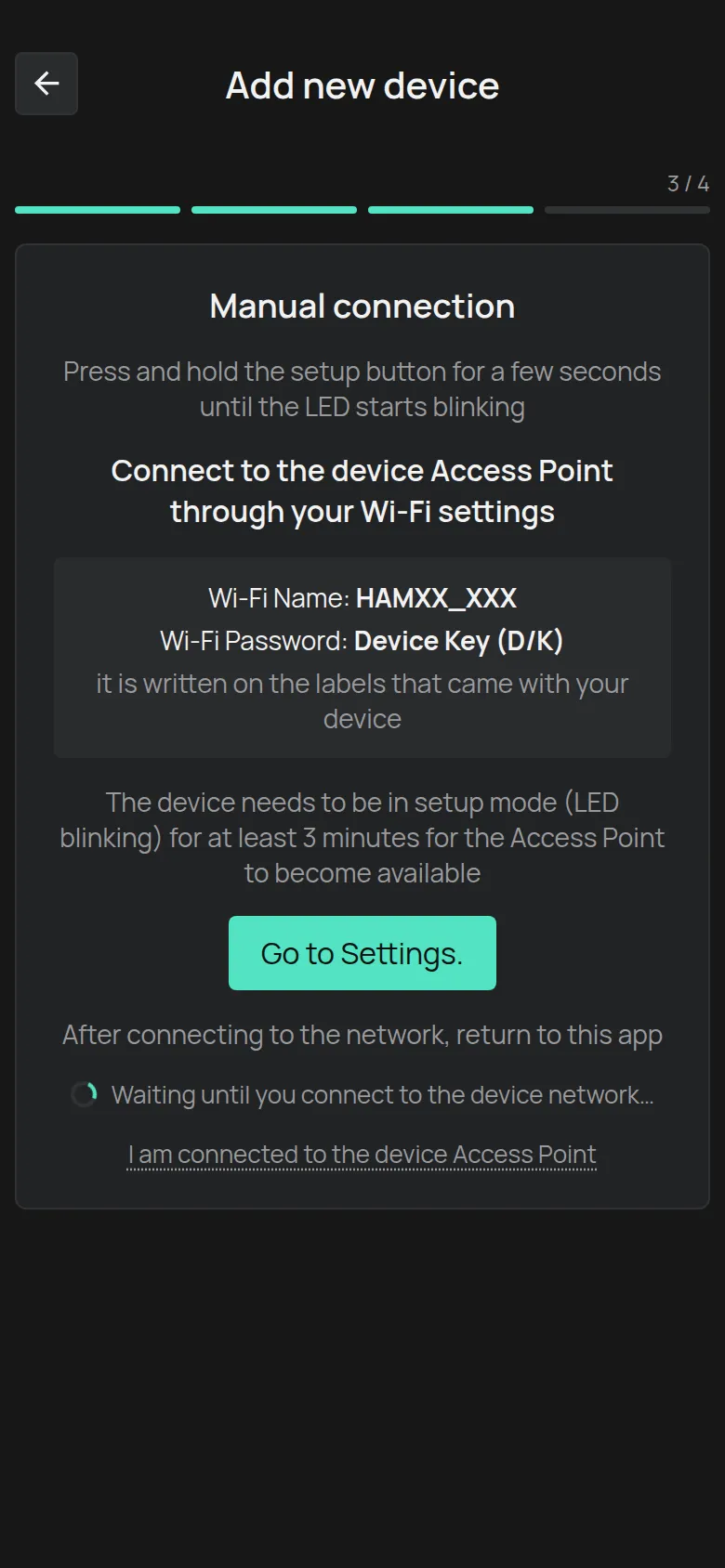
With this method, your phone connects directly to the WiFi network of the device.
- Put the device in setup mode. The LED blinks.
- Wait at least 3 minutes. After this time, the device shows its own WiFi network.
- Tap Go to Settings. to open the WiFi settings of your phone.
- Connect to the network with a name like
HAMXX_XXX. The password is the Device Key (D/K), which is on the label of the device. - Go back to the app. When the app finds the device, it continues by itself. If it does not continue, tap I am connected to the device Access Point.
Also see Connect through the device hotspot.
The LED is off
Section titled “The LED is off”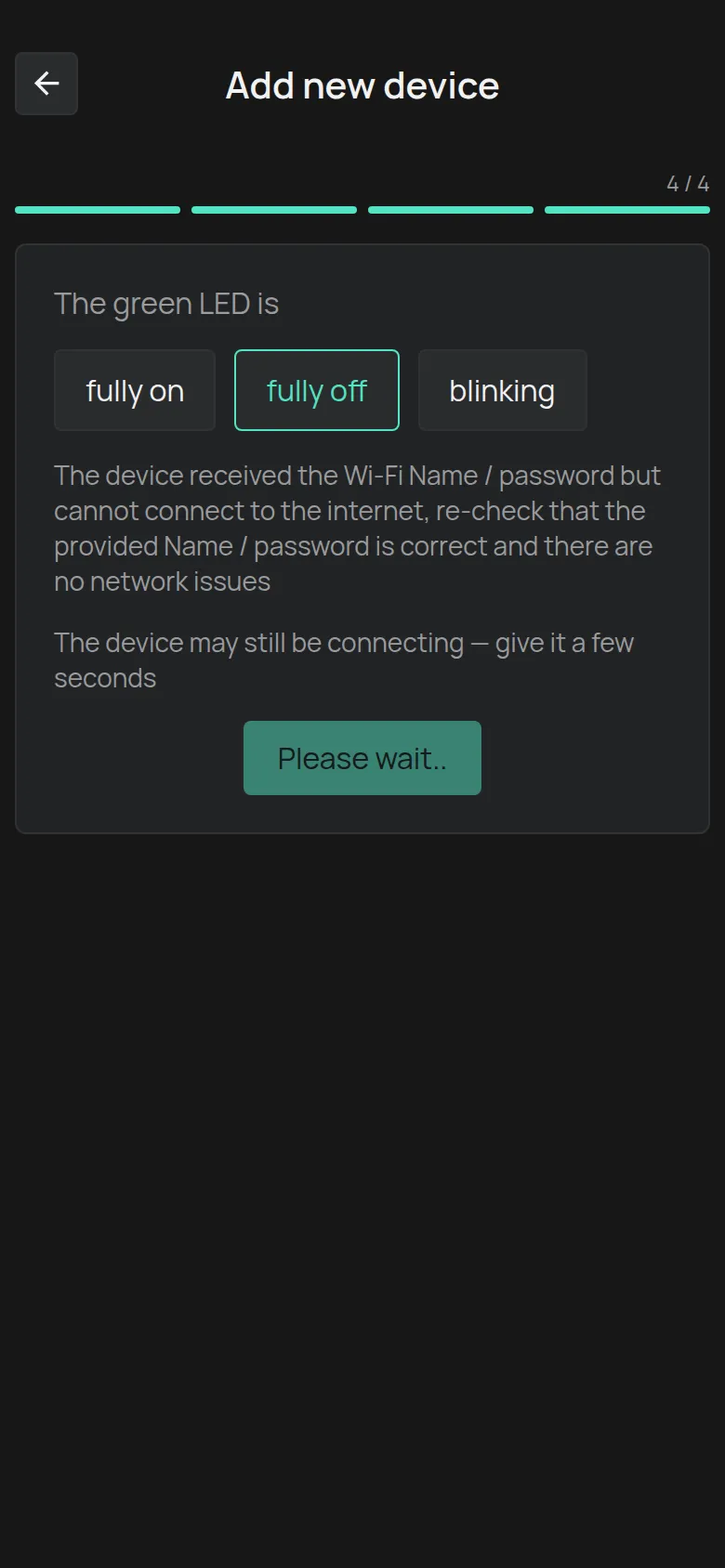
The device received the name and the password, but it cannot connect to the internet. Check these items in this order.
1. The network password or name is wrong
Section titled “1. The network password or name is wrong”This is the most frequent cause. Type the name and the password again. One space at the end of the password is sufficient to stop the connection. Check upper-case and lower-case letters.
2. The network is not 2.4 GHz
Section titled “2. The network is not 2.4 GHz”All HAM WiFi devices work only on 2.4 GHz. Many routers have one name for 2.4 GHz and 5 GHz together. Then the device can fail to connect.
Fix: Give the 2.4 GHz network a different name in the router settings. See Router settings.
If the router gives only a 5 GHz network, turn on the 2.4 GHz network or make a second network (SSID) for 2.4 GHz only. If the router has no 2.4 GHz, add a 2.4 GHz access point.
3. The channel width is not 20 MHz (older devices)
Section titled “3. The channel width is not 20 MHz (older devices)”Older devices, with a serial number that starts with a number (for example 25:), connect only to a 2.4 GHz channel with a width of 20 MHz. Newer devices, with a serial number that starts with e (for example e13:), do not have this limit.
Fix: Check the channel width with a WiFi analyser app, for example WiFiman. Set 20 MHz in the router settings.
4. The signal at the device is weak
Section titled “4. The signal at the device is weak”Check the signal at the point where the device is, not at the point where you are. Metal panels, fridges and walls decrease the signal very much.
5. The router has no internet
Section titled “5. The router has no internet”Open a web page from another device on the same WiFi.
6. The router security settings block the device
Section titled “6. The router security settings block the device”Check these items on the router:
- The firewall level. Try a lower level.
- The MAC address filter. Turn it off, or add the device to the list.
- Client isolation. Turn it off.
- DNS filtering. Turn it off.
- The sign-in page (captive portal). The device cannot sign in on a web page. Ask the IT department for a WPA2-PSK network without a sign-in page.
- The network security. Use WPA2. WPA3-only networks and enterprise networks with a user name are not supported.
- The IP address. The device gets an address only from the DHCP of the router.
On a company network, give your IT department the Network requirements (for IT).
7. iPhone: local network access is off
Section titled “7. iPhone: local network access is off”On the iPhone, open Settings > HAM app and turn on Local Network.
Other messages
Section titled “Other messages”- Please enable Bluetooth: Turn on Bluetooth on your phone.
- On Android, the app needs the location permission to show the WiFi networks. Give the permission when the app asks for it.
When to contact support
Section titled “When to contact support”- The device does not go into setup mode.
- The
HAMXX_XXXnetwork never appears, also not after 3 minutes. - You checked all the items above and the LED stays off.
Contact support and give the serial number, the router model and what you tried.